We spend a lot of time researching and talking about what teachers need from technology but we often forget that our students, who spend the years of their education watching various teachers struggling to get to grips with technology, have a unique insight in to what works for them and where things are going wrong. That’s why it’s great to see Cikumas, an LMS created by two students to produce the kind of classroom environment and activities they want as part of their learning process.

Alexander Degenhardt and Noah Liebherr, developed Cikumas due to the frustrations they felt in their classroom. Although they experienced multiple online solutions as learners, they didn’t feel that these catered to the needs of students, so they took the opportunity to create their own solution.
Unlike many other LMS such as Moodle, the learning curve for Cikumas is pretty gentle and once you log in you should be able to create some interactive content for your students pretty quickly.
When you first log in to Cikumas you go straight to the dashboard. Here you can see any active assignments that your students are working on as well as your calendar and your personal to-do list.
 To start creating content and courses for your students just click on the ‘Library’ icon. This is where you will be able to store and curate all of your lesson activities and materials.
 To create a lesson or activity just click on ‘Add New,' then give your activity a name, choose the topic area and add a description. You can come back and change these later if you need to.
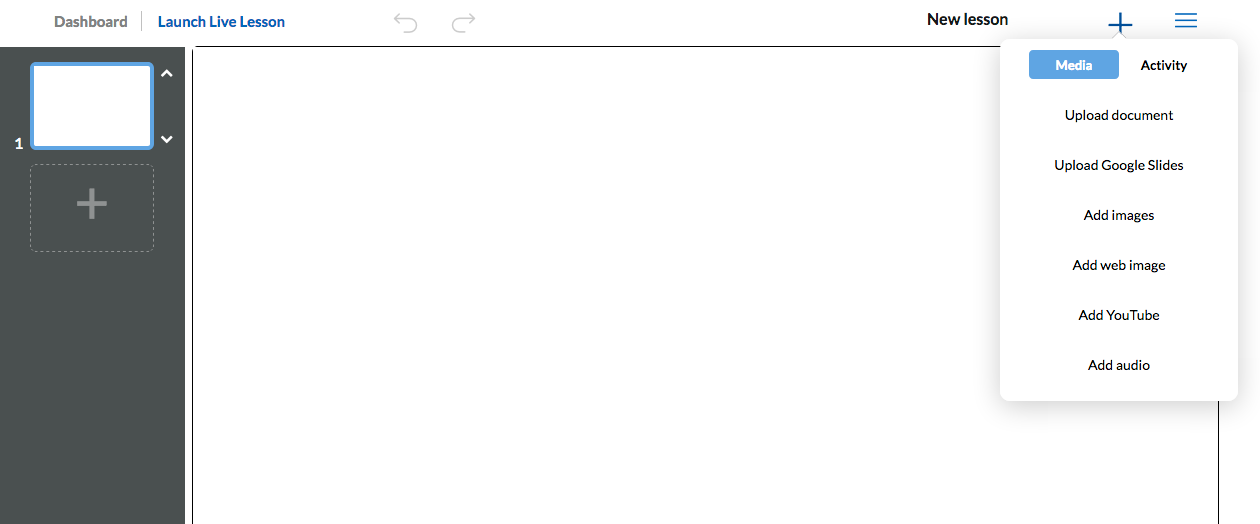
 Now you can add four types of content to your lesson. These are Text, Question, Media or File.
 The text blocks have a simple to use editor that allows you to format any text content and add images and hyperlinks to external content.
Media allows you to add the usual video, image or audio files, but also mathematics equations. When adding media you can do this either from your computer, your Google Drive or from online sources such as YouTube, or in the case of images, through a Google search. You will need to allow access to your Google account to do this though.
Adding files is equally as simple and you just drag and drop any file types you want student to access and they will be uploaded.
Where Cikumas starts to get really interesting though is when you start adding question types.
There are four main types of question you can add.
Mutiple choice - These are the usual single select, multiple select, yes/no and true/false types. To create one of these questions you just click on the type you want and then add you question and answer options. You can also select how many points the students are awarded for a correct answer.
 Fill in the blanks - There are two kinds of blank filling question types. You can choose to create a text with gaps the students have to type into or you can select which words are extracted from the text and then students drag the words back in to the spaces.
 Classify - There are two types of classification question types. You can either get students to drag and drop text labels to images or they can order parts of a text.
 Free response - There are two types of free response. You can either get students to type an answer into an open field or they can record and audio response.
 These interactive question types are ideal for language learners and teachers and enable you to quickly create very professional interactive content.
Once you have created your lessons and activities, you can go to ‘My Classes’ and create your classes and invite students to them.
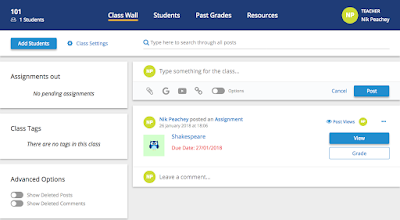
 The ‘My Classes’ part of the site is where you will come to monitor your students results and grade their responses, but there is also a class wall where you can make announcements to the class and post and share interesting materials. This can help to keep students engaged with a wider range ad-hoc learning materials and keep them up-to-date on any course changes or assignments.
 Even as an experienced Moodle developer, I found that creating materials within Cikumas was much quicker and simpler. It doesn’t have the level of customisation that a platform like Moodle has, but for teachers who just want to get straight down to creating learning materials it’s a much simpler and more direct route to creating motivating learning that looks really professional and is easy to manage for both teachers and students.
I hope you enjoy using Cikumas for your students and that it helps you to save some time and deliver interactive classroom and homework assignments.
My Books:
Nik Peachey

How to use Cikumas
Cikumas is a very clean and easy to use LMS that allows teachers to create media rich interactive content, distribute it to their students either in class or for homework and then monitor their results and responses.Unlike many other LMS such as Moodle, the learning curve for Cikumas is pretty gentle and once you log in you should be able to create some interactive content for your students pretty quickly.
When you first log in to Cikumas you go straight to the dashboard. Here you can see any active assignments that your students are working on as well as your calendar and your personal to-do list.


Media allows you to add the usual video, image or audio files, but also mathematics equations. When adding media you can do this either from your computer, your Google Drive or from online sources such as YouTube, or in the case of images, through a Google search. You will need to allow access to your Google account to do this though.
Adding files is equally as simple and you just drag and drop any file types you want student to access and they will be uploaded.
Where Cikumas starts to get really interesting though is when you start adding question types.
There are four main types of question you can add.
Mutiple choice - These are the usual single select, multiple select, yes/no and true/false types. To create one of these questions you just click on the type you want and then add you question and answer options. You can also select how many points the students are awarded for a correct answer.


Once you have created your lessons and activities, you can go to ‘My Classes’ and create your classes and invite students to them.


I hope you enjoy using Cikumas for your students and that it helps you to save some time and deliver interactive classroom and homework assignments.
My Books:
- 20 Tech Enhanced Activities for the Language Classroom
- Digital Tools for Teachers
- Thinking Critically through Digital Media
- Exploiting Infographics
- 10 Lessons in Digital Literacy
- Digital Video – A Manual for Language Teachers
Nik Peachey