Showing posts with label mlearning. Show all posts

Wednesday, 15 January 2020

Vocab Victor for developing vocabulary knowledge

Vocab Victor is a great app and resource for developing vocabulary. I say app and resource because as well as the free app you can download from the site, there are also some great resources on the website.

Let's start with the app though. The Vocab Victor app is a really useful example of gamified vocabulary development. The app has 14 levels and the user has to work through the levels playing different kinds of games to learn different types of word knowledge for hundreds of words.

There are 5 different types of game for developing vocabulary.

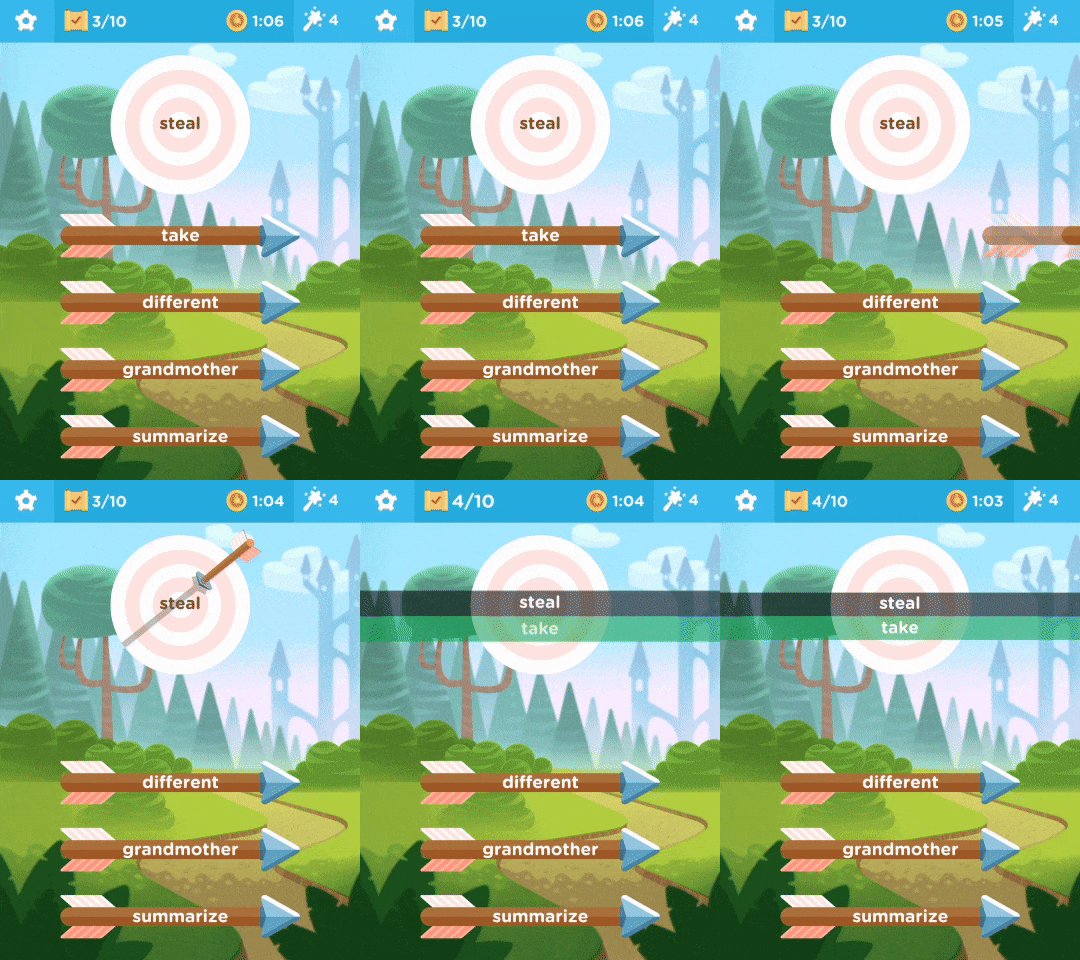
Word strike which is like a word association multiple choice game.
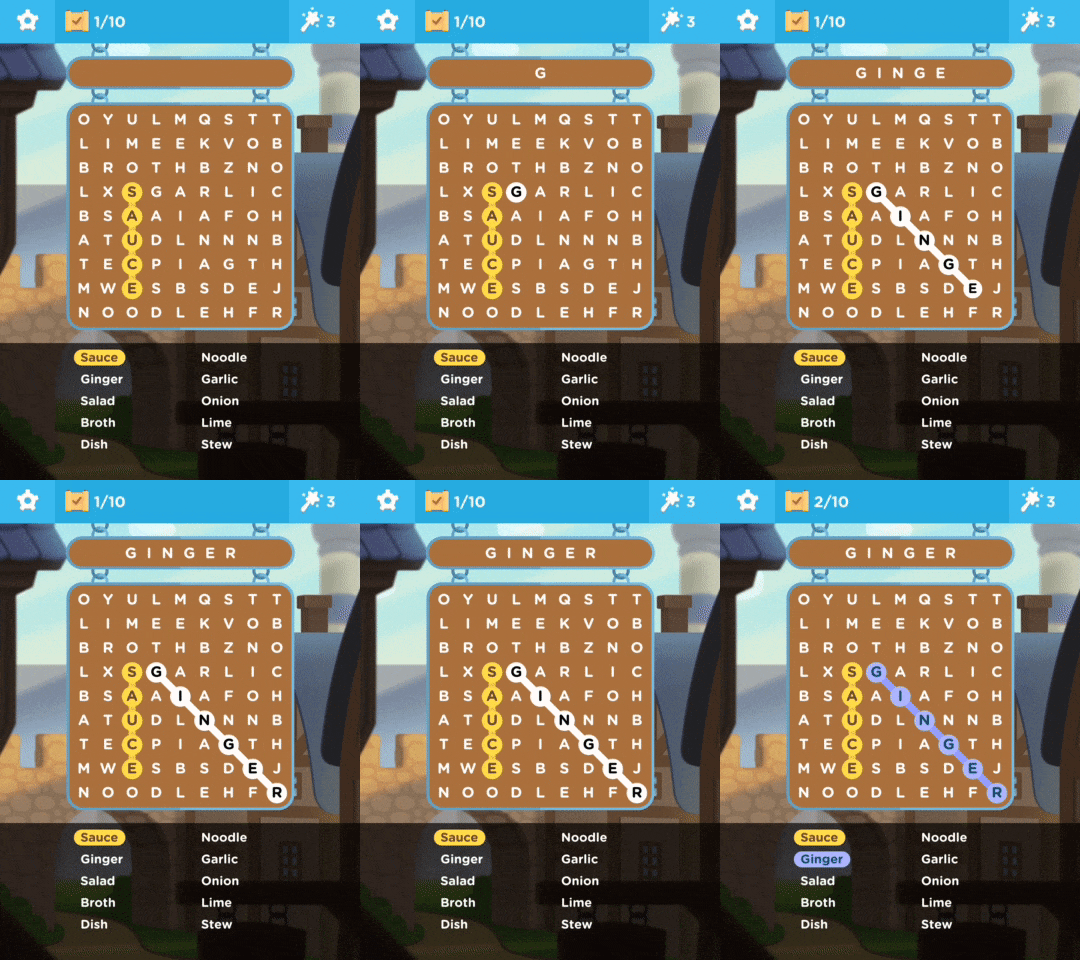
Word find which is like the classic word search activity.
Word drop which requires students to choose which of two words has the strongest association to the keyword.
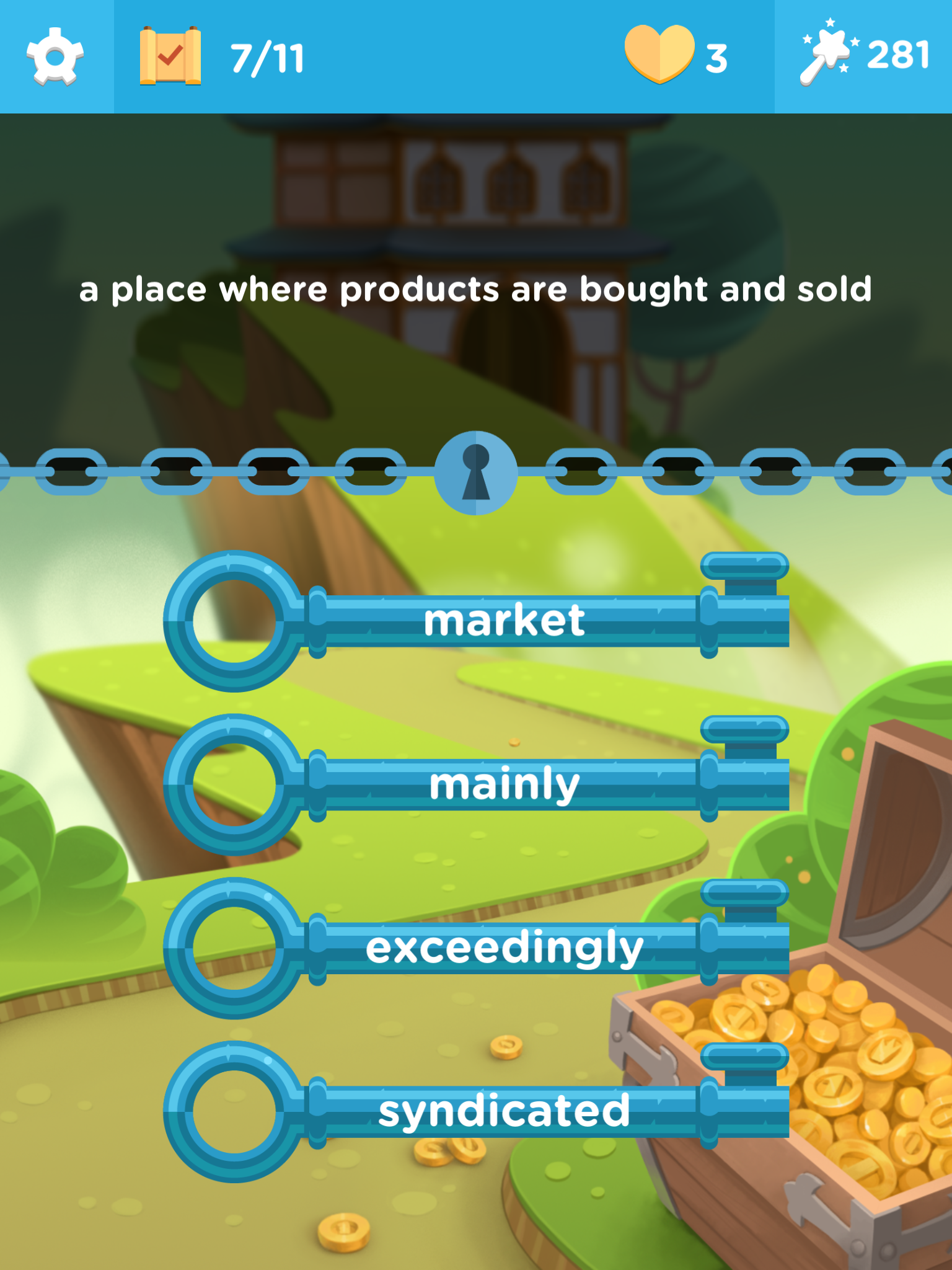
Word lock which requires students to match words to definitions.
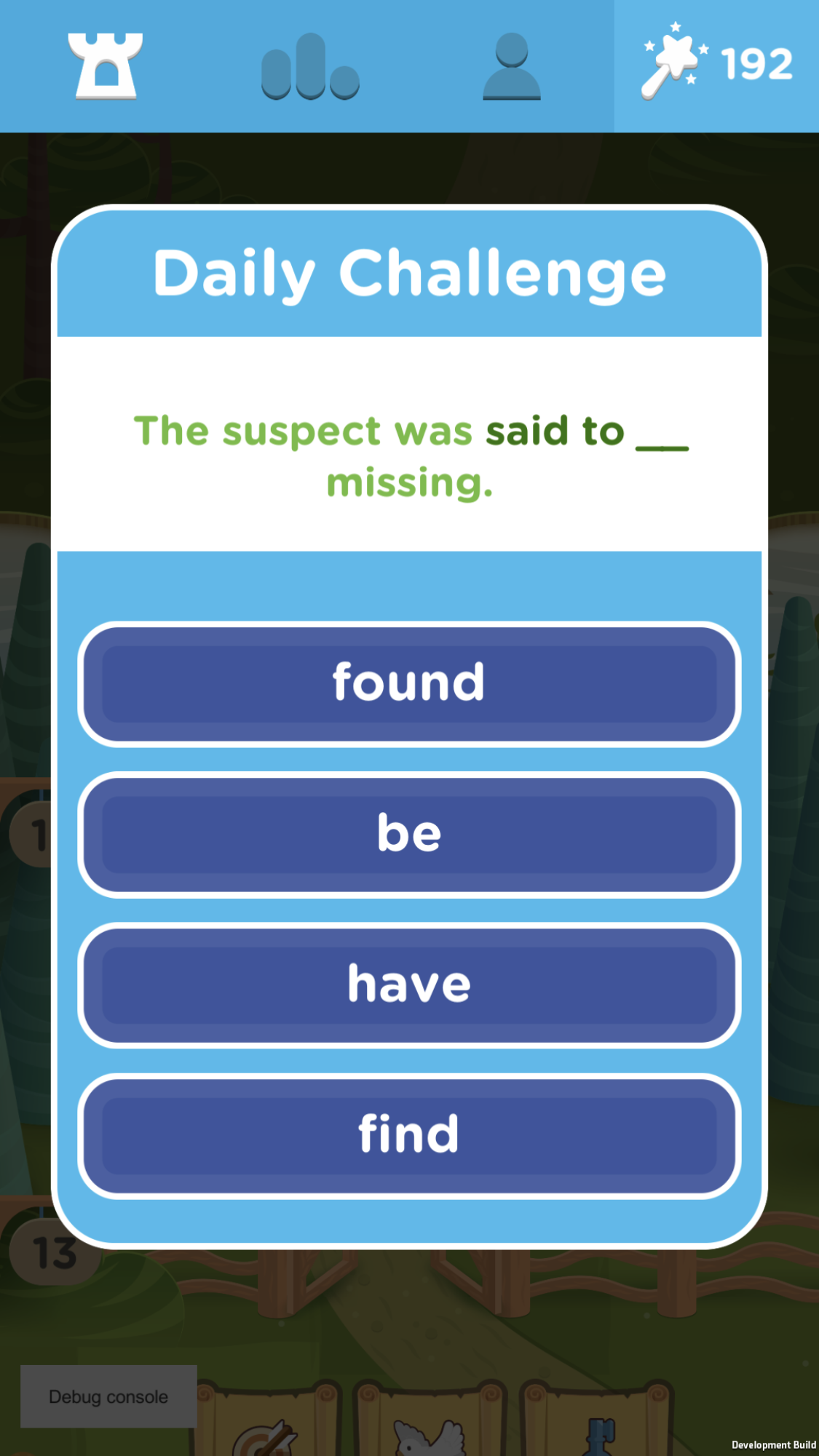
And a daily challenge game which focuses on collocations and word grammar.
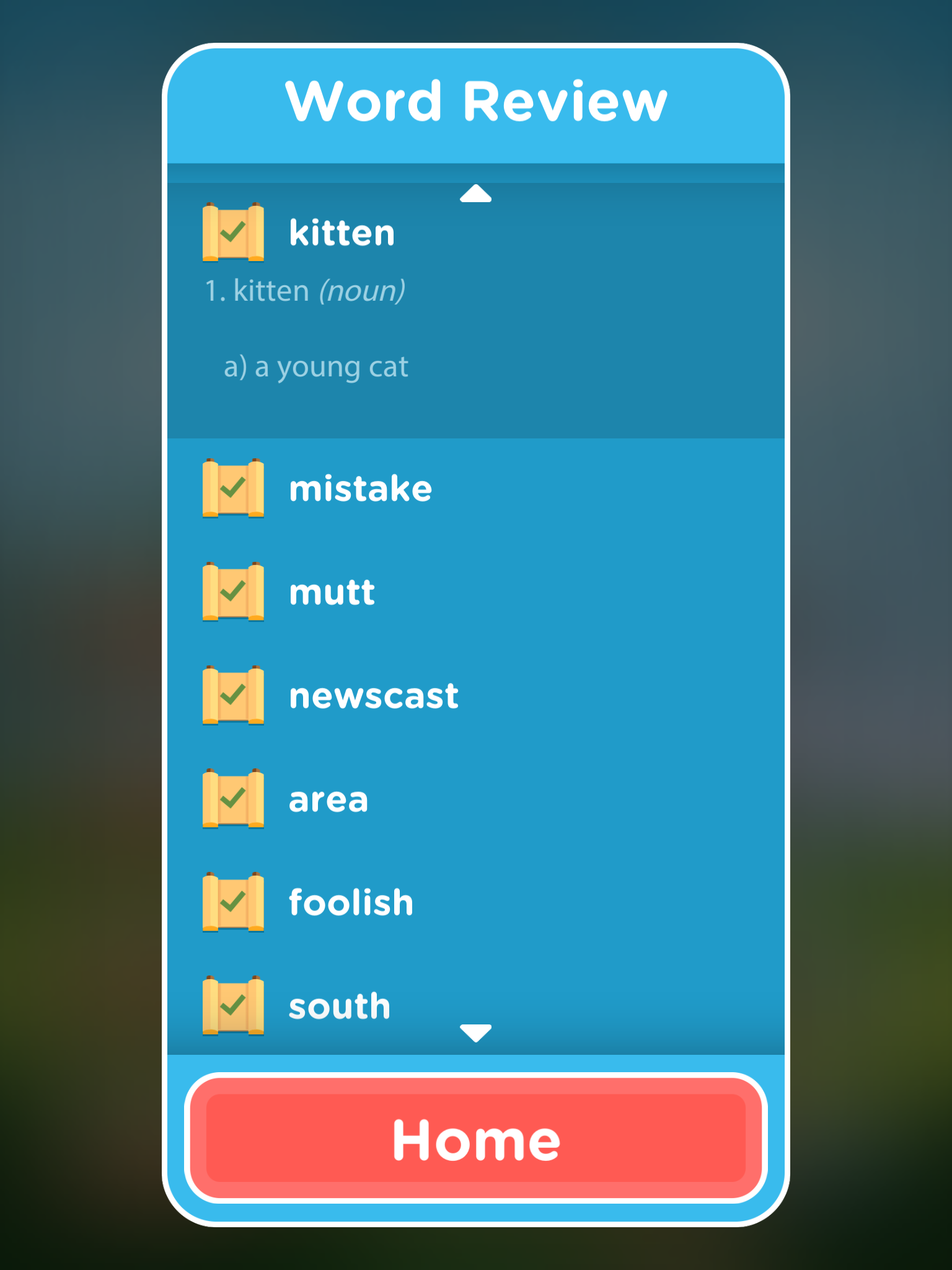
The games are attractive and very intuitive. Students can also review the words they have studied and as they work through the games they earn charms. They can use these charms to get help or to move on when they get stuck with a word.
There's also a leader board that they can use to see how they are doing in comparison to others playing the game.
The web site includes a word study resource, which lets students find more information for selected words, and even a video which gives an example of the pronunciation in use in a YouTube video.

There is also a vocabulary challenge course that has videos and information to help students learn 20 new words a week over 25 weeks.

Vocab Victor is a great free resource for students. It's probably best suited to students who are around an intermediate (B1 +) level as some of the words are quite difficult, but it can adapt to the students level, so if students are getting a lot of words wrong then it will find lower-level words.

Vocab Victor is a  great tool to use in class as a filler activity or better still get your students to download the app and practise in their free time. The app works on both iOS and Android.

Check Out My Books:


Best
Nik Peachey

Monday, 4 September 2017

10 Free Apps to Enhance your Students' Learning

In this post I'd like to take a quick look back at ten of the most popular posts I wrote from last month. These posts cover a host of free apps, games and resources sites that you can use to create engaging digital learning for your students.

Create Vocabulary Activities from Authentic Text in Minutes
WordBooster is a real time saver for anyone creating courses using authentic materials.
 The site generates word lists and vocabulary quizzes from authentic texts and includes definitions of the words and a range of activities to help students understand and remember the word.
Get Teens Writing with Gamified Writing Activities
Story Wars is a great gamified way to make writing creative and competitive.
Students read short chapters of the beginnings of stories and then have to submit the next chapter for the story.
Give Young Learners Structured Writing Practice with WritingSparks
WritingSparks is a great site for giving structure and adding an element of fun to writing activities, especially if you have a data projector so that students can see the prompts on the screen.
Create Texting Fiction to Keep Your Teens Engaged
Texting fiction is a new emergent genre of fiction writing that is becoming very popular among teens and I have to say when I started reading a few of these creations I can see why.
Basically the narrative is structured as a phone based text conversation and can include images and videos as well as text and audio message
6 Useful Resources for Exploiting the News in the English Language Classroom
In this article I'm sharing a collection of resources that you can use with your students to help them understand news stories in English.
Create Animated Speaking Activities with Toontastic
Toontastic provides the kind of activity that could be used to get younger students speaking and it gives them the opportunity to play out different roles and to listen and reflect on their own speaking before they save and share.
Build Your 3D Virtual Reality Classroom Today
This is a great tool for running online group classes or social events for online students.

There is also now the capability to build course materials and launch commercial courses through: . You can also take free courses that can help you use the platform.
Using Computer Games to Raise Awareness of Global Issues
In this post I'd like to introduce a few games that you can use with students as a springboard for discussion on what can be some difficult issues for teachers to address in the classroom.
Get Students Creating Video Summaries with Lumen5
This is a great tool for quickly creating video summaries. You can use it to write a short summary or just put in the URL of an online article or blog posting and then pick the parts of the text you want to include in the video.
I hope you enjoy these resources and make good use of them with your students over the coming year.

You can find more tools and activities like these in my ebook 20 Tech Enhanced Activities for the Language Classroom.

The book is available on iOS or as PDF for other devices.

Sign up for my twice monthly free newsletter and get a free copy of Digital Tools for Teachers at: https://tinyletter.com/technogogy/ 

My Books:
 Best

Nik Peachey

Thursday, 18 September 2014

HelloTalk - A language learning community on your mobile

I've always liked the idea of language exchanges and peer learning as the learning tends to be driven by and through an authentic desire to communicate.


HelloTalk is a wonderful example of this, but with lots of nice features to make the process mobile and more efficient. Most of these features are accessed by pressing down on your partner's text to get the pop up tool bar.


HelloTalk is a free app that you can download for either iOS or Android. Then once you have registered and created a profile you can find language partners to exchange languages with.

Finding a partner
Once you have registered on the app and created your profile showing which languages you speak and which you want to learn you can start looking for exchange partners. Clicking on 'Search' at the bottom of the screen will show you a list of the people on the site. You can browse this and see how recently they have been online and check out their profile or you can type in a specific name or email address to search for someone you know. You can also customise your search to specific age, level, nationality and you can even search for people from a specific city.

Once you have found someone you can send them a message or add them as a partner and they will get a partner request.

Features
Once you start chatting with someone, things start to get interesting. You can text chat or send voice messages by clicking on the microphone icon to record.

You can also send images or doodles using a drawing pad. These features open up the app to a deeper level of engagement as you can share more interesting content to talk about.


You can play games like pictionary or use the doodle pad like a whiteboard to draw images and explain vocabulary. The images are then sent to your partner through their chat interface.


If you don't understand what your chat partner is saying you can also press down on their text and get a translation.


If your partner makes a mistake in their text you can correct them. Just press down on their message text then write in the corrected version of their text beneath the mistake and your partner will be able to see their version and the corrected version. You can even add an explanation comment. All of the corrections are automatically saved into a separate area of the app and you can go back and revise and check them.

If you don't know how to express what you want to say in the language you are learning, you can also type in your mother tongue and get it translated before you post it.

If you join a chat exchange group with your partner, you can decide whether you want to chat by text or by voice and for how long or how many words. The time spans are all quite short so this is ideal for doing some short bursts of learning when you have a just a few moments to spare or some time to kill on the train, etc.

Finally, HelloTalk has a Notepad where you can send messages to yourself or copy and paste parts of your chats that you want to remember.

Security
One of the first concerns with any service that connects our students to people they don't know, is their privacy and security. HelloTalk seem to be taking this very seriously and make it very clear that any one using the app for flirting or sexting purposes will be blocked and banned.

There are a range of built in security settings. These include tools to block anyone making you feel uncomfortable as well as initial security and privacy settings that allow you to limit your visibility within the community and control who can approach you for language exchange.

Conclusion
  • I've been using HelloTalk for a few days now, mainly with my wife, who is teaching me Spanish, and I really like it. I feel like the learning tools and the record of our conversation and the corrections help to make my learning more tangible and enable me to reflect on our interaction and to go back and check things and revise.
  • I really like that I can 'try to' express things and then get some immediate feedback on my errors. This happens when we talk face-to-face, but I don't have the written record of our interaction.
  • It's great that HelloTalk are taking privacy seriously too and that it's very easy to block people or restrict who can see you.
  • Because there are quite a few features, there is a learning curve to the app and it takes a little while to understand how to use everything, so it may be best to start off by practising with a friend just sitting next to them so that you can see what's happening on each device.
  • The app is perhaps also best suited to younger people, though under 18s are discouraged, who are more comfortable with the concept of chatting to people they don't know online, but if you are feeling brave, then I certainly think that with regular use this could lead to improvements in your language level.
  • If you recommend it to students, then it would also be good to set them some tasks to do or topics to discuss, as often the most difficult thing when talking to someone you don't know is just thinking of something to talk about.
  • HelloTalk would also be a great app to use with your class to do language exchanges with a class in another country. You could partner your students up, set them tasks and know that they will be safe and have some tools available to support their language exchange experience.

I'm really enjoying using HelloTalk now. I hope you find it useful too.

Related links
Best

Nik Peachey


Sunday, 25 November 2012

A Great app for developing spelling


I've been a fan of SpellingCity.com for quite some time now and I was fascinated when I heard they had produced a free app. For those of you who don't know about SpellingCity, the website enables learners or teachers  to enter a word list and then automatically generate a range of interactive multimedia activities based around the words. The site automatically adds audio recordings of the words and example sentences to the activities it generates. There is a great range of activities that students can do within the site and they can generate certificates for their teacher or parent to prove they have done their homework.

The app is in many ways very similar to the site. There are some ready made word lists and you just click on one and then click on the type of game or activity you want to play. The app has six different activity types:


Spelling TestMe - In the activity students have to spell out the words from the word list. To do this they hear the word in isolation and then again in the context of a sentence. They then type the word into a field. At the end of the activity they find out how many of the words they spelled correctly.


If they got any of the words wrong they can go to the 'Teach ME' activity which spells the word for them using audio and text and gives them an example sentence containing the word.

The MatchIt activity tests the students understanding of the words by getting them to put the words into gapped sentences. Again the students don't get feedback until they have finished the activity, so this reduces the tendency to randomly try to guess.


Which Word is a multiple choice type activity and students have to choose the correct word to complete the gap in a missing sentence.


The Sentence Unscramble activity tests students understanding of syntax, by getting them to arrange the words from the sample sentences into the correct order. The students can get an audio hint on this activity if they are stuck.


My favourite of the activities though, and the one that is most popular with my students is the Hang Mouse activity. This is SpellingCity's own variation on the hangman game. Students try to guess the letters that spell out words and each time they guess, the mouse runs to tab some cheese. Each time they guess incorrectly, the cat starts to wake up, and if they get too many wrong letters the mouse gets trapped.


As you can probably tell, the app is aimed very much at the younger end of the learner market though the word lists do go up to grades 10 - 12.

To get the best from the app you really have to have a SpellingCity account as this enables you to import your own word lists and to manage and track your learners' scores. That said, you can create a basic account for free.

On the whole the Vocabulary SpellingCity isn't going to cause an educational revolution, but it is a good simple app which does what it sets out to do in a user friendly, engaging and intuitive way, so if your students' spelling and vocabulary needs some work then why not get them using it.

You can download the app from the iTunes store at: http://itunes.apple.com/gb/app/id538407602
Sadly there's no Android version available at the moment.

If you have used the SpellingCity app or something similar I would love to hear your comments and suggestions.


This post was sponsored by RM Education Shop a great place to buy all your educational technology hardware.


Related links:


Best
Nik Peachey

Wednesday, 18 April 2012

iPhone for Speaking Homework

Getting students to do speaking homework has always been quite a challenge, but for those students with smartphones we can now get them using free apps to practice and develop their speaking abilities. This speaking tasks requires the download of a free app called the VTR2 Video Recording Teleprompter from http://vrt2.com/.

The app acts as a teleprompter which scrolls a text across the screen of your devices and records you speaking as you read the text.

The app can be used on iPhone or an iPad with a camera. It's very simple to use. When you launch the app you see 3 buttons at the bottom of the interface. These are:
1. The video gallery icon which links to a collection of all the movies you make with it.
2. The 'Record' button, which starts the text scrolling and records you speaking.
3. The settings icon which enables you to control the speed and size of the text scrolling and change the text.

To get started, find a text that you want your students to read. I chose a poem as this is more suitable for reading out loud.

Go to the settings and scroll down to text. There you can replace the existing text with the one you or your students want to read.

Then then tap on 'Done'.


 Now go back to the launch screen and click on 'Record'. Read the text as it scrolls down the screen and then when it is finished click the 'Record' button again to stop it.

You can then click on discard to try again or 'Save' if you want to view your recording.

You need to give the recording a name and to save it.

You can then go to the gallery and watch and listen. From the gallery the videos can either be deleted or shared.

Tapping on the 'Share' button enables users to either send the recording as an email attachment or upload it to YouTube.

The video recordings export to email as .mov and are quite big files, so emailing them can be slow.

So, if you have a YouTube account for your class and they are confident enough, it might be good to get students uploading and sharing them there or on a blog.

How to use VTR2 with students
  • You can get them recording short poems or monologues from films. This is particularly effective if they have a model that they can compare their recording to so that they can try to improve.
  • You could get the students to record jokes to share so that they practice good timing and delivery.
  • You can get them to record speeches or quotes from famous people.
  • Try to get students listening to each other and praising the ones they like best.
  • Give students feedback on ow and where they can make improvements and get them to record again.
  • You can also get students to think about how they look when they are speaking, so that they think about some of the visual aspects of communication like eye contact, facial expression etc.
  • Try to keep an archive of your students recorded work so that both you and they can go back and look at earlier work to see improvements.
Most feedback on speaking activities is given by the teacher after the activity and it can be hard for students to remember or be aware of what they did wrong or right at the time, but using a tool like this students can really see and hear what's happening when they are speaking and you can really give them tangible feedback on their performance.

I hope you enjoy this  http://vrt2.com/ and that your students find it a really useful way of improving their speaking skills.

Related links:
 

Best

Nik Peachey