Showing posts with label mobile learning. Show all posts

Tuesday, 31 March 2020

Add learning activities and games to your zoom classroom with Raptivity

In these difficult times when schools and universities are rushing to develop credible and engaging online learning, Raptivity 2020 looks like a really useful low-cost tool to enable that process.


Raptivity 2020 is a great content authoring tool and is capable of creating dynamic and media-rich learning that is adaptive across mobile, tablet and desktop screens.
One of the striking things about Raptivity is just how simple it is to create great looking materials. When you log in, there are two parts to the dashboard, one area where your work is stored and the other where you create content.

There are a good range of content types with a good balance between presentation formats and gaming/testing types.
Each content type has an example so you can see how it works and what it looks like to students and then you can just select the ones you want and customise them with your own content.

These are some examples of the presentation types:
  • Layered Display: This content type allows the students to choose from a range of topics within the main theme. Understanding sexual harassment.
  • Panning Slides: This content type is more like a linear presentation with a menu at the side so students can jump around a little. Example: Fruit and Vegetables
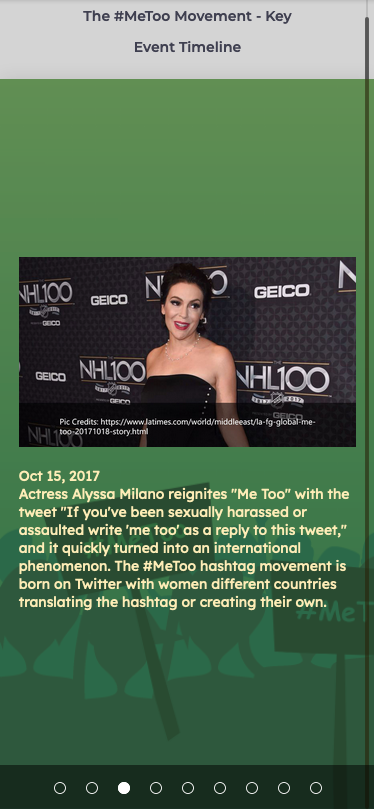
  • Horizontal Parallax: This content type is more like a timeline that students can work through. Example: The #MeeToo Timeline 
These are some examples of the game type activities:
  • This one is based around a bowling alley. Students answer question to get the opportunity to bowl and see whether they got the answer correct.  
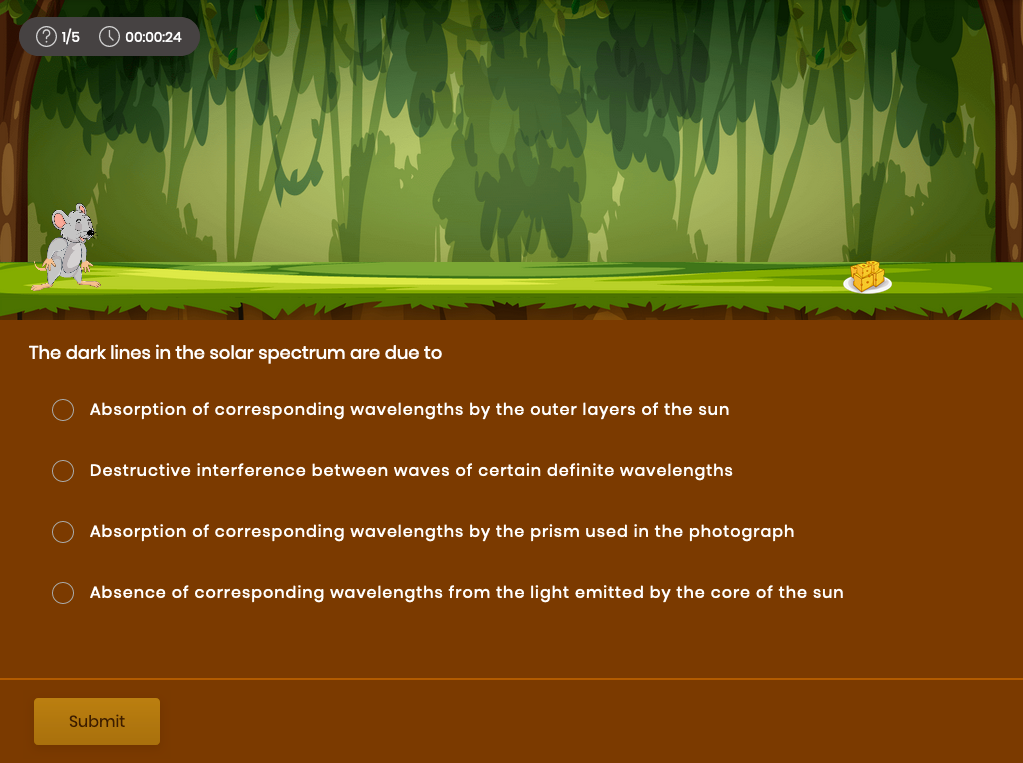
  • This one is based around a mouse trying to get cheese. Students answer questions correctly and the mouse gets the cheese, but if they make enough mistakes, the cat scares the mouse away. 

All of these content types can easily be customised with your own content. This includes adding audio narration for each slide and embedding your own video from social media.
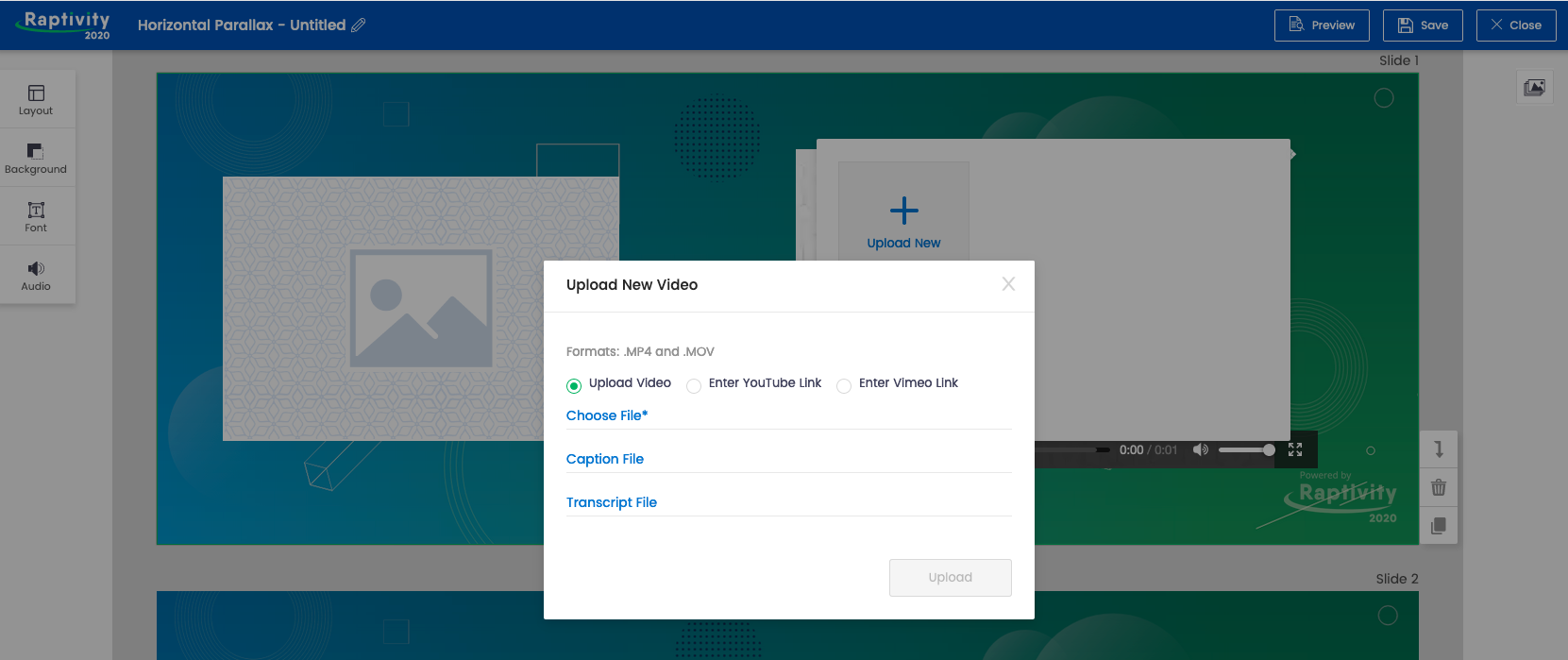
Once you have added your content to the slides and games you can see what they look like on either tablets or phones in both horizontal and vertical mode.

Once you have saved your finished activities they are stored in the 'MyWork' section and from there you can either publish and share them through social media or email or export them for use in your own learning platform. All of the content produced is SCORM compliant.

You can also run the published content while screen sharing during a live class in Zoom or any other online classroom, or pass links to students through chat so they can do activities in pairs or breakout rooms.
Raptivity has a free 14-day trial which should be more than enough time to learn how to use the tool and produce some engaging content. Signing up for a year is very economical compared to other similar platforms. There doesn't seem to be a monthly plan at present, but at time of writing there is a 25% reduction.
Raptivity is well worth a try if you want to quickly create online learning content that's both engaging, media-rich and which looks fresh and professionally designed.

You can find links to many more resources like this and activities for the digital classroom in my ebooks at: https://payhip.com/peacheypublications
To sign up for my free newsletter and get a free copy of Digital Tools for Teachers go to: http://eepurl.com/dtgL79

Check Out My Books:
Best
Nik Peachey

Wednesday, 15 January 2020

Vocab Victor for developing vocabulary knowledge

Vocab Victor is a great app and resource for developing vocabulary. I say app and resource because as well as the free app you can download from the site, there are also some great resources on the website.

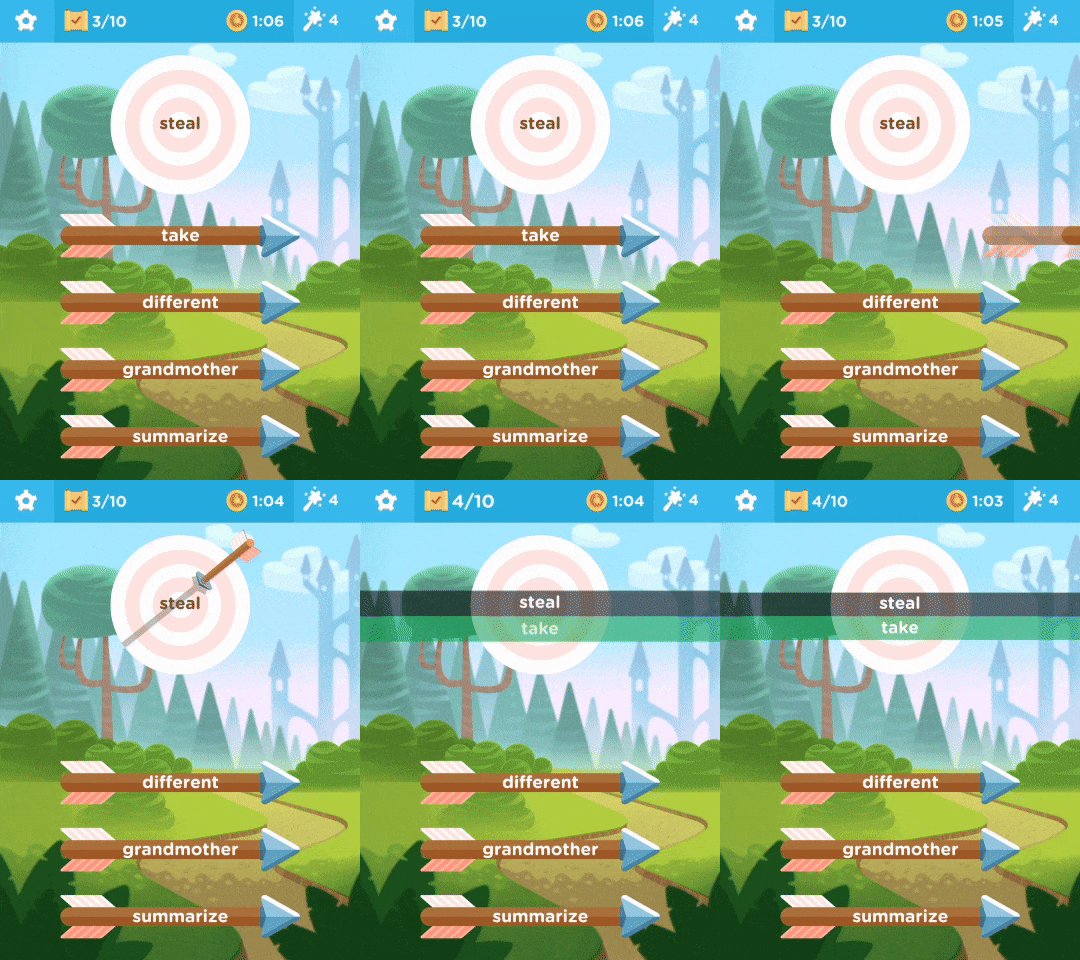
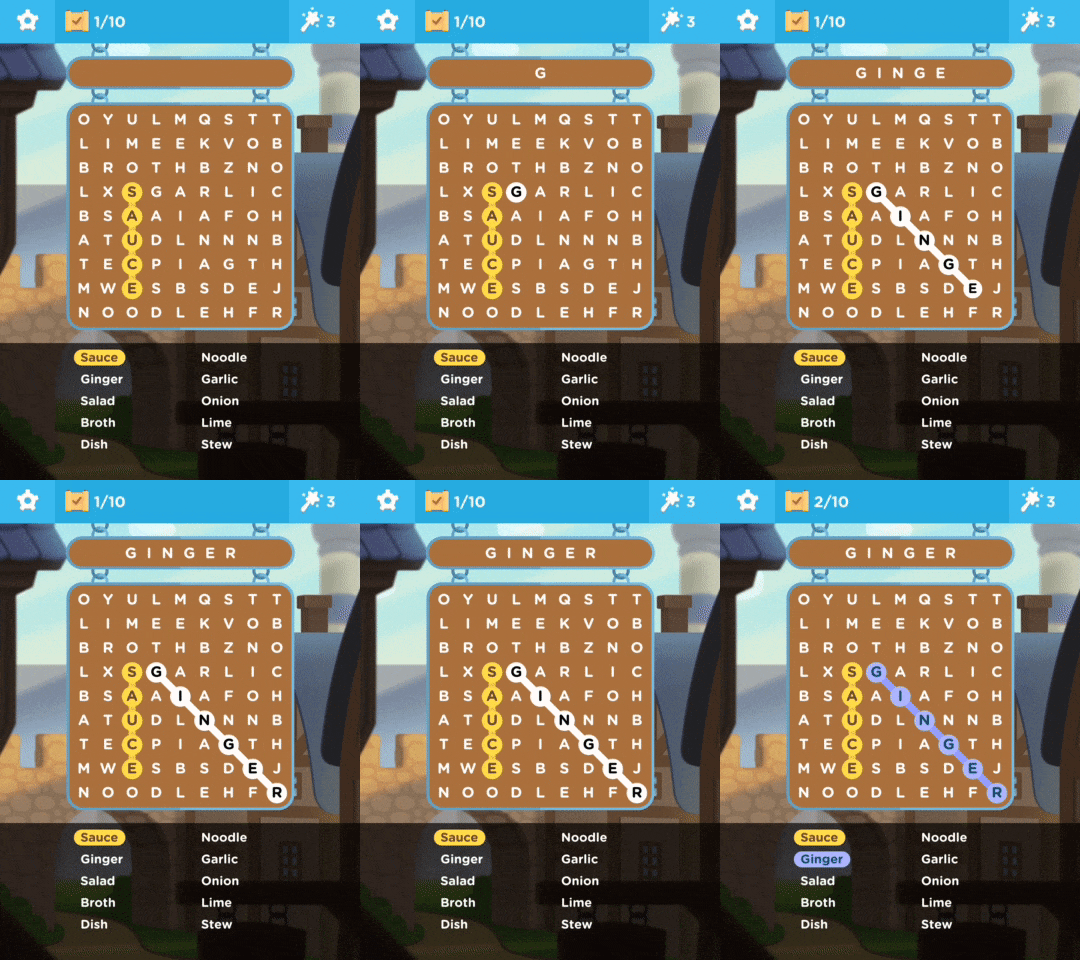
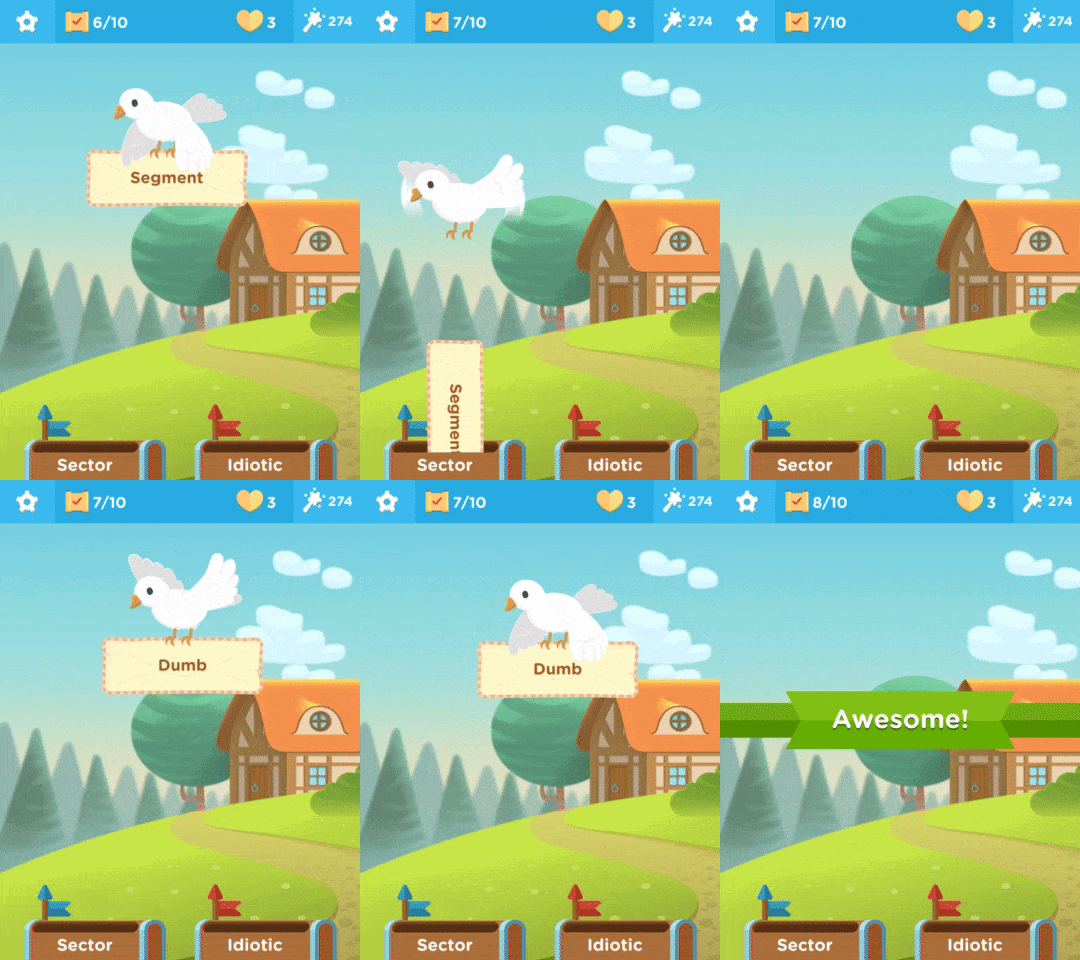
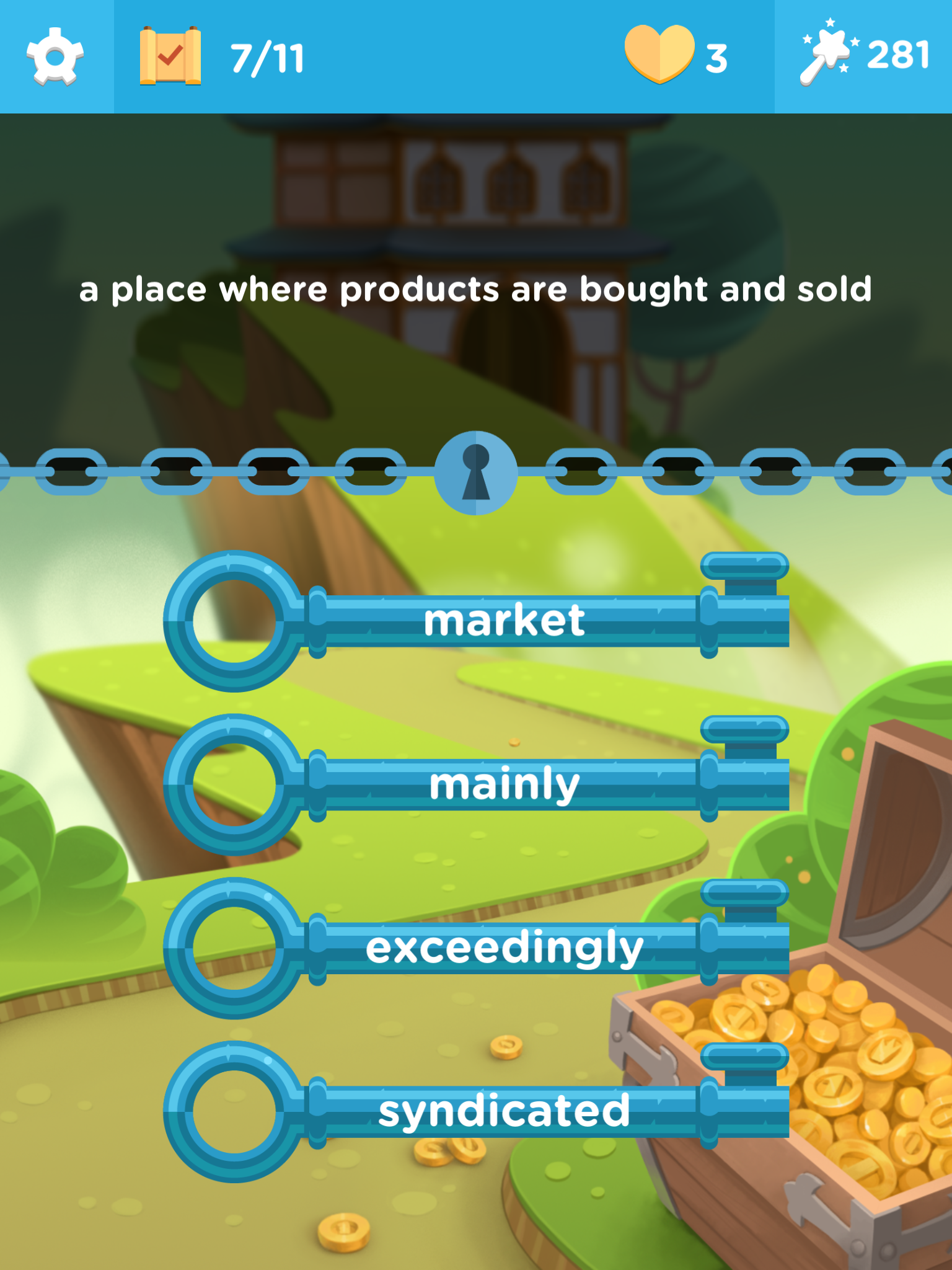
Let's start with the app though. The Vocab Victor app is a really useful example of gamified vocabulary development. The app has 14 levels and the user has to work through the levels playing different kinds of games to learn different types of word knowledge for hundreds of words.

There are 5 different types of game for developing vocabulary.

Word strike which is like a word association multiple choice game.
Word find which is like the classic word search activity.
Word drop which requires students to choose which of two words has the strongest association to the keyword.
Word lock which requires students to match words to definitions.
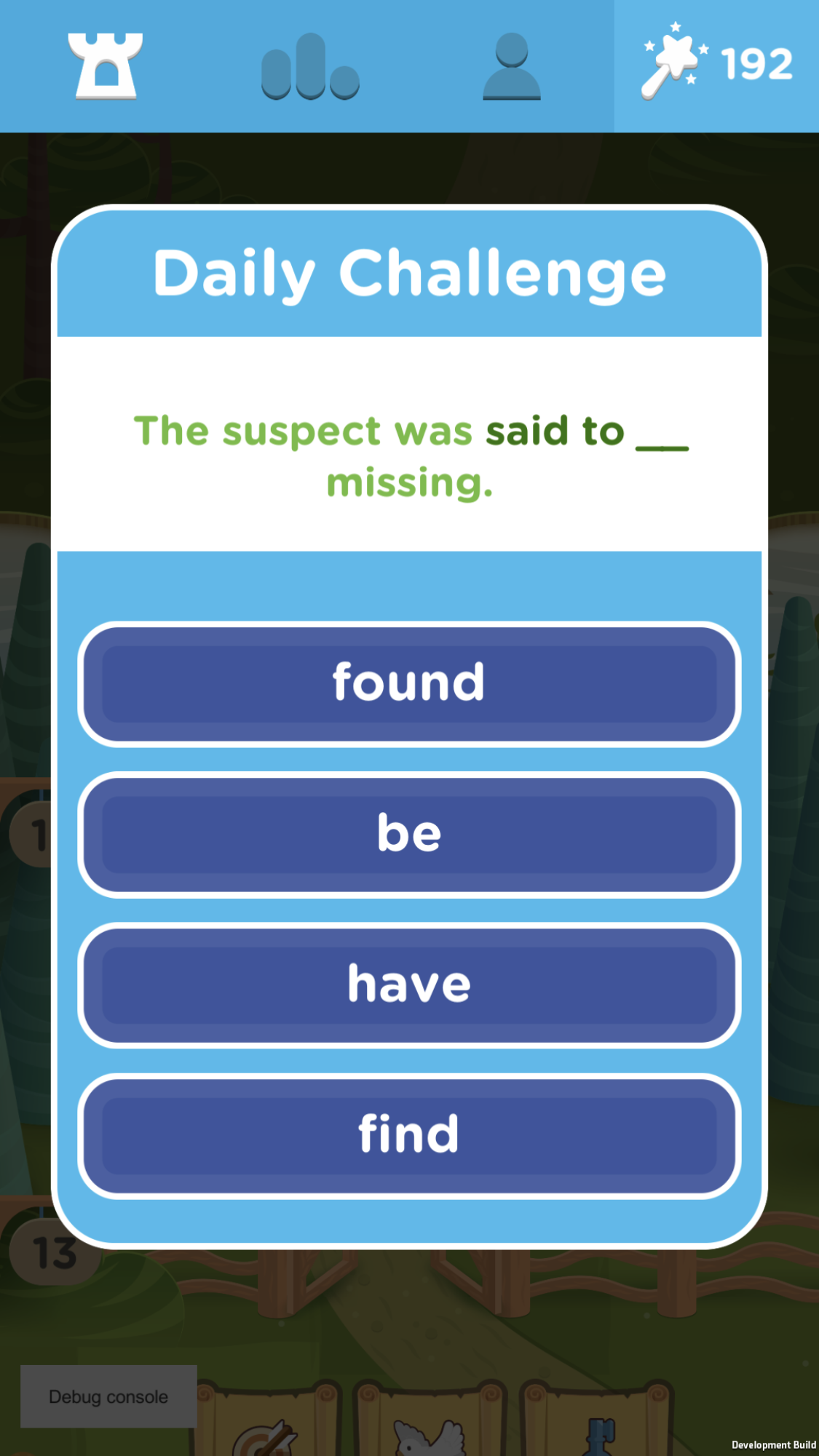
And a daily challenge game which focuses on collocations and word grammar.
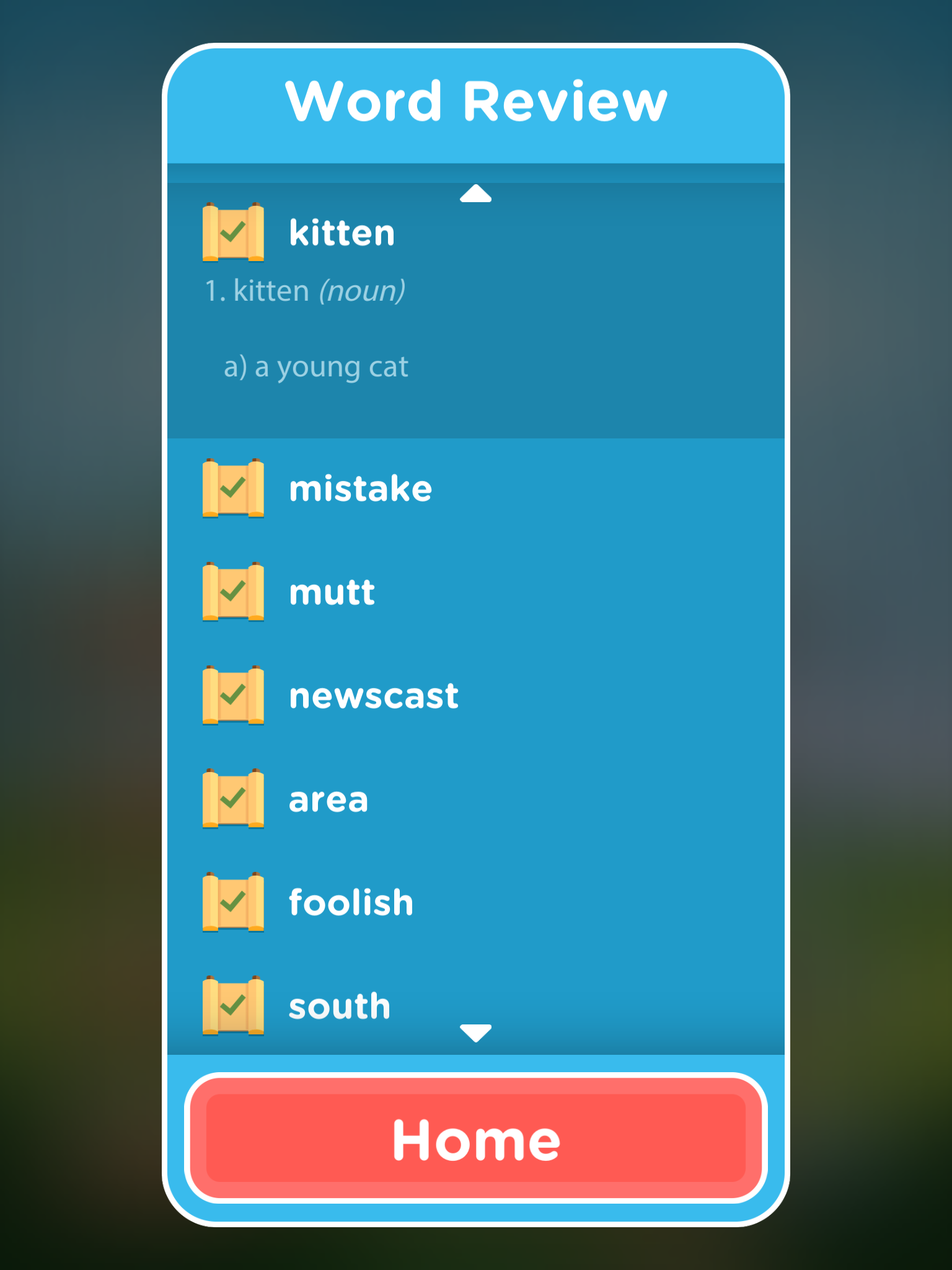
The games are attractive and very intuitive. Students can also review the words they have studied and as they work through the games they earn charms. They can use these charms to get help or to move on when they get stuck with a word.
There's also a leader board that they can use to see how they are doing in comparison to others playing the game.
The web site includes a word study resource, which lets students find more information for selected words, and even a video which gives an example of the pronunciation in use in a YouTube video.

There is also a vocabulary challenge course that has videos and information to help students learn 20 new words a week over 25 weeks.

Vocab Victor is a great free resource for students. It's probably best suited to students who are around an intermediate (B1 +) level as some of the words are quite difficult, but it can adapt to the students level, so if students are getting a lot of words wrong then it will find lower-level words.

Vocab Victor is a  great tool to use in class as a filler activity or better still get your students to download the app and practise in their free time. The app works on both iOS and Android.

Check Out My Books:


Best
Nik Peachey

Monday, 30 September 2019

Using QR Codes to Deliver more Effective Feedback

We all (I hope) know how important feedback is to students as part of their learning. Often though the people who understand this least are the students themselves and they can find it easy to overlook or disregard feedback as soon as they have seen their grade.

Qwiqr seems like a very good solution to that problem and is a great way to get students to take notice and follow up on feedback.


How it works
Qwiqr uses QR codes that you can attach to homework that provide digital feedback for students that they can access through their phone.

This feedback can be written, audio recorded or can come in the form of a web link or video.  Students just scan the code with their phone and they’ll instantly be able to access your feedback. This is an ideal system for language learning as the audio element enables you to provide models of pronunciation, target language and new vocabulary that students can listen to repeatedly.

Using Qwiqr you can even make feedback an interactive process and students can record a reply to your message and send it back to you.

Qwiqr is very safe for students, as only someone with the QR code can access the recordings.

To create your Qwiqr  QR codes you simply print and select the number of QR code stickers you want and then just print them off (using sticky paper will work best).
Then when you want to give some feedback, you scan the code with any scanner and then record and save your message. This will store the message on the Qwiqr server. Then you just give students the same QR code and they can scan it and access their feedback and review it at any time.

Qwiqr doesn’t require that students download a specific app and work in the browser with any QR code scanner.

This is a really great way to get your students really engaging with their feedback and to create a dialogue around their work so that they can check their understanding of anything they got wrong or still need to know.


Pricing
On the free account you can send audio, image, text or links as feedback and the feedback stays on the server for up to 3 months.

If you like it and find it works with your students you can upgrade to premium for just £1.50 a month (that’s about $2) and this will enable you to send video feedback and your students will be able to reply and your feedback will be editable, reusable and on the server forever.


Personally, I think this is a great way to get students to really take notice and engage with their feedback. If you have a collection of code stickers ready in the classroom you could also be recording individual feedback for students while you monitor their speaking activities or you could record an overall summary for the end of the lesson that all students could scan.

Qwiqr isn’t limited to being used only for feedback though. These are some other suggestions.
  • Record video of pupils talking about their work and put the QR next to the work on display boards.
  • Record spoken conversations that students can listen to at home.
  • Create treasure hunts using images and videos that give clues for students to follow.
  • Create ‘praise cards’ and let students take them home to play for parents
This is a really great tool and I hope you enjoy it and can use it with your students.

You can find links to many more tools like this and activities for the digital classroom in my ebooks at: https://payhip.com/peacheypublications

To sign up for my free newsletter and get a free copy of Digital Tools for Teachers go to: http://eepurl.com/dtgL79

Check Out My Books:

Best
Nik Peachey


Thursday, 1 February 2018

30hands - From Flipped Learning to Digital Narrative

I’ve just been looking over the 30hands Pro app for the iPad.

30hands is a simple to use app and community for the development and sharing of instructional presentations and videos.


The app itself enables you to either upload an existing slide deck, video or images from your computer , Google Drive or Dropbox , or create your own slideshow within the app using the drawing tools within the application.
Once your slides have been created or added you can then record a narrative over each slide and also annotate the slides using the drawing features.
Once your slide sequence and recording is complete you have a number of options for sharing it. You can export it as a video, save it to either DropBox or Google Drive or add it to the 30hands community site.
The community site has a really wide collection of example presentations and you can either view these as individual slides with their recordings or watch them as video.
If you are a community member you can also download the videos and the project files and this will allow you to edit, adapt and build your own version of the presentation for your students.

Using 30hands with students

  • This is a great tool to create flipped learning video content. There’s loads of variety in what you can do, from uploading and enhancing your existing presentations with audio and annotation to creating unique slides and integrating images and video.
  • You can also use the app to create digital narrative using images from around the internet (Pixabay and Unsplash are two great places to find royalty free images) or you can use your mobile device to capture images and video and then add your own narrative voiceovers.
  • This is also a great tool for capturing student project work and for enabling student to do project reports. They can just grab images or upload their work and then add a narrative voiceover explaining their learning outcomes.
30hands works as a native app on iOS or can run in the Chrome browser on other devices so it can also be used in the BYOD classroom.

This is a great tool to enable teachers to create materials or to put in the hands of students to help develop their digital literacies and make learning tangible with genuine outputs that they can collect into a digital portfolio.
I hope you enjoy using this app with your students.

My Books:

 Best

Nik Peachey

Saturday, 2 September 2017

Remember More Words with this Free Dictionary & Vocabulary Reminder

VocabReminder is an iOS dictionary app that has been designed to help you revise and remember your new vocabulary.

When you find a word you want to learn, add it to your list of words by tapping on the bell icon next to each word.
The app will then setup a schedule of reminders to help you remember to check the meanings of the words you've chosen and give you a small test of your understanding of the word.
 According to the site:

"Research has shown that retention is improved through repetition, writing, recall and unplanned reinforcement.

VocabReminder improves your vocabulary by employing all of these techniques — using a proprietary algorithm for determining the optimal time to send you vocab reminders."

The app could be particularly useful because it will work without an internet connection, but it's only available for Apple devices at present.

You can check out the quality and suitability of the definitions  by going to the site and using the Word search feature.

VocabReminder is a useful tool to recommend to any of your students who have Apple devices.

You can find more tools and activities like these in my ebook 10 Lessons in Digital Literacy - a collection of lesson plans built around engaging infographics.
The book is available on iOS or as PDF for other devices.

You can also sign up for my twice monthly free newsletter and get a free copy of Digital Tools for Teachers at: https://tinyletter.com/technogogy/ 

My Books:
 Best

Nik Peachey

Tuesday, 22 August 2017

Create Texting Fiction to Keep Your Teens Engaged

Texting fiction is a new emergent genre of fiction writing that is becoming very popular among teens and I have to say when I started reading a few of these creations I can see why.

Basically the narrative is structured as a phone based text conversation and can include images and videos as well as text and audio messages.

The reader taps their way through the messages as a kind of voyeur, following the interaction between the two people to build their understanding of the story.

The most popular platforms at present for marketing this type of genre are:

These apps are freemium and allow you to download and read through the narrative, but if you are on a free version you may have to wait a few hours for the next part of the story or in some cases you don't get some of the rich media elements of the story.
This is a great format for language learning as the texts are very similar to spoken conversations and the chunks are short and easy for students to read.

Creating Texting Fiction

There are a couple of tools we can use do build this kind of narrative for our students.
  • Russell Tarr of ClassTools has developed a the SMS Generator that enables you to create single screen, short text exchanges that you can save and embed into a webpage.
  • Alternatively Chat Story Maker is a free app that enables you to create a longer more complex interaction and include images. The dialogues can then be downloaded as a video clips for students to watch. (I found this one on Larry Ferlazzo's blog).

We can also get our students creating this kind of narrative by giving them images of two characters and a scenario and then asking them to write the script. They can take turns writing a part each. I hope you and your students enjoy these useful tools and create some engaging texts.

You can find more tools and activities like these in my ebook 20 Tech Enhanced Activities for the Language Classroom.

The book is available on iOS or as PDF for other devices.

Sign up for my twice monthly free newsletter and get a free copy of Digital Tools for Teachers at: https://tinyletter.com/technogogy/ 

Related links:

 Best

Nik Peachey


Friday, 19 May 2017

An App for Making Grammar Addictive

The ‘Quiz Your English App’ is a great new free app available for on both iOS and Android that has been designed to make English learning and revision into an engaging, enjoyable and addictive game.

The app has been produced by Cambridge English Language Assessment and can be downloaded for free from: http://www.cambridgeenglish.org/learning-english/games-social/quiz-your-english/

Once your students have installed the game they need to register either by using a Google or Facebook account. Once registered students can challenge other users in competitive language quizzes. They do this by clicking on ‘Play’ and then choosing a topic.
Once they have their topic, the app will match them up to an opponent and they then have to answer a sequence of five timed questions.
The students then have ten seconds to answer the question. The student that answers correctly first scores more points.
The whole quiz is finished in less than 1 minute and then the students can ask for a rematch or challenge someone else.
As the students gain points they are added to a scoreboard and they can search through the scoreboard and challenge other players.
By clicking on ‘Results’ students can review their past games, see how they scored and look at which questions they got right or wrong.
This is a really simple but very well designed app that will keep students at a lower intermediate + level engaged with and reviewing language on a regular basis.


Using Quiz Your English with Students
  • It would be a great tool to use as a filler in the classroom for students who finish early or for some autonomous learning tool.
  • You could also start your class by getting students into pairs or small groups to share the questions they got wrong and work together to try to find  out why their answer was wrong and which one was correct.

Summary
  • There’s a lot to like about this app. I actually really enjoyed playing it myself as a native speaker, so for students who are drawn to competitive games this could be quite addictive.
  • I also like that you know who you are playing against and where they come from, even though the app doesn’t enable any form of contact, so it’s still safe for students.
  • The fact that the quizzes are so short also keeps the interest levels and students can quickly go to reviewing their answers or play another opponent.
  • There is of course a commercial element to the app and there are in-app purchases so that students can buy particular quiz packs, including one for IELTS, but this could be a really good way for students to do some enjoyable revision and improve their score.
  • I have some reservations about having to register using my Facebook or Google account. This is great in that it reduces the chances of students forgetting or losing passwords and automatically creates their profile and enables them to challenge other friends on Facebook, but it would be nice to have a log in option for students who aren’t Google or Facebook users or ones that prefer to opt out.
On the whole I think Quiz Your English is a great app and can add a really useful dimension to your students’ learning and your classroom teaching. I hope you and your students enjoy using it.

You can find links to many more tools like this and activities for the digital classroom in my ebooks at: https://peacheypublications.com/. All my ebooks are available for iOS and as PDF.

Sign up for my twice monthly free newsletter and get a free copy of Digital Tools for Teachers at: https://tinyletter.com/technogogy/ 

My Books:
 Best

Nik Peachey

Thursday, 18 September 2014

HelloTalk - A language learning community on your mobile

I've always liked the idea of language exchanges and peer learning as the learning tends to be driven by and through an authentic desire to communicate.


HelloTalk is a wonderful example of this, but with lots of nice features to make the process mobile and more efficient. Most of these features are accessed by pressing down on your partner's text to get the pop up tool bar.


HelloTalk is a free app that you can download for either iOS or Android. Then once you have registered and created a profile you can find language partners to exchange languages with.

Finding a partner
Once you have registered on the app and created your profile showing which languages you speak and which you want to learn you can start looking for exchange partners. Clicking on 'Search' at the bottom of the screen will show you a list of the people on the site. You can browse this and see how recently they have been online and check out their profile or you can type in a specific name or email address to search for someone you know. You can also customise your search to specific age, level, nationality and you can even search for people from a specific city.

Once you have found someone you can send them a message or add them as a partner and they will get a partner request.

Features
Once you start chatting with someone, things start to get interesting. You can text chat or send voice messages by clicking on the microphone icon to record.

You can also send images or doodles using a drawing pad. These features open up the app to a deeper level of engagement as you can share more interesting content to talk about.


You can play games like pictionary or use the doodle pad like a whiteboard to draw images and explain vocabulary. The images are then sent to your partner through their chat interface.


If you don't understand what your chat partner is saying you can also press down on their text and get a translation.


If your partner makes a mistake in their text you can correct them. Just press down on their message text then write in the corrected version of their text beneath the mistake and your partner will be able to see their version and the corrected version. You can even add an explanation comment. All of the corrections are automatically saved into a separate area of the app and you can go back and revise and check them.

If you don't know how to express what you want to say in the language you are learning, you can also type in your mother tongue and get it translated before you post it.

If you join a chat exchange group with your partner, you can decide whether you want to chat by text or by voice and for how long or how many words. The time spans are all quite short so this is ideal for doing some short bursts of learning when you have a just a few moments to spare or some time to kill on the train, etc.

Finally, HelloTalk has a Notepad where you can send messages to yourself or copy and paste parts of your chats that you want to remember.

Security
One of the first concerns with any service that connects our students to people they don't know, is their privacy and security. HelloTalk seem to be taking this very seriously and make it very clear that any one using the app for flirting or sexting purposes will be blocked and banned.

There are a range of built in security settings. These include tools to block anyone making you feel uncomfortable as well as initial security and privacy settings that allow you to limit your visibility within the community and control who can approach you for language exchange.

Conclusion
  • I've been using HelloTalk for a few days now, mainly with my wife, who is teaching me Spanish, and I really like it. I feel like the learning tools and the record of our conversation and the corrections help to make my learning more tangible and enable me to reflect on our interaction and to go back and check things and revise.
  • I really like that I can 'try to' express things and then get some immediate feedback on my errors. This happens when we talk face-to-face, but I don't have the written record of our interaction.
  • It's great that HelloTalk are taking privacy seriously too and that it's very easy to block people or restrict who can see you.
  • Because there are quite a few features, there is a learning curve to the app and it takes a little while to understand how to use everything, so it may be best to start off by practising with a friend just sitting next to them so that you can see what's happening on each device.
  • The app is perhaps also best suited to younger people, though under 18s are discouraged, who are more comfortable with the concept of chatting to people they don't know online, but if you are feeling brave, then I certainly think that with regular use this could lead to improvements in your language level.
  • If you recommend it to students, then it would also be good to set them some tasks to do or topics to discuss, as often the most difficult thing when talking to someone you don't know is just thinking of something to talk about.
  • HelloTalk would also be a great app to use with your class to do language exchanges with a class in another country. You could partner your students up, set them tasks and know that they will be safe and have some tools available to support their language exchange experience.

I'm really enjoying using HelloTalk now. I hope you find it useful too.

Related links
Best

Nik Peachey