Showing posts with label video. Show all posts

Saturday, 13 February 2021

Create Video Word Clouds with Quillionz Skimthru

 If you’ve read my QuickShout blog before then you probably already know a little about Quillionz and their awesome AI based app that analyses text and creates comprehension questions in minutes. Well now they have a new tool for us to enjoy.


Quillionz Skimthru is a word cloud creation tool with a difference. It actually analyses the closed captions from videos and creates word clouds that play in parallel to the video.

This is really simple to use, just register on the Quillionz Skimthru site, then copy the link from your video and paste it into the interface field.

Next add a title and select a domain for the video based on the type of content.

Then just click on proceed. Wait a few minutes and the word cloud will appear beside the video.

To skim through this video quickly, drag the dot on the progress bar of the Skimthru panel or video for a minute or more and release it.

I really like this combination of word cloud and video, and it seems like a nice bridge to helping students understand the content, without going all the way to subtitles.

If you make copies of the word clouds you can use them in a number of ways.
  • You can pre-teach vocabulary from the word cloud.
  • You can get students to predict content based on the word cloud.
  • You can use the word clouds to prompt students' memory of the videos and help them to remember the content.
  • Students can use the words from the word cloud to write summary statements about the video.

Here’s an example I created from a short animated poem 'The Peace of Wild Things'.


There are lots of useful videos on The Kids Should See This that you can use with students. They are very content rich and most have closed captions.

Quillionz Skimthru has some limitations:

  • It only works with YouTube videos at present
  • The videos need to have closed captions
  • The quality of the word cloud depends on the quality of the captions (mistakes in the captions cause mistakes in the word cloud)

Quillionz Skimthru is an early release of a new tool, and it will be interesting to see how the company develops this.
It would be great to have a bit more control over which and how many words appear in the cloud and also when and how often it changes, but even without these features it’s a really useful tool for supporting students understanding of video content.

I hope you use and enjoy it with your students.

More Teacher Resources
You can find links to many more resources like this and activities for the digital classroom in my e-books at: https://payhip.com/peacheypublications
To sign up for my free newsletter and get a free copy of Digital Tools for Teachers go to: http://eepurl.com/dtgL79
 
Check Out My Books:
Best
Nik Peachey 

Tuesday, 28 April 2020

Ready to Run with authentic video lessons that are classroom-ready for levels A1 - B2

Over the last decade, video has become one of the key drivers of online learning and nowhere more so than in language learning. It has the power to reach beyond words and sounds and show students a range of non-verbal communication features as well as taking them to places and peoples around the world that they may never be able to access physically.
Despite the power of video, one of the greatest difficulties of using authentic video with language students has always been level. Authentic video has often been seen as too challenging for lower-level students, and much of the graded, made for language teaching material is so cringingly inauthentic that it is almost too embarrassing to use, especially for teenagers and young adults.

Finally, though it looks like Digital Learning Associates (DLA) have solved the problem with their award-winning Ready to Run series of videos and learning materials.

The Ready to Run Videos
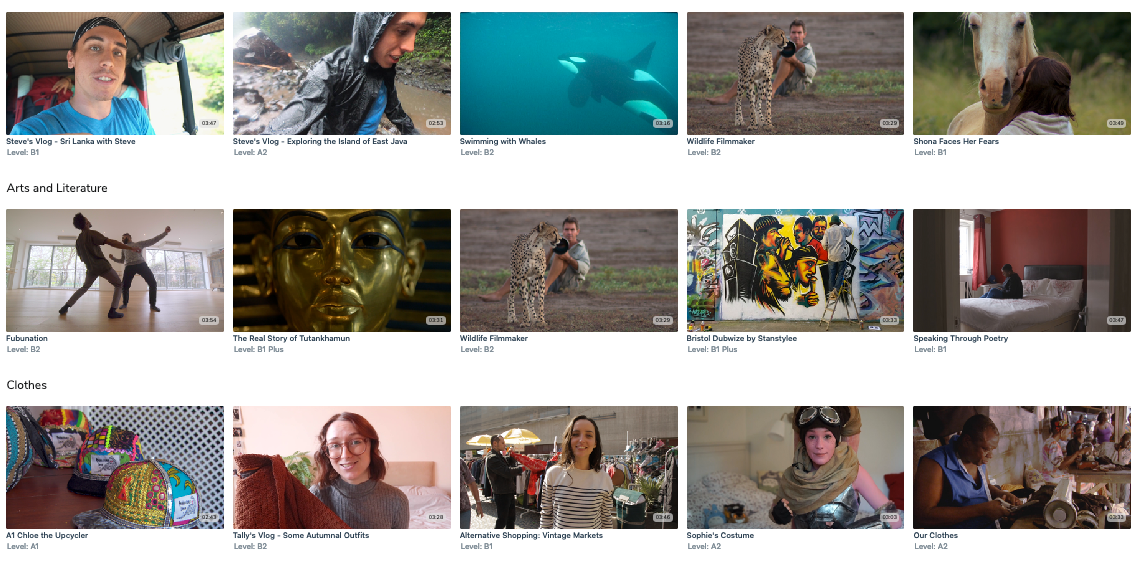
If you check out the Ready to Run catalogue you’ll see that they have a great range of really diverse, inclusive and most importantly interesting videos that cover a really broad range of geographies, topics, cultures and lifestyles.
The videos have been categorised using the CEFR so it’s really easy to find the ones that are appropriate for the level of your students and there is a range of video at each level from A1 up to B2.

The videos are professionally produced with really high-quality camera work and audio and as I mentioned earlier they are engaging enough to hold the attention of a native speaker solely on the interest level of the content.

The Teaching and Learning Materials
The series is entitled Ready to Run and it is exactly that. Most of the videos have PDF materials that you can download and use immediately with your students as well as a teachers guide and copies of transcripts.

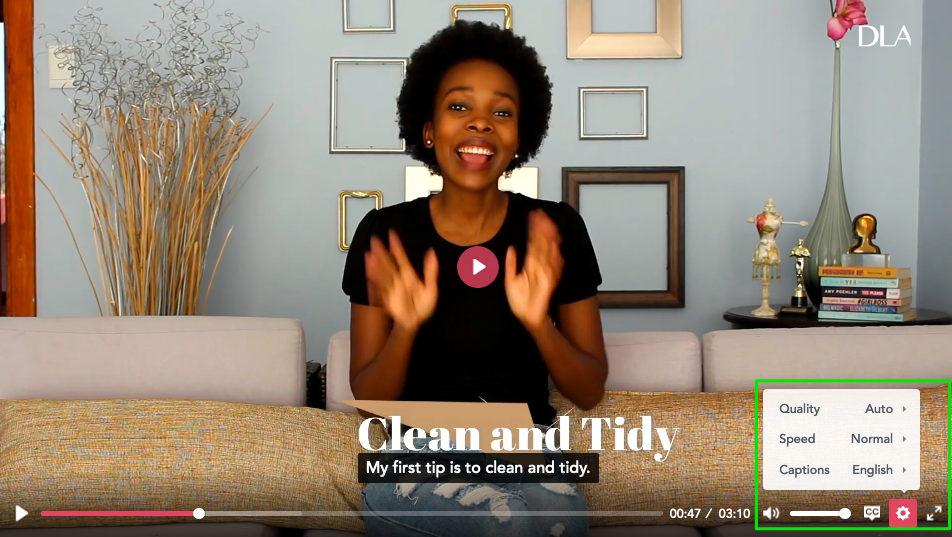
Another of the great things about the videos is that it’s also possible to open the captions so that students can read the transcript as the watch and for students who are really struggling the settings allow you to slow the video down.
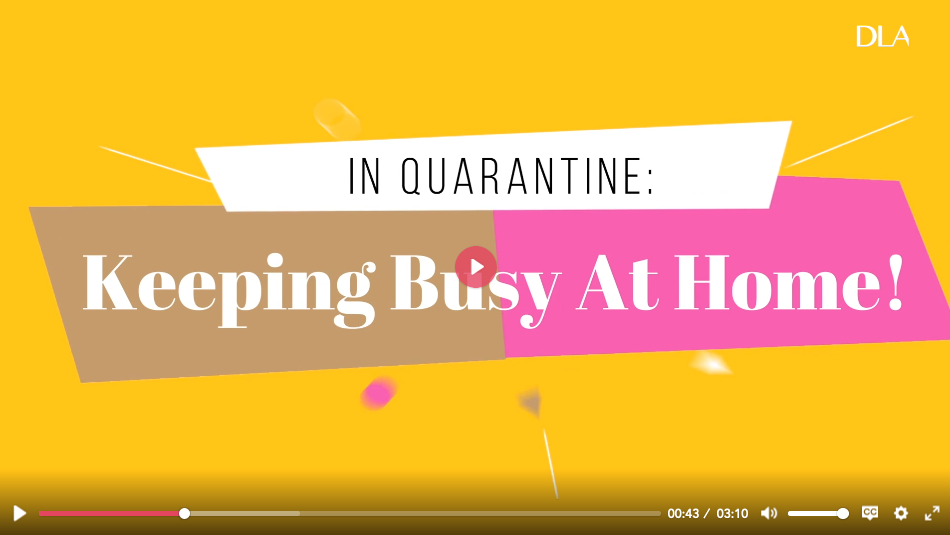
Here’s an example video from a South African Vlogger. The video is about what she’s doing to pass the time during the lockdown.
https://readytorun.digitallearningassociates.com/programs/bokangs-vlog-in-quarantine-keeping-busy-at-home

Subscriptions
Ready to Run is a subscription service with a range of subscription packages.
  • Video Star - Which is free and gives you access to 10 videos with lesson materials from a range of levels. These are updated with new content every month.
  • Video Pro - Which gives you access to 35 units of material ranging A1 to B2. At present, you can also get the Video Pro package for free for the duration of the COVID-19 pandemic.
  • Video School - This gives you and the teachers at your school unlimited access to the complete catalogue for £79 a month.

Finally, if you check out the Ready to Run blog you’ll also see some interesting postings about how to use the materials online for virtual teaching as well as some posts about new and upcoming content.

So whether you are teaching online or looking forward to getting back into the classroom now is a great time to sign up and get some really interesting and engaging materials that can save you hours of preparation.

More Teache Resources
You can find links to many more resources like this and activities for the digital classroom in my ebooks at: https://payhip.com/peacheypublications
To sign up for my free newsletter and get a free copy of Digital Tools for Teachers go to: http://eepurl.com/dtgL79
Check Out My Books:
Best
Nik Peachey

Monday, 25 November 2019

Setting students speaking tasks for homework with Extempore

More than any other skill, students and employers tend to value the ability to speak English most, and yet speaking seems to be one of the more difficult skills for teachers to develop and refine in the classroom.

There are many reasons for this including class size, the amount of noise created by speaking activities in the classroom and the need for a more personalised learning approach which deals with the individual needs of the student. Having the ability to listen to and deal with the needs of each student in a class of only ten or twenty can put huge demand on the teachers during classroom speaking activities, but with Extempore, there seems to be a solution to that problem.

Extempore enables teachers to create and set speaking activities for students as homework. Using the extempore LMS and app, teachers can create speaking activities for students that they can do at home using their mobile phone or computer. They can record their homework using either voice or video, which is then pushed to the teacher through the LMS. Teachers can then listen to each individual students and record personalised feedback for them using audio, video or text.

This process really enhances the teacher's ability to listen carefully to each student and respond to them in on a very engaging and personalised level.

Extempore makes it very easy to create tasks. Once you register on Extempore you just create a class and then start adding tasks and assignments. When you create these tasks you can set a due date for the task and decide whether it is a group task or an individual task. When using individual tasks, only the teacher can see and respond to the task, whereas group tasks will enable multiple students to interact with each other.

You can then decide whether you want to enable students to submit audio or video. Audio will be easier for students to submit, but using video can also enable you to work on some of the visual aspects of communication and help students to get used to communicating through video online (a very useful 21st-century skill).

You also have the option of showing students what the assessment criteria will be for their assignment and set a limit to how many times students can review their recording before submitting it.
Once all this has been done, you just need to add some questions or tasks to get students talking.


There are lots of different types of assignments you can set for your students.
  • You can use the assignments as part of a learner diary and get students eating and reflecting on their learning goals after each class. (You can find out more about Learning Diaries in an article I wrote for the Teaching English website.)
  • You can send students texts or short stories to read in a dramatic and expressive way.
  • You can get students to record themselves reading a favourite poem.
  • You can get the students to interact and share opinions on controversial issues.
  • You can get students to create a collaborative story by sending them an introductory sentence and asking each to add a few lines to it.
  • You can get students to record project reports or research assignments.
  • You can control time to review and respond, so you can use it for high stakes exams and to set assessment tests.
Once you have created your assignment you can share a link with students and they'll be able to register with extempore, see their assignments and download the free Extempore app for their mobile device.

Once they have completed their assignment you can find them in the 'Grading' section of the LMS. You can then listen and respond to their assignments. All scores are then added to the Gradebook. This also enables you to build up a digital portfolio of each students' work which you can reflect on to track and evaluate their progress over a longer time span. To find out more about how this works check out the demo videos.

Extempore looks like a really useful application for developing students' speaking and one that will make your life as a teacher a little easier and make your feedback on students' speaking abilities more impactful.

Extempore isn't a free service, although there is a free 30-day trial which is well worth trying.
https://store.extemporeapp.com/new/institution-paid

Payment for the service can either be charged to the individual students (which may be useful if you have private clients who want to develop their speaking skills) or schools can buy sets of licenses for their students. the cost is really very reasonable especially given that each license is for a year rather than a month.

You can find links to many more resources like this and activities for the digital classroom in my ebooks at: https://payhip.com/peacheypublications


To sign up for my free newsletter and get a free copy of Digital Tools for Teachers go to: http://eepurl.com/dtgL79

Check Out My Books:

Best
Nik Peachey


Friday, 8 November 2019

Video-based Lesson Plans for ELT and ESL Classroom

I've just had the great pleasure of looking around the Fluentize website and I have to say that I'm really impressed.

Fluentize is a collection of really high quality lesson plans and materials based around authentic online videos.
The lesson plans are very detailed and in most there is enough materials for around a 2 hour lesson, although it would also be easy to select a few of the activities and leave some of the others.

The lesson plans are really well structured with listening, vocabulary, writing, speaking and grammar focus activities that all look well thought out and appropriate for the level.

Fluentize offers plans for Level A2 to C1. At present it looks like the bulk of the material is around the B1 and B2 levels, which is the point at which it's great to start encouraging students to use authentic materials.
The videos have been really well chosen. They are high quality, short and are based on interesting and engaging content.

I really enjoyed one based around Will Smith having a date with a robot and another showing an interaction with a Google Assistant.
All the plans also have teachers' notes guides, so these are pretty much no prep ready to go materials.

Fluentize isn't a free site, although there are some free sample plans which you should try out: https://app.fluentize.com/lessons/sample

If you like the plans and want to get more then you can buy individual plans for as little as $2.99 or you can buy packs of 10 plans and get a 17% discount. You can also take advantage of their monthly or quarterly subscriptions for a better value.

The cheapest way to get the Fluentize plans is to sign up for a subscription. If you think other teachers in your school will like them then it may be worth getting your school to subscribe as school subscriptions are very reasonable and white labelling is also a possibility.

These plans are really great and very professionally produced. They are ideal for anyone working with teenagers and adults. I hope you and your students enjoy Fluentize.

You can find links to many more resources like this and activities for the digital classroom in my ebooks at: https://payhip.com/peacheypublications


To sign up for my free newsletter and get a free copy of Digital Tools for Teachers go to: http://eepurl.com/dtgL79

Check Out My Books:

Best
Nik Peachey

Tuesday, 8 October 2019

Using Computer Games to Improve Students' English

I’ve had a long interest in the use of computer games for English language teaching and have looked at lots of games over the years that have huge potential for language learning, from platforms like Second Life and Minecraft to more structured educational games like PowerUp and Tyto, so when I spotted Real English for Gamers, a site that sets out to help students use a variety of multi-player games to improve their English, I was really fascinated.

What it’s about
Real English for Gamers isn’t a game but it is at the most basic level, a YouTube channel full of videos of game in game interaction between players that have been turned into learning resources.

The creators of the channel have taken clips of world famous gamers playing the games, transcribed them, analysed the vocabulary and interaction between the players and turned them into instructional videos that help students to learn English with the aim of enabling them to play their favourite games in English.

This is a great idea in many ways as so many students find playing video games so engaging and to combine this enthusiasm for the games with the chance to interact with other speakers of English can really be a boost for their motivation.

How to use it
The Real English for Gamers YouTube channel has around 130 videos at time of writing and these are mostly clips from multiplayer games. Their website helps to structure this collection of videos and make it more accessible. Some of the best places to start are:
  • The Basics: This section has a collection of useful language for gamers that they can use whilst playing the games.  This includes a section on questions they can ask their gaming partner during the game, common game related vocabulary and tips for how to avoid misunderstandings during the game.
  • Practice Listening: This section helps students to deal with fast authentic speech by using short video clips with video script annotation.
  • The Gamers: This section has information about each of the celebrity gamers featured in the video clips.
  • The Games: This section has information about each of the games featured in the clips.

The site is being regularly updated and apart form watching and listening to the videos, students can also leave comments and chat with other users using the comments feature in the YouTube channel.

Real English for Gamers is an interesting concept and a great resource to recommend to students who are interested in games or as a source of learning material for homework or the classroom. It is of course a good idea to select videos that you feel are age and culturally appropriate for your students. Due to the nature of the content, some games will have language related to violence in them and others may have some bad language, so you’ll need to decide whether your students are mature enough to deal with these elements.

For students who are already keen on games this could be a tool to help them to make the shift to playing them in English and for students who are interested in games the content could form the basis of some motivating lessons that exploit authentic materials.

I hope you enjoy Real English for Gamers and that your students find it useful.
You can find links to many more tools like this and activities for the digital classroom in my ebooks at: https://payhip.com/peacheypublications


To sign up for my free newsletter and get a free copy of Digital Tools for Teachers go to: http://eepurl.com/dtgL79

Check Out My Books:

Best
Nik Peachey


Wednesday, 7 August 2019

TeachVid for Developing Listening Skills

I've always been a huge fan of using video for language development, so I was really delighted when I was sent a link to TeachVid and asked to have a look at it.
TeachVid is a really great resource for developing listening skills multiple languages, not just English. The learning is based around short video clips but there are a whole range of different activity types that students can select.

The activities use a parallel text technique that combines the use of L1 subtitles with L2 transcription so that students can understand the content they are listening to even if they are quite low level learners.
At the most basic level students can watch and listen to the videos with both languages visible, but if they click on 'Activities' this opens a whole range of choices for different ways students can challenge themselves to reconstruct the text.
When the students are in activity mode they watch chunks of the video and then reconstruct the text. This could be line by line with the words jumbled up or they may have all the letters and have to find the word boundaries. Once they complete a line the video advances.

All the time students are working with the activity their progress is being tracked.

There is also a great LMS feature for teachers called 'Classroom'. This allows you to set up assignments for your students and track their progress. You can select a video for an assignment and choose the types and sequence of activities you'd like your students to do. You can even set a due date for the assignment.

There are quite a few video resources already on the site, but if you can't find what you are looking for you can also create your own resources using TeachVid's resource creation tools, accessible via the 'My resources' tab on the resources page.
TeachVid is based on a freemium business model, so you can register for free as a teacher and create five resources for your students and track their progress. Students can also register independently for free and access any of the featured resources on the site. Registering for a paid account gives you access to many more features and is very reasonably priced. The best deal though is to register as a school. Prices will depend though on the number of student accounts you create.

I really recommend TeachVid as a language learning and development tool. I used it to try to improve my Spanish and found the activities really motivating and engaging. This is a great tool to get your students learning independently or in class.

You can find links to many more tools like this and activities for the digital classroom in my ebooks at: https://payhip.com/peacheypublications

Sign up for my twice-monthly free newsletter and get a free copy of Digital Tools for Teachers at: https://tinyletter.com/technogogy/
Check Out My Books:


Best
Nik Peachey

Monday, 3 December 2018

Linguacuisine - Combining languages, culture and cooking


Linguacuisine is the product of Newcastle University and is based around the wonderful idea of learning language through cooking.

You can access the content either through the web browser or by downloading an Android or iOS app.


The site contains a collection of recipes in multiple languages and each one is separated into ingredients and instructions along with a video of the person explaining how to cook the dish. These are shared in the community part of the site.

The content is very authentic in all ways. The videos have been submitted by users and most look like they have been made using a phone camera, so don’t expect Jamie Oliver production standards.

Users can also upload their own videos, so this is a nice task you can set your students to do and a great way for them to share their recipe products.

The app version of the site looks a bit like the food ‘homemade’ but it is functional and provides a nice platform for students to find and share authentic content based on the culture of food.
 
You can watch a tutorial on how to use the app here

I hope you and your students find some nice recipes on Linguacuisine and enjoy cooking some English food!
 
Best
 
Nik Peachey

Monday, 12 February 2018

Create Engaging Video Tasks with Kapwing

Kapwing is a great free online video editor that makes a number of video editing activities simple.

Using the tool you can:
  • Add subtitles to videos
  • Trim the length to focus on specific sections.
  • Resize and loop
  • Add meme text to video
  • Add sound effects
  • Create stop motion video

All you need is either your own video file or the link to a clip online.
  • Go to the site, choose what you want to do and then use Kapwing’s easy interface to carry out your edit.
  • Once you have finished just click on create. 

The tool is free to use and just adds a small logo. If you want to get rid of the logo, then you can pay a minimal amount to download a version with your own brand or logo on. There are no subscriptions necessary so you just pay for the videos that you want when you want them.

Here are some great activities you can do with these tools.

Adding subtitles
  • You can students use the tool to transcribe or translate a video.
  • You can get them to add narrative to a silent video or cartoon.
  • You can ask them to add what the people are thinking or feeling instead of the script.

Trimming video
  • You can focus students on just a short part of a clip.
  • You can edit one clip into 3 - 4 sections and then get students to watch and put the sections in the correct chronological order.
  • You can create a video gap-fil and take a section out of a video clip and see if students can guess what happened in the missing part.

Add meme text
  • You can use short action clips and get students to think of memes to go on them. These could be quotes, advice, idioms or just something funny.

Having a free browser based tool Kapwing can help you to create interesting and engaging materials for students, but it can also allow students to get some hands on experience of editing video and so help to build their digital literacies.

I hope you and your students enjoy using Kapwing. You can find lots more ideas, lesson plans tools, video tutorials and teaching suggestions in my award winning ebook - Digital Video - A Manual For Language Teachers.

http://peacheypublications.com/books/digital-video-a-manual-for-language-teachers


My Books:


 Best

Nik Peachey

Wednesday, 27 September 2017

Get Students Creating Their Own Video Reviews and Resource Library

This is a great tool to make screen-capture videos directly from within your Chrome browser.

Once you have registered and installed the browser plugin, you just go to the page or site and click on the Loom button.

You’ll need to give the plugin permission to use your microphone and webcam, then just click on ‘Start Recording’.

You can choose to record whole screen or just an application window.

Click the plugin button again and your video is instantly uploaded to your profile on the Loom site and the link is copied.

The recording will open in a new browser tab and you can then give it a title and watch it again. You’ll see the website you recorded a webcam image of yourself talking in the lower left corner and a number of fields to type in information and add comments.

You can share a link to the recording through social media, get an iframe embed code or just get a direct link. Once you share it users can watch and leave comments.

Loom is a great tool for teacher training and development and also great to get students speaking, doing website reviews and sharing them together. You can get the students to create their own resource library of useful tools and websites.

I hope you find Loom useful. You can find links to many more tools like this and activities for the digital classroom in my ebooks at: http://peacheypublications.com/. All my ebooks are available for iOS and as PDF.

Sign up for my twice monthly free newsletter and get a free copy of Digital Tools for Teachers at: https://tinyletter.com/technogogy/ 

Related links:
 Best

Nik Peachey

Tuesday, 12 September 2017

Create Speaking Activities Based on Sequences of Images

This app enables teachers or students to create sequences of images and videos and record a monologue about each one.
The images can be ones they have created themselves or they can find images by using the apps search function. The image search draws on Creative Commons images from:
Students can also add annotations, emojis and other ornaments to the images.
The app then exports the sequence and monologue as a video file that can be shared through social media, email or embedded into a blog or website.

Here's a quick tutorial:


Shadow Puppet is a great tool for creating digital narrative, doing reports or homework assignments or creating more personalised speaking activities.

You could also use it as a portfolio tool and get students talking about any work they have created.

The site also includes lesson ideas for a range of topics across the curriculum as well as some useful printable resources for the classroom. At present it is only available for iOS.

I hope you and your students enjoy this tool. You can find links to many more  sites like this and activities for the digital classroom in my ebooks at: http://peacheypublications.com/. All my ebooks are available for iOS and as PDF.


Sign up for my twice monthly free newsletter and get a free copy of Digital Tools for Teachers at: https://tinyletter.com/technogogy/ 

My Books:
 Best

Nik Peachey

Wednesday, 30 August 2017

Use YouTube as a Pronunciation Corpus

This is a marvellous tool that enables you to use YouTube as a form of pronunciation corpus. You can type in a word or phrase to the search engine, and it will find a series of videos where that word or phrase appears along with subtitles.

This is a great way to find examples of words in context and to hear the pronunciation of those words.
You can choose between US, UK and AUS sources and also get a direct link to the part of the video where the word occurred and share it with students. There's even a small tool to slow things down if you feel that helps.

You can use the green buttons to skip forward to the next clip or back to the last one.


This makes it easy to hear lots of examples in context quite quickly. You can even click on the words in the subtitles to get a dictionary definition.
The site works in the browser, so should work across platforms and on most mobile phones and tablets too. There's even a widget that you can embed into your site or blog.

Visit YouGlish.com
This is a great way to get students comparing different accents, as well as finding pronunciation models for words they want to learn and showing the word in context.

You could also use it to focus on homonyms and homographs and see if they can pick out which version of the word appears in the video.

Just as with a normal corpus, it's also great to use to show differences in usage. Compare here the difference uses of operate on and operate in.

YouGlish is a great tool to get students thinking about how words are used in context and how they sound.

Get lesson plans, tech tips and teacher resource books with our Teachers' Classroom App.


Nik Peachey - Pedagogical Director - PeacheyPublications Ltd