Monday, 20 September 2021

Teachwise - A platform to save time and reduce stress for teachers

 Over the last couple of years the teaching profession has gone through huge changes and most of these have seen more demands put on teachers and greater pressure to spend more time using and adapting to new digital technologies for the remote and hybrid classroom.  Many of the demands and tools teachers have been presented with have required more of their time and a wider range of skills, so it's great to be asked to look at Teachwise which is one of those few technological tools that does the opposite. 

Teachwise logo

Teachwise is a planning, time-management and productivity tool that can genuinely help teachers to cope with the demands of teaching and save time planning.

Once you have registered with Teachwise you can add your class schedule to the calendar. This is simple to do, and you can schedule classes for groups or individuals and add the students' names and the locations for the classes. This will also populate an attendance register so that Teachwise can help to track attendance for you.

Teachwise calander
The next thing to do is start planning your lessons, and this is where you really start to save time. Teachwise has a huge collection of complete lesson plans or activities that you can simply add to your schedule. All the plans and activities are editable, so you can make changes to suit your students or drop out any activities you don't want to use.

Teachwise lesson


You can also add in your own activities or your own complete plans if you wish. You can store these in Teachwise and if you choose you can also add them to the Teachwise community.

The Teachwise community is a great innovation and enables you to share materials, knowledge, tips and suggestions with all the other users and develop your expertise together.

Types of activities in Teachwise


One of the other great things about Teachwise is that once you sign up for your free trial you'll be added to their email training list, so you'll get regular emails  with tips and video tutorials which will gradually help you to get the most out of the platform and the resources.

Teachwise has 3 tiers of membership:

  • Free (for teachers who just want to access the community and the activities) 
  • Individual (For teachers who want to schedule plans and manage their classes through the app) 
  • Schools (For schools that want to use it as their main teaching admin platform).

See: Pricing

If you work in or run a school, particularly a remote one with teachers based in different locations,  this is definitely worth looking into as it could make your administrative processes much easier to handle and provide the much-needed support and development through community that many remote teachers lack.

I think Teachwise well worth signing up for a 1-month free trial that gives you access to all the features. I hope you find Teachwise useful, and it helps you to save lots of time and stress.

More Teacher Resources

You can find links to many more resources like this and activities for the digital classroom in my e-books at: https://payhip.com/peacheypublications

To sign up for my free newsletter and get a free copy of Digital Tools for Teachers go to: http://eepurl.com/dtgL79

Kind regards

Nik Peachey | Director of Pedagogy - PeacheyPublications Ltd
 

https://peacheypublications.com/

Friday, 28 May 2021

ELT Songs to get your students singing, dancing and speaking
 

I often dread looking at 'made for ELT' songs and music (I actually have a degree in music and studied jazz performance), but I was recently nicely surprised to see what ELT Songs have been doing on their site. They really seem to have got the knack of  approaching and creating songs for younger learners well and with obviously very high production values.
 

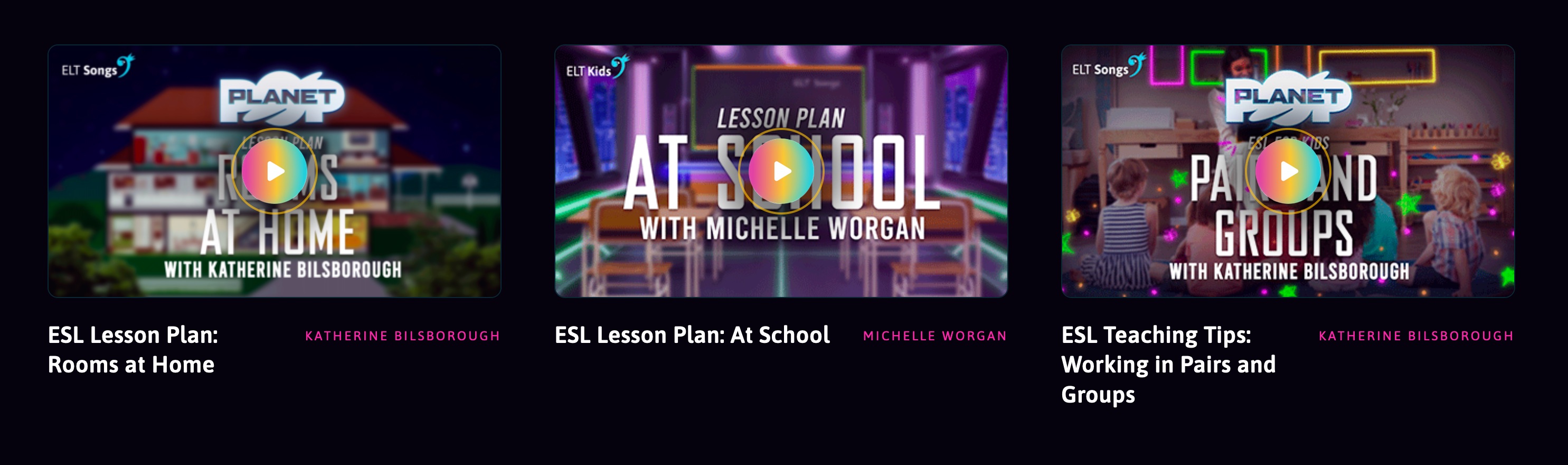
If you check out the ELT Songs site you can find 58 units (with an additional 68 new units coming later this year). Each consisting of 6 videos per unit all of which are 100% aligned to the Cambridge Young Learners curriculum (starters, movers and flyers). The videos are great and really tap into the current K-Pop style with songs and synchronised dance moves and even UK sign language integrated in to help students understand the words while they sing and dance along and enjoy learning.
 

The lesson videos from each unit cover conversation practice, pronunciation, vocabulary rap and grammar tutorials as well as karaoke where students can just sing along. The videos are hosted on Vimeo, so they are all high quality, can have closed captions on or off, and you aren't going to be surprised by any unsuitable ads.
 
As well as the videos they provide teachers with downloadable lesson plans, worksheets, and flashcards. You can see a nice example here in the 'Downloads' section underneath the video panel: https://eltsongs.com/unit/planet-pop-unit-7/
 
As well as the core offer they have a great resources section that has videos with tips and advice from some of the best young learner materials writers in ELT publishing. These include:

The blog is also another great resource and it has lots of materials, and activities around a wide range of topics.
I love this posting about International Women's Day and ideas for helping make students aware of issues around gender equality and download able lesson plan. This can be a difficult but really important issue to address with younger learners and they handle this in a really positive way.
Not all the materials are free but there is a free trial that runs until the end of July, so that's lots of time to try things out and maybe even convince your school to make the purchase so that you get access to additional features like student tracking, fluency and pronunciation activities, Google Classroom integration and some free training.
If your school isn't interested then individual teacher pricing is under $4 a month and that can save you a LOT of planning and preparation time so that seems like really great value for anyone who is teaching young learners.

Overall ELT Songs is a really great resource with lots of really great speaking and listening activities for kids. I hope you and your students really enjoy it.
 
More Teacher Resources
You can find links to many more resources like this and activities for the digital classroom in my e-books at: https://payhip.com/peacheypublications
To sign up for my free newsletter and get a free copy of Digital Tools for Teachers go to: http://eepurl.com/dtgL79
 
Check Out My Books:
Best
Nik Peachey  

Saturday, 13 February 2021

Create Video Word Clouds with Quillionz Skimthru

 If you’ve read my QuickShout blog before then you probably already know a little about Quillionz and their awesome AI based app that analyses text and creates comprehension questions in minutes. Well now they have a new tool for us to enjoy.


Quillionz Skimthru is a word cloud creation tool with a difference. It actually analyses the closed captions from videos and creates word clouds that play in parallel to the video.

This is really simple to use, just register on the Quillionz Skimthru site, then copy the link from your video and paste it into the interface field.

Next add a title and select a domain for the video based on the type of content.

Then just click on proceed. Wait a few minutes and the word cloud will appear beside the video.

To skim through this video quickly, drag the dot on the progress bar of the Skimthru panel or video for a minute or more and release it.

I really like this combination of word cloud and video, and it seems like a nice bridge to helping students understand the content, without going all the way to subtitles.

If you make copies of the word clouds you can use them in a number of ways.
  • You can pre-teach vocabulary from the word cloud.
  • You can get students to predict content based on the word cloud.
  • You can use the word clouds to prompt students' memory of the videos and help them to remember the content.
  • Students can use the words from the word cloud to write summary statements about the video.

Here’s an example I created from a short animated poem 'The Peace of Wild Things'.


There are lots of useful videos on The Kids Should See This that you can use with students. They are very content rich and most have closed captions.

Quillionz Skimthru has some limitations:

  • It only works with YouTube videos at present
  • The videos need to have closed captions
  • The quality of the word cloud depends on the quality of the captions (mistakes in the captions cause mistakes in the word cloud)

Quillionz Skimthru is an early release of a new tool, and it will be interesting to see how the company develops this.
It would be great to have a bit more control over which and how many words appear in the cloud and also when and how often it changes, but even without these features it’s a really useful tool for supporting students understanding of video content.

I hope you use and enjoy it with your students.

More Teacher Resources
You can find links to many more resources like this and activities for the digital classroom in my e-books at: https://payhip.com/peacheypublications
To sign up for my free newsletter and get a free copy of Digital Tools for Teachers go to: http://eepurl.com/dtgL79
 
Check Out My Books:
Best
Nik Peachey 

Friday, 16 October 2020

Create Reading Comprehension Activities for the Remote Classroom with Quillionz

I first wrote about Quillionz back in 2018 and it’s great to see how far the product has come since then. At that time it was a free product that used AI to generate questions based around any text that you entered. You could then select and edit the questions you wanted to use and print these for the classroom.


These features are still available and there is still a lifetime free subscription available, but they have now added more features and developed some premium features that make this a product worth investing, especially if you need to create a lot of reading materials based around authentic text.

Just to recap, creating questions is very easy. You can just copy paste in your text, give it a title, select the educational domain it belongs to and then choose the keywords from the text that you want the reader to focus on. You can also bypass the keyword selection process and get Quillionz to choose for you if you choose.

Quillionz will then review your text for you and highlight any weaknesses in the writing, such as lengthy sentences, subjectivity or incomplete sentences.

Next Quillionz uses AI to analyse the text and generate sets of questions for you to choose from. Once the questions appear you can select and edit the ones you want to use with your text. Quillionz creates a number of different types of questions for you to use.  This includes short answers, multiple choice and ‘recall’ questions (these are ones where they have to fill a gap in a sentence with the missing word from the text). The premium version Quillionz also includes WH questions and interpretive questions which push students to give more complex and open ended answers. 
Once the questions have been created and you have chosen the ones you want to use, you have a number of ways of sharing them with students. You can either download them as a document by clicking on ‘Export’ or you can click on ‘Create Quillionz’. This option creates a sequence of flashcards that you can share with students. The students can then read the text and try to answer the questions and click on the flashcard to see the answer.  You share the flashcards by using a link, so this will work really well in the remote classroom and it will allow students to each work at their own speed.
There is another option for exporting the questions to Raptivity. This is another product I’ve reviewed on this site. Raptivity enables you to turn the questions set in to a range of html5 interactive learning objects that can be deployed in online courses. So this can speed up the process of creating online courses considerably.

Another great new feature is that Quillionz will also produce summary notes of the text featuring the main points. Again you can edit this for accuracy before saving the notes.
All of the texts you use and the questions you create can be saved in the dashboard so it’s easy to retrieve texts and re-edit them for revision or for a different group of students.

One of the things that I really like about Quillionz is that you can quite quickly and easily teach students to use it and then they can create their own revision quizzes and create quizzes for each other. The summary notes will also be really useful for students. 

You can click here to check the price of a premium subscription and compare packages.

I hope you enjoy using this tool and that it saves you some time when creating comprehension activities. 
 
More Teacher Resources
You can find links to many more resources like this and activities for the digital classroom in my ebooks at: https://payhip.com/peacheypublications
To sign up for my free newsletter and get a free copy of Digital Tools for Teachers go to: http://eepurl.com/dtgL79
 
Check Out My Books:
Best
Nik Peachey 

Friday, 2 October 2020

Create blended and flipped learning materials on the fly with TeacherToolsDigital

With the rapid and sudden increase in remote teaching and learning many schools and teachers are finding it hard to manage the smaller class sizes that remote learning supports and still give students the hours of study and practice they need to move their learning forward.

Many schools have turned to blended learning to fill the gap, but soon discovered that creating high quality blended learning courses takes time, money and a specific set of skills which many of their teachers don’t completely cover.

Luckily there is a solution to this problem that will enable teachers to create pedagogically sound online tasks and activities that can be adapted to students’ needs with minimal time and effort. The solution is TeacherTools.Digital.

TeacherTools.Digital has a great collection of skills based language practice activities that can be quickly adapted and deployed to get students producing language outside of class time whether it’s in a flipped, blended, hybrid, or fully online learning approach.

The site has eight basic activity types and these range from the usual gap filling types exercises to ones that students can submit using voice, text or even their video webcam.


The easiest way to get started with TeacherTools.Digital is to try some of the ready made and then just adapt them and add your own content and ideas.

If you click on browse underneath each activity type you can scroll through a range of activities. When you select one you’ll see how it is structured and then you can easily change the various elements of the activity to suit your needs.

One of my favourite activity types is the one that enables students to submit a video response using their webcam. I think this is a great tool to help students work on their visual communications skills and with the move towards more remote working, this is becoming a vital work/life skill for many of our students.


The Read Aloud activity type is also really useful as it enables you to set speaking activities for students that they can do at home and they get instant feedback on their performance as they read each line. This can increase their speaking practice time and reduce your homework marking time.

When you have created an activity you get a link that you can share with students and all of their results are tracked into the TeacherTools.Digital LMS, so you know how your students are progressing and which ones are completing their homework assignments.

As I said, I think this is a great solution to increase the amount of meaningful practice students have with language and to reduce some of the workload being placed on teachers.

You can try TeacherTools.Digital for free for 30 days, after that you’ll need to pay $9.99 a month (See pricing). This can be really worth the amount of time it can save you. At present there is no price on the  schools account, but it may be worth trying to get your school to enquire as substantial discounts are available when signing up multiple teachers from the same institution at the same time.

TeacherTools.Digital is also integrates with a wide range of LMS, so if your school already has a platform for building blended learning then it's quite easy to use TeacherTools.Digital to extend the range of activity types that you can offer.

As a special offer for readers of Nik's Quickshout. The good folks at TeacherTools.Digital are offering an additional 10% discount on top of the already discounted yearly rate of $99, bringing it down to only $89. What's more, your subscription will continue to renew at this price in subsequent years! 

This offer is only available to the first 25 users to redeem the following coupon code: PEACHEY-YEARLY-2020.

I hope you enjoy using this great tool and that it helps to reduce your workload and increase your students’ learning.

More Teacher Resources
You can find links to many more resources like this and activities for the digital classroom in my ebooks at: https://payhip.com/peacheypublications
To sign up for my free newsletter and get a free copy of Digital Tools for Teachers go to: http://eepurl.com/dtgL79
 
Check Out My Books:
Best
Nik Peachey


Tuesday, 28 April 2020

Ready to Run with authentic video lessons that are classroom-ready for levels A1 - B2

Over the last decade, video has become one of the key drivers of online learning and nowhere more so than in language learning. It has the power to reach beyond words and sounds and show students a range of non-verbal communication features as well as taking them to places and peoples around the world that they may never be able to access physically.
Despite the power of video, one of the greatest difficulties of using authentic video with language students has always been level. Authentic video has often been seen as too challenging for lower-level students, and much of the graded, made for language teaching material is so cringingly inauthentic that it is almost too embarrassing to use, especially for teenagers and young adults.

Finally, though it looks like Digital Learning Associates (DLA) have solved the problem with their award-winning Ready to Run series of videos and learning materials.

The Ready to Run Videos
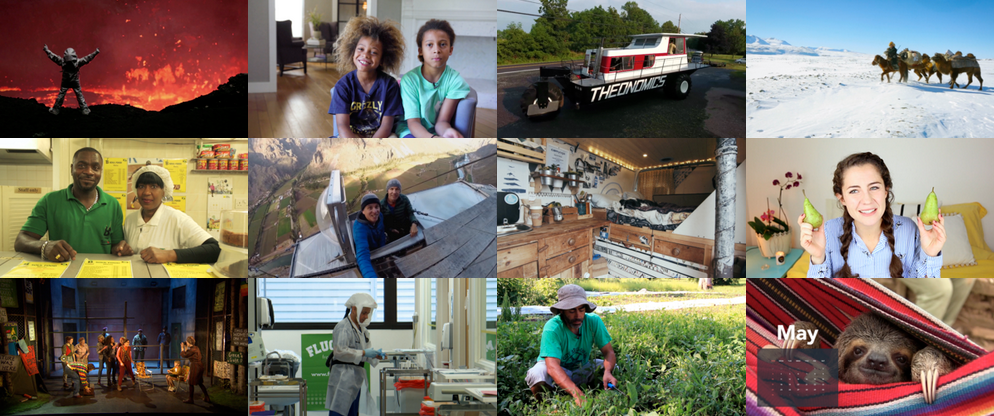
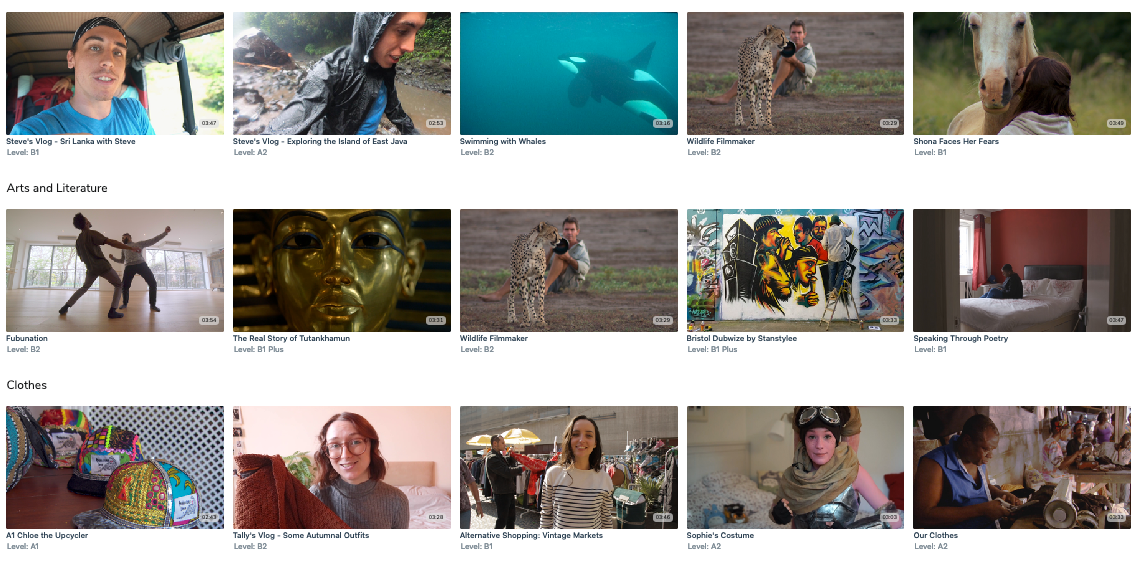
If you check out the Ready to Run catalogue you’ll see that they have a great range of really diverse, inclusive and most importantly interesting videos that cover a really broad range of geographies, topics, cultures and lifestyles.
The videos have been categorised using the CEFR so it’s really easy to find the ones that are appropriate for the level of your students and there is a range of video at each level from A1 up to B2.

The videos are professionally produced with really high-quality camera work and audio and as I mentioned earlier they are engaging enough to hold the attention of a native speaker solely on the interest level of the content.

The Teaching and Learning Materials
The series is entitled Ready to Run and it is exactly that. Most of the videos have PDF materials that you can download and use immediately with your students as well as a teachers guide and copies of transcripts.

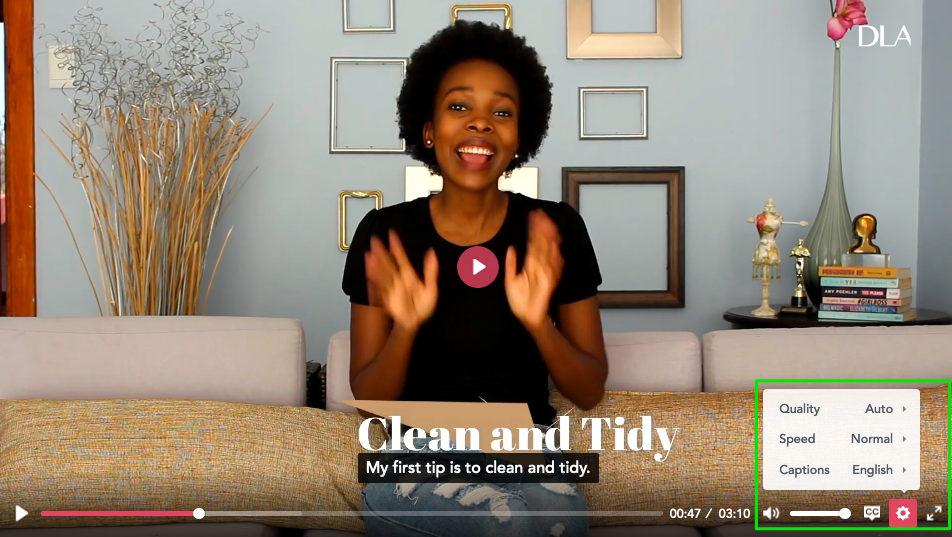
Another of the great things about the videos is that it’s also possible to open the captions so that students can read the transcript as the watch and for students who are really struggling the settings allow you to slow the video down.
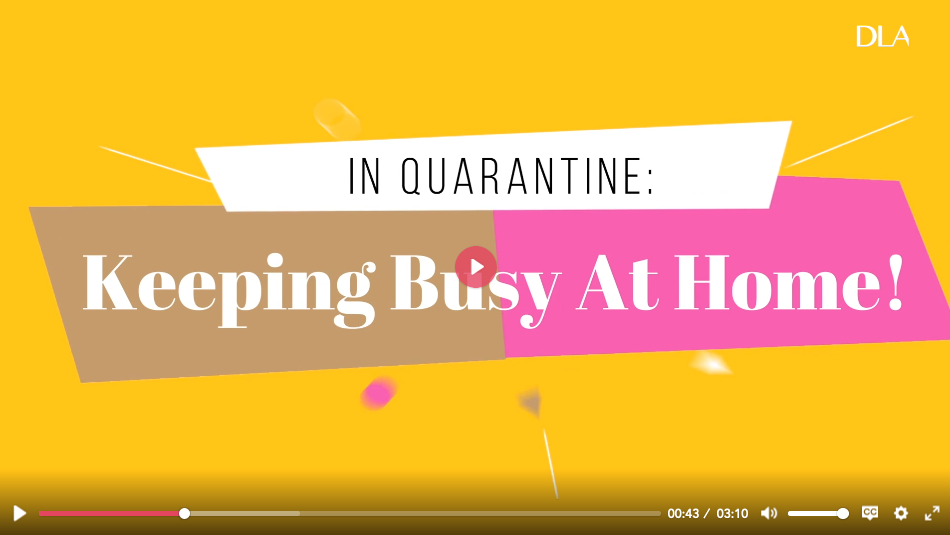
Here’s an example video from a South African Vlogger. The video is about what she’s doing to pass the time during the lockdown.
https://readytorun.digitallearningassociates.com/programs/bokangs-vlog-in-quarantine-keeping-busy-at-home

Subscriptions
Ready to Run is a subscription service with a range of subscription packages.
  • Video Star - Which is free and gives you access to 10 videos with lesson materials from a range of levels. These are updated with new content every month.
  • Video Pro - Which gives you access to 35 units of material ranging A1 to B2. At present, you can also get the Video Pro package for free for the duration of the COVID-19 pandemic.
  • Video School - This gives you and the teachers at your school unlimited access to the complete catalogue for £79 a month.

Finally, if you check out the Ready to Run blog you’ll also see some interesting postings about how to use the materials online for virtual teaching as well as some posts about new and upcoming content.

So whether you are teaching online or looking forward to getting back into the classroom now is a great time to sign up and get some really interesting and engaging materials that can save you hours of preparation.

More Teache Resources
You can find links to many more resources like this and activities for the digital classroom in my ebooks at: https://payhip.com/peacheypublications
To sign up for my free newsletter and get a free copy of Digital Tools for Teachers go to: http://eepurl.com/dtgL79
Check Out My Books:
Best
Nik Peachey

Friday, 24 April 2020

Using the bulb digital portfolio to keep up with qualitative assessment of student work online

In the rapid shift to online learning that’s taking place at present, there’s one thing that can easily get overlooked - the value of qualitative evaluation. What better tool to do that with than a digital portfolio tool like bulb?

bulb is simple to use, works on mobile as well as in the browser and it gives your students the opportunity to collect and showcase their work using a modern and stylish design.

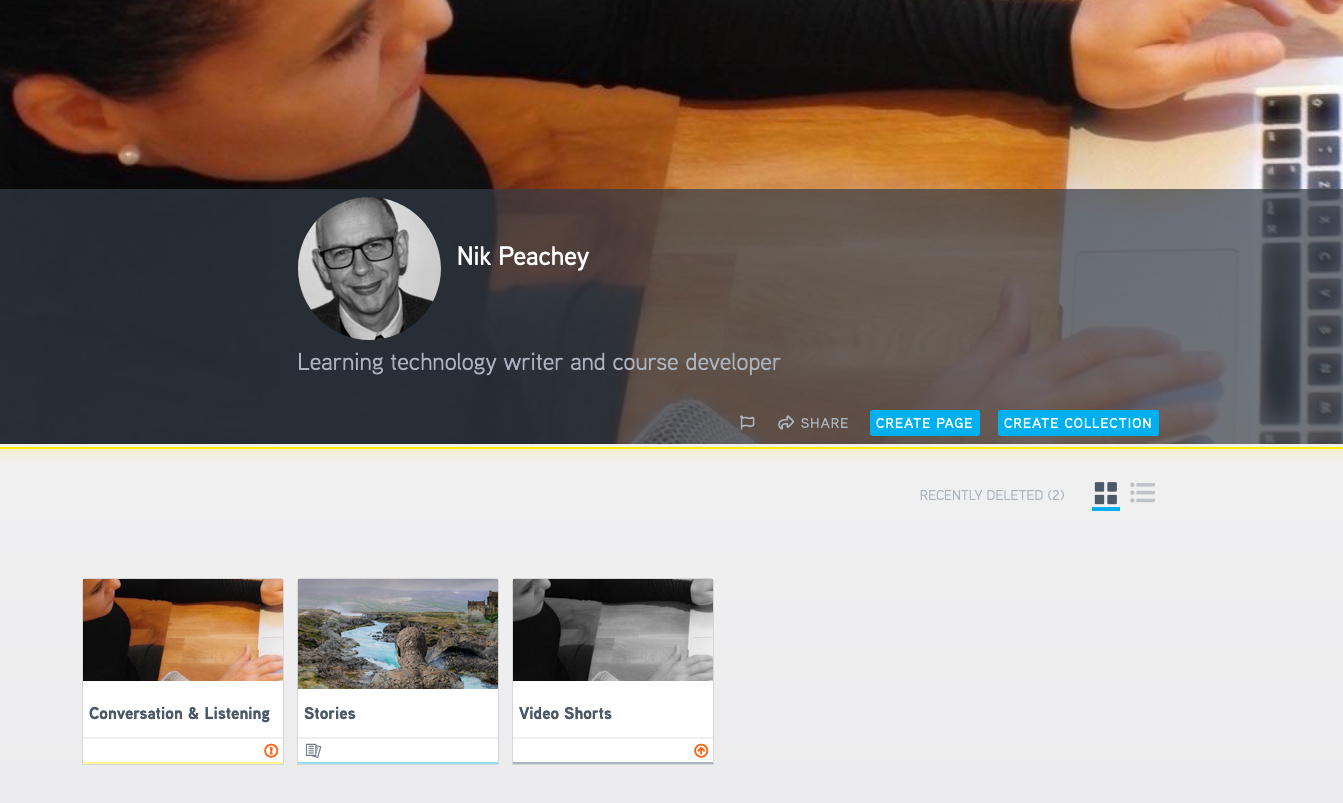
Creating a profile

To get started, all you need to do is create a free profile. All you need is an image and a short description of who you are.

Once you have your profile created you can start collecting together any digital assets you would like to include in your portfolio.

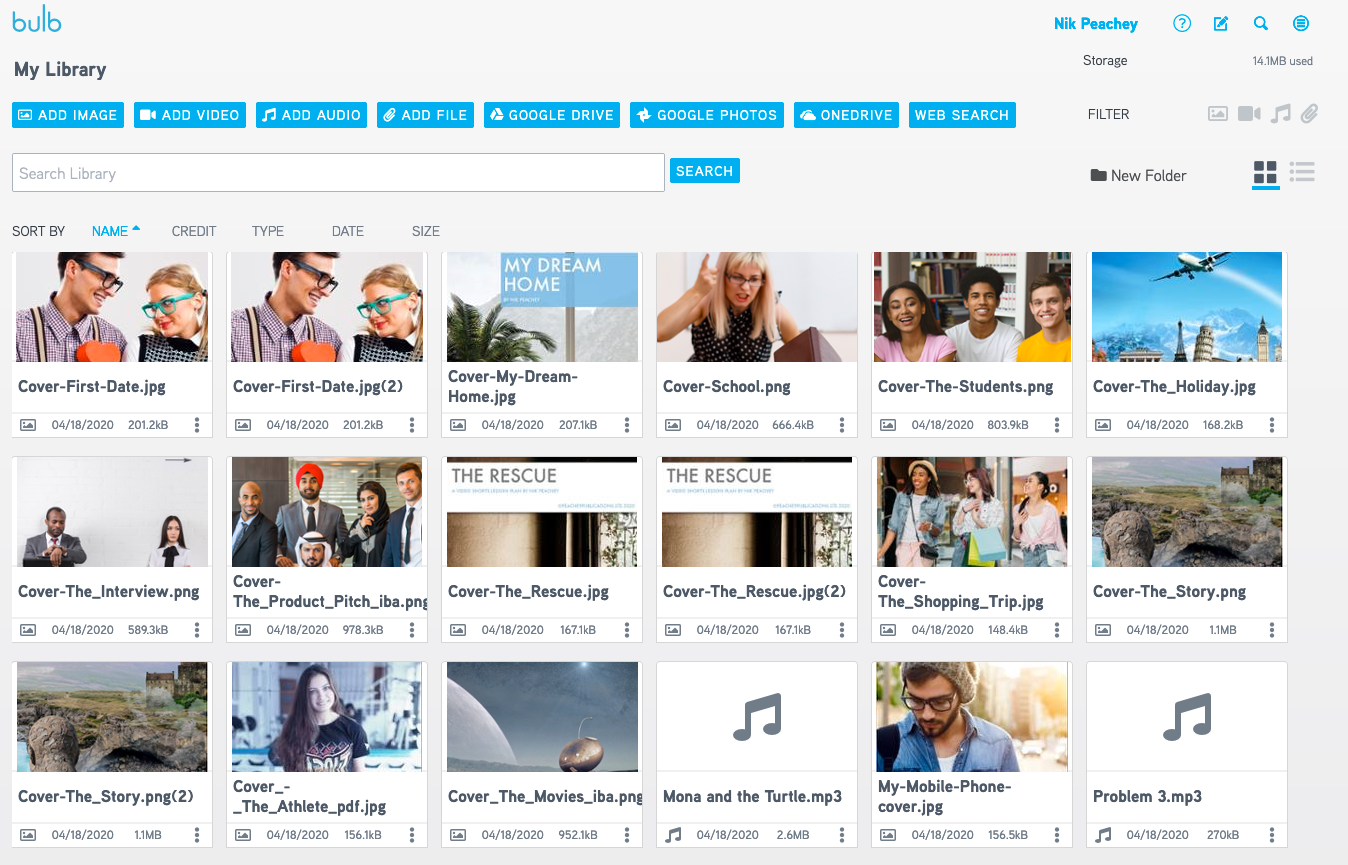
Collecting your work You can access your asset library by clicking on the icon in the top right of the screen. You or your students can add a wide variety of digital assets to your library. These could be an audio recording, documents, images, videos, or work they have stored on Google Drive or OneDrive. Interestingly, students can also record audio directly into the asset library, which may well be useful for collecting examples of student’s spoken work.

The asset library is a great place for students to collect their work as it’s totally private so they can wait until they are ready to publish something before they add it to a page.


Once students have their work in the asset library they can create Pages or Collections. A Collection is a number of Pages collected together, much like a folder. This makes it easier for students to collect and categorize their pages into different topics or subjects.

Creating pages Creating pages is very easy. Click to create a page, give the page a title and add a cover image. Then start typing in content. Click on ‘Enter’ to start a new line and you will get the option for adding assets from your library or uploading new media assets such as images, video, audio and more.

Apart from its simplicity, one really nice feature of the editor is the ability to create image carousels. Once you have added one image you can simply click on the image icon to add additional images. This makes the collections of images look more professional and users don’t need to scroll down a long page.

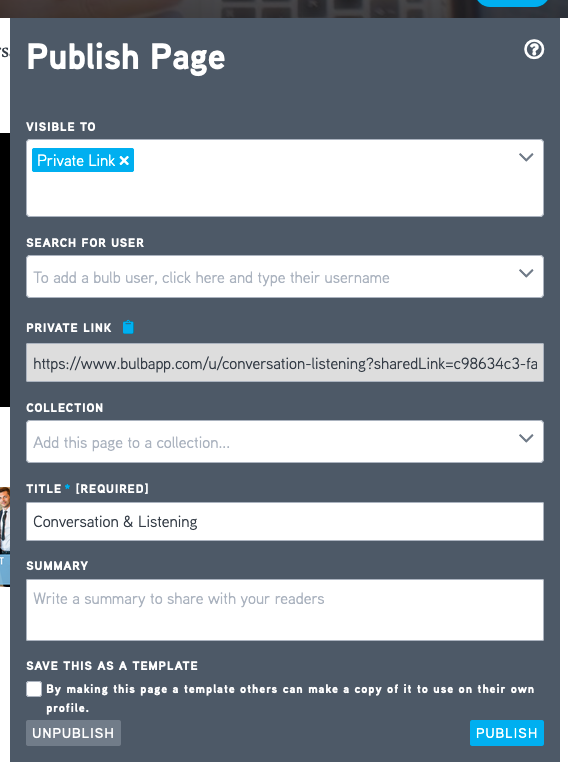
Once students have completed their page they can publish it. They can either make the page public, create a private link, or share it with specific users or groups. This makes it much easier for students to share work with peers to get feedback and comments or just their teacher or parents.
Another nice feature of the site is that you can create pages and share them as templates. This enables other users to make copies of the page and use them to add their own content. This is a great feature to enable you to create worksheets for students that they can complete or to provide a format and structure for the work that they do.

Creating groups If you are using bulb with students and particularly if you are using it with multiple classes, then the Groups feature is going to be really useful.

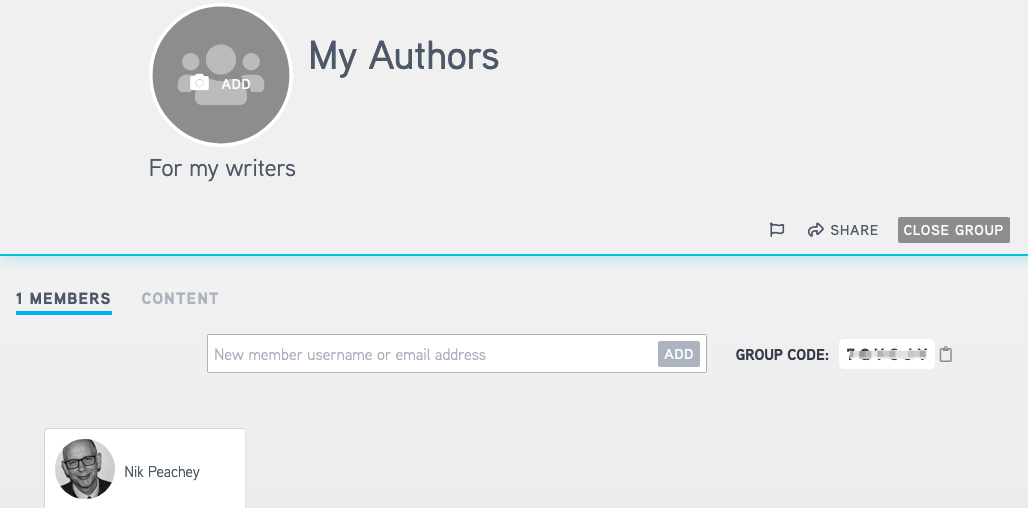
To create a group you go back to the menu and select groups and then ‘Create Group’. Give your group a name and description, then create a unique URL.
Once you have created a group you can add members by either entering their email or username or you can give students a code to add themselves as members of the group.

Now that students are in a group they can easily share and comment on each other's work and you can share work and templates with them as well as assessing and evaluating their work.

Sharing
One last feature that I really like about bulb is once pages are published they can be used in presentation mode. This opens them as fullscreen without all the editing and navigation tools, so that students can present their work in the classroom.

If you are a Google Classroom user you will also be happy to know that bulb works alongside Classroom.

That’s about all there is to it. bulb is a really stylish tool to use with your students, that they or their parents can access in the home that enables peer to peer evaluation as well as tutor evaluation and assessment of work.

I hope you find this a really useful addition to your digital teaching toolset.


More Tools
You can find links to many more resources like this and activities for the digital classroom in my ebooks at: https://payhip.com/peacheypublications
To sign up for my free newsletter and get a free copy of Digital Tools for Teachers go to: http://eepurl.com/dtgL79

Check Out My Books:
Best
Nik Peachey

Tuesday, 31 March 2020

Add learning activities and games to your zoom classroom with Raptivity

In these difficult times when schools and universities are rushing to develop credible and engaging online learning, Raptivity 2020 looks like a really useful low-cost tool to enable that process.


Raptivity 2020 is a great content authoring tool and is capable of creating dynamic and media-rich learning that is adaptive across mobile, tablet and desktop screens.
One of the striking things about Raptivity is just how simple it is to create great looking materials. When you log in, there are two parts to the dashboard, one area where your work is stored and the other where you create content.

There are a good range of content types with a good balance between presentation formats and gaming/testing types.
Each content type has an example so you can see how it works and what it looks like to students and then you can just select the ones you want and customise them with your own content.

These are some examples of the presentation types:
  • Layered Display: This content type allows the students to choose from a range of topics within the main theme. Understanding sexual harassment.
  • Panning Slides: This content type is more like a linear presentation with a menu at the side so students can jump around a little. Example: Fruit and Vegetables
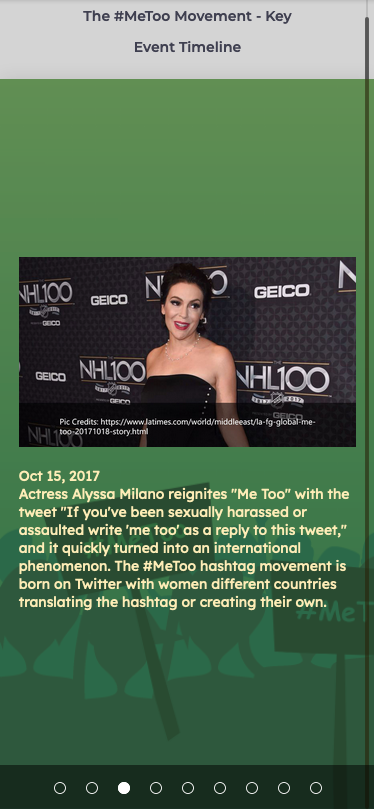
  • Horizontal Parallax: This content type is more like a timeline that students can work through. Example: The #MeeToo Timeline 

These are some examples of the game type activities:
  • This one is based around a bowling alley. Students answer question to get the opportunity to bowl and see whether they got the answer correct.  
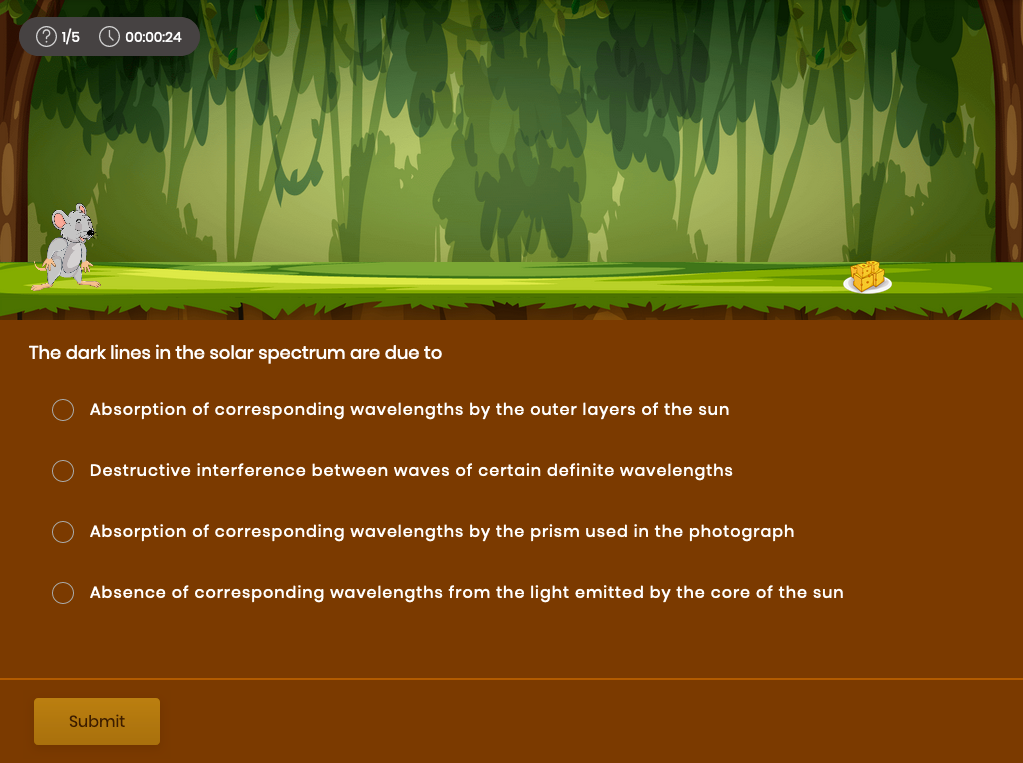
  • This one is based around a mouse trying to get cheese. Students answer questions correctly and the mouse gets the cheese, but if they make enough mistakes, the cat scares the mouse away. 

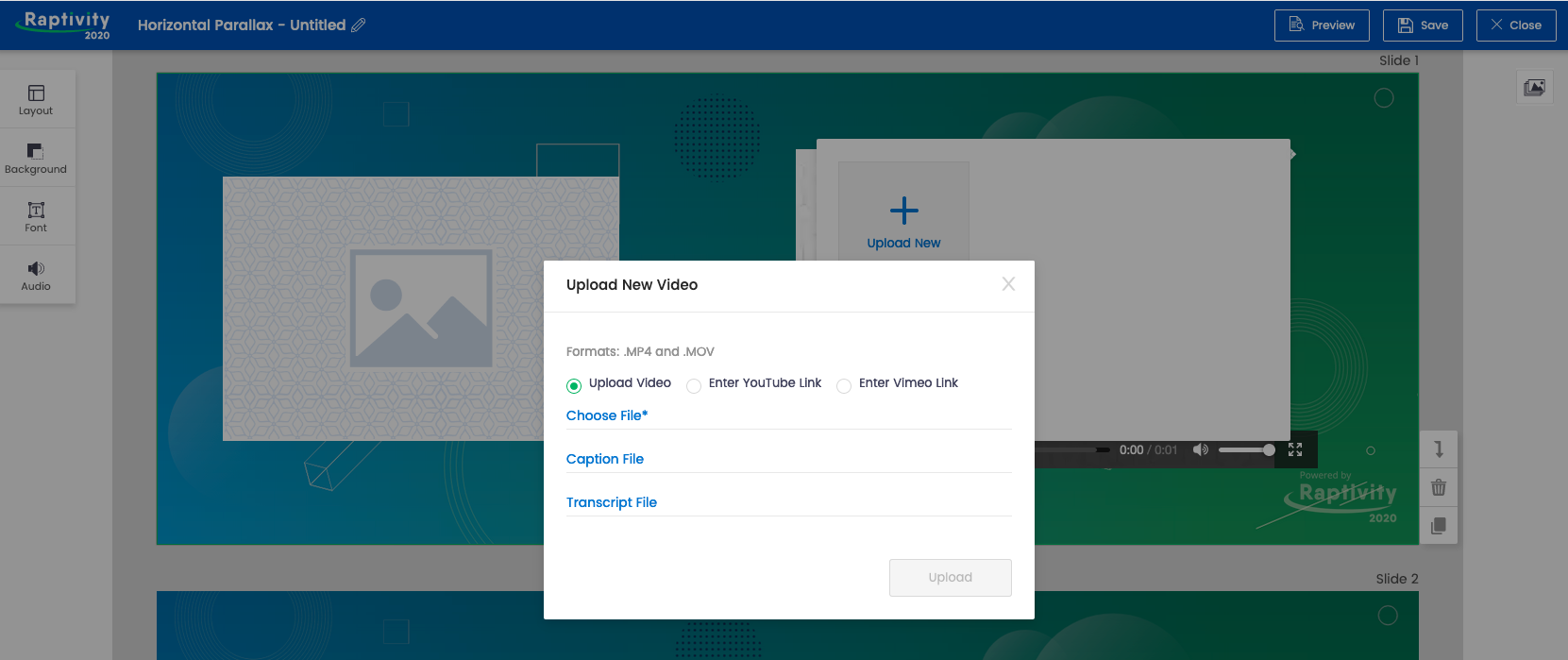
All of these content types can easily be customised with your own content. This includes adding audio narration for each slide and embedding your own video from social media.

Once you have added your content to the slides and games you can see what they look like on either tablets or phones in both horizontal and vertical mode.

Once you have saved your finished activities they are stored in the 'MyWork' section and from there you can either publish and share them through social media or email or export them for use in your own learning platform. All of the content produced is SCORM compliant.

You can also run the published content while screen sharing during a live class in Zoom or any other online classroom, or pass links to students through chat so they can do activities in pairs or breakout rooms.

Raptivity has a free 14-day trial which should be more than enough time to learn how to use the tool and produce some engaging content. Signing up for a year is very economical compared to other similar platforms. There doesn't seem to be a monthly plan at present, but at time of writing there is a 25% reduction.
Raptivity is well worth a try if you want to quickly create online learning content that's both engaging, media-rich and which looks fresh and professionally designed.

You can find links to many more resources like this and activities for the digital classroom in my ebooks at: https://payhip.com/peacheypublications
To sign up for my free newsletter and get a free copy of Digital Tools for Teachers go to: http://eepurl.com/dtgL79

Check Out My Books:
Best
Nik Peachey

Wednesday, 18 March 2020

Plexie for collaborative online creation


Plexie is a really interesting web-based app and quite a hard one to define. Basically it allows teams to work collaboratively in a web-based document to produce digital content that can either be published and shared publicly or kept private for only limited team members.

When you create your first Plexie, you create an online workspace. This allows you to create a number of digital documents that you can either work on with a team or keep private.

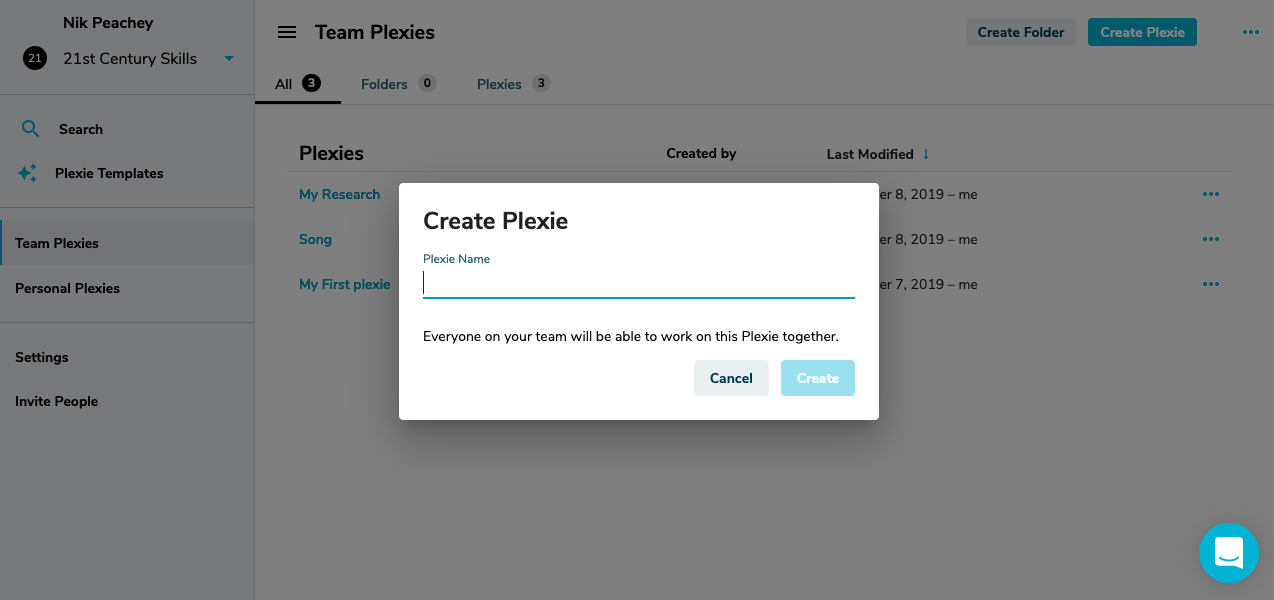
Creating a new document is easy, you just click on ‘Create Plexie’ and give your document a name.

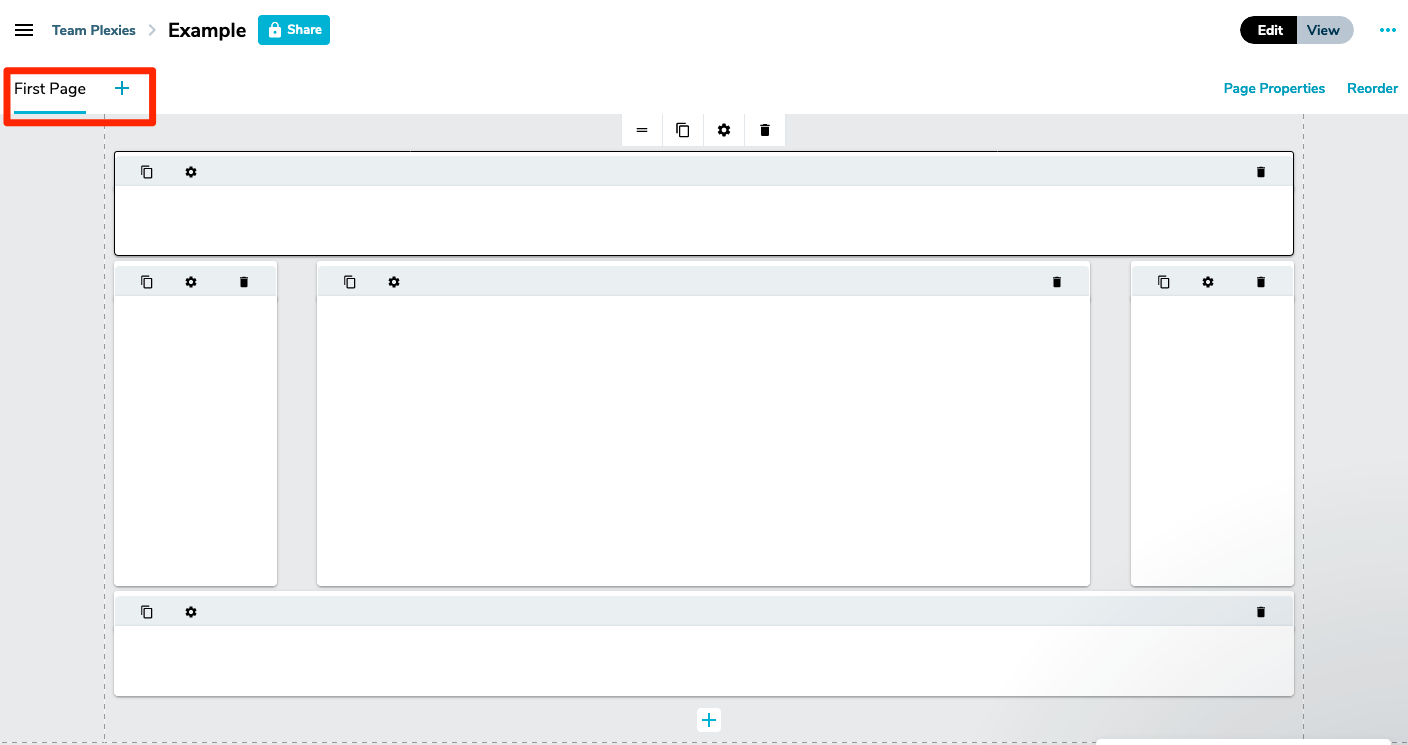
Once you have your document in your workspace you can start adding different ‘Cards’ to it. It’s a good idea to start off with some idea of what you want to create and figure out how you want to layout your workspace. This is particularly true if you want to work with a team.

You could assign different team members different cards to work on or everyone could work together.

Once you have your layout created you can start adding content to each card. You can easily add a wide range of content, from images, video and documents to text and hyperlinks to other content.


At each step of the way, you can just click on ‘View’ to see what your final product will look like.

You can also add additional pages to each Plexie in a similar way that you would if you were designing a website with multiple pages.

Plexie is a simple to use tool, but can also be used to create quite high quality visually pleasing content if you want to work with it and develop your skills a little.

When you have finished you can share your Plexie by clicking on 'Share’ and then turning on link sharing. This will make the Plexie visible to anyone who has the link.


To make this whole process easier, Plexie has just introduced a number of templates that you can choose from that you just need to select and add your own content to. Like this one for collaboratively creating a lesson plan.

Why use Plexie?

  • I think this a great tool for working with younger learners to develop their digital literacy skills. It provides you with a very safe collaborative environment that you can then share with parents once the work is finished.
  • This would be a great tool to enable teachers to develop and share lesson plans within their school or staffroom. They can work on the plans collaboratively or individually and then access each others’ plans and materials online.
  • You could use Plexie to get students doing language analysis of grammar points. Just set up a Plexie for the grammar point you want them to explore. Add cards for each of the aspects of the grammar point you want them to investigate, such as form, meaning, pronunciation, 
  • Students could use Plexie to create the framework and plan for a project as part of a PBL cycle. This would enable them to work on the project output together and then share and make it public when they have finished.
  • Plexie is ideal for creating video-based lessons. You can embed the video into one of the cards and have your instructions on a second card. Answers could be set up on a second page.
  • Similarly, you could add an infographic to a Plexie and get students to fact check the information in it and use a card each to share what they discovered about the topic. This would help them to develop their digital literacies and critical thinking skills.
  • Students could use a Plexie as a ‘vision board’ and collect examples of things that inspire them or that they aspire to do.
  • Students could use Plexie as a digital portfolio and collect and keep examples of their best work there.
There are also some nice examples on the Plexie site that show some of the range of uses for Plexie. I especially liked the idea of having CV/Resume on the site like this one.


As you can see, Plexie is a very flexible and adaptable tool with a wide range of potential uses. The free pricing plan is also very generous and enables teams of up to 100 people to work on one workspace. I guess that should be enough for most classes.
You can find links to many more resources like this and activities for the digital classroom in my ebooks at: https://payhip.com/peacheypublications
To sign up for my free newsletter and get a free copy of Digital Tools for Teachers go to: http://eepurl.com/dtgL79

Check Out My Books:
Best
Nik Peachey