Showing posts with label tesol. Show all posts

Monday, 20 September 2021

Teachwise - A platform to save time and reduce stress for teachers

 Over the last couple of years the teaching profession has gone through huge changes and most of these have seen more demands put on teachers and greater pressure to spend more time using and adapting to new digital technologies for the remote and hybrid classroom.  Many of the demands and tools teachers have been presented with have required more of their time and a wider range of skills, so it's great to be asked to look at Teachwise which is one of those few technological tools that does the opposite. 

Teachwise logo

Teachwise is a planning, time-management and productivity tool that can genuinely help teachers to cope with the demands of teaching and save time planning.

Once you have registered with Teachwise you can add your class schedule to the calendar. This is simple to do, and you can schedule classes for groups or individuals and add the students' names and the locations for the classes. This will also populate an attendance register so that Teachwise can help to track attendance for you.

Teachwise calander
The next thing to do is start planning your lessons, and this is where you really start to save time. Teachwise has a huge collection of complete lesson plans or activities that you can simply add to your schedule. All the plans and activities are editable, so you can make changes to suit your students or drop out any activities you don't want to use.

Teachwise lesson


You can also add in your own activities or your own complete plans if you wish. You can store these in Teachwise and if you choose you can also add them to the Teachwise community.

The Teachwise community is a great innovation and enables you to share materials, knowledge, tips and suggestions with all the other users and develop your expertise together.

Types of activities in Teachwise


One of the other great things about Teachwise is that once you sign up for your free trial you'll be added to their email training list, so you'll get regular emails  with tips and video tutorials which will gradually help you to get the most out of the platform and the resources.

Teachwise has 3 tiers of membership:

  • Free (for teachers who just want to access the community and the activities) 
  • Individual (For teachers who want to schedule plans and manage their classes through the app) 
  • Schools (For schools that want to use it as their main teaching admin platform).

See: Pricing

If you work in or run a school, particularly a remote one with teachers based in different locations,  this is definitely worth looking into as it could make your administrative processes much easier to handle and provide the much-needed support and development through community that many remote teachers lack.

I think Teachwise well worth signing up for a 1-month free trial that gives you access to all the features. I hope you find Teachwise useful, and it helps you to save lots of time and stress.

More Teacher Resources

You can find links to many more resources like this and activities for the digital classroom in my e-books at: https://payhip.com/peacheypublications

To sign up for my free newsletter and get a free copy of Digital Tools for Teachers go to: http://eepurl.com/dtgL79

Kind regards

Nik Peachey | Director of Pedagogy - PeacheyPublications Ltd
 

https://peacheypublications.com/

Friday, 28 February 2020

Actively Learn - A Huge Resource of Ready-Made Interactive Learning for English Language Learners

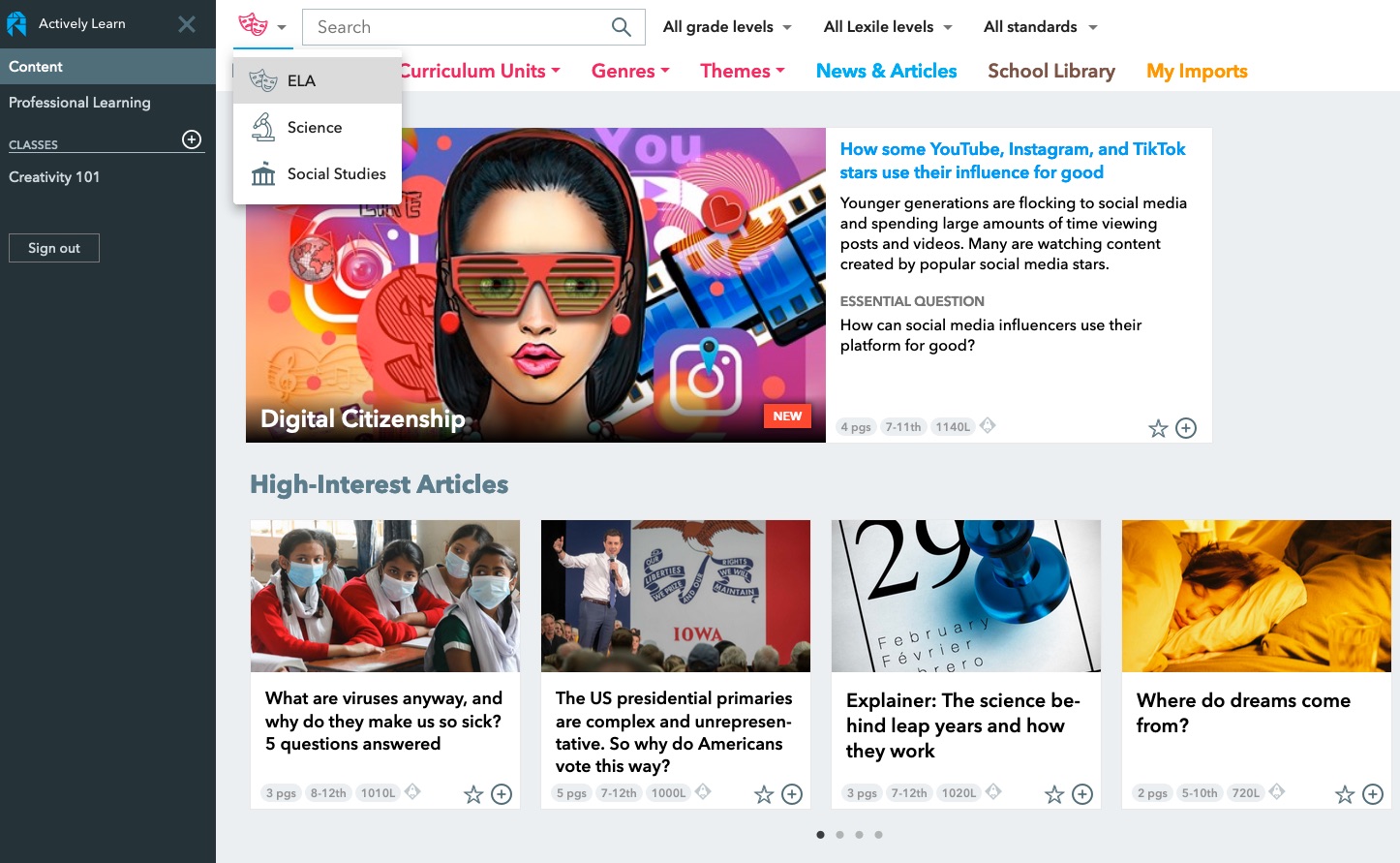
Actively Learn isn’t just a great source of learning content for grades 6 through to 12, though if you are teaching adult learners much of the grade 12 content would still be appropriate. It’s also an LMS that enables you to create and track the use of learning materials across your classes, and a teacher development tool that enables you to train teachers in aspects of materials development and instructional design.

Ready-Made Content for ELA

Actively Learn already has a really substantial amount of readymade interactive learning content when you log in. The content is easy to browse or search, initially by subject (ELA, Science or Social Studies) and then by a range of different parameters, from grade to topic to theme or genre.


Once you have found some interesting looking content for your students you can click through to see the activities that have been designed for it and the guidance notes for the teacher. There is also a brief introduction to the text. The questions that you can see as you scroll through the text are interactive and when the text is assigned to the student their responses will be tracked into the reporting part of the site.

If you want to change some of the questions or add cultural notes or word definitions through the text you can also do this, just click on the ‘Customize’ button at the top of the screen.

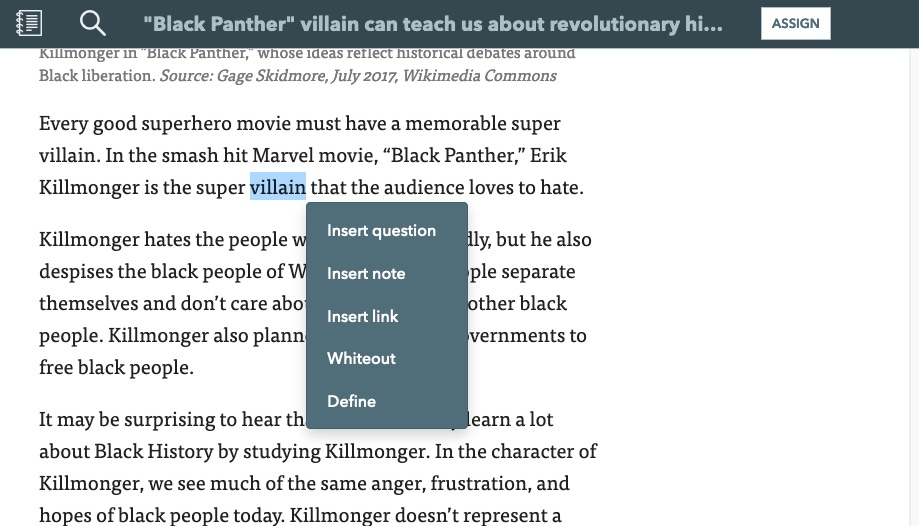
To add notes, questions or definitions to words, just highlight them and you will see a menu appear.


Once you have your text and all of the tasks ready, just click on ‘Assign’ and the text will be sent to the class that you choose.

Creating Classes and Measuring Learning

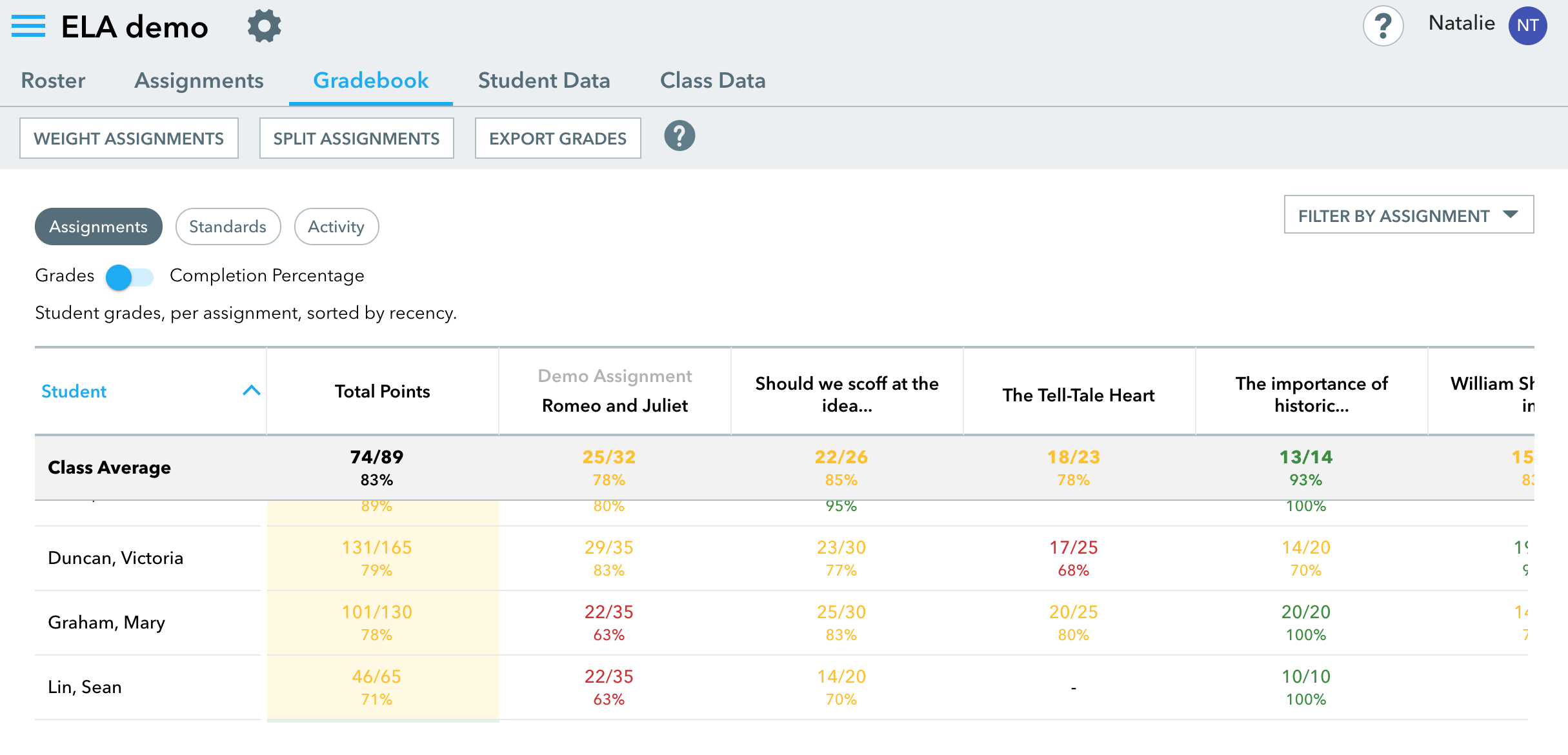
Setting up classes is simple. Just click on ‘Add new class’ on the main menu and you’ll be able to give the class a name and select the grade of the students. You get a simple code to give to students that enables them to enroll in your class. Once the students start to interact with the content you’ll be able to track their work through the Gradebook and Student data. You can also get an overall view of the class data.


Creating and Customizing Content

Actively Learn isn’t just for the development of reading skills though, you can also access or create your own content based around online video. Just select ‘Video’ on the ‘Genre’ tab and you’ll see the selection of ready-made video content. When you select a video you’ll see that it has question marks beneath the video play bar. When the students get to this point in the video it will pause and show them a question. By clicking on ‘Customize’ and then clicking on the play bar you can either edit or add new questions to the video.

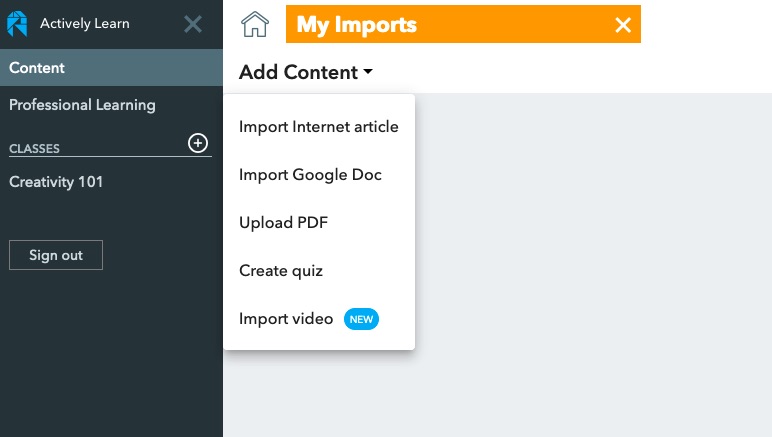
If you decide you want to add your own content, then click on ‘Import’ and select the type of content you want to add. You can then start to add interactions and questions to it before assigning it to a class.


Actively Learn for Teacher Development

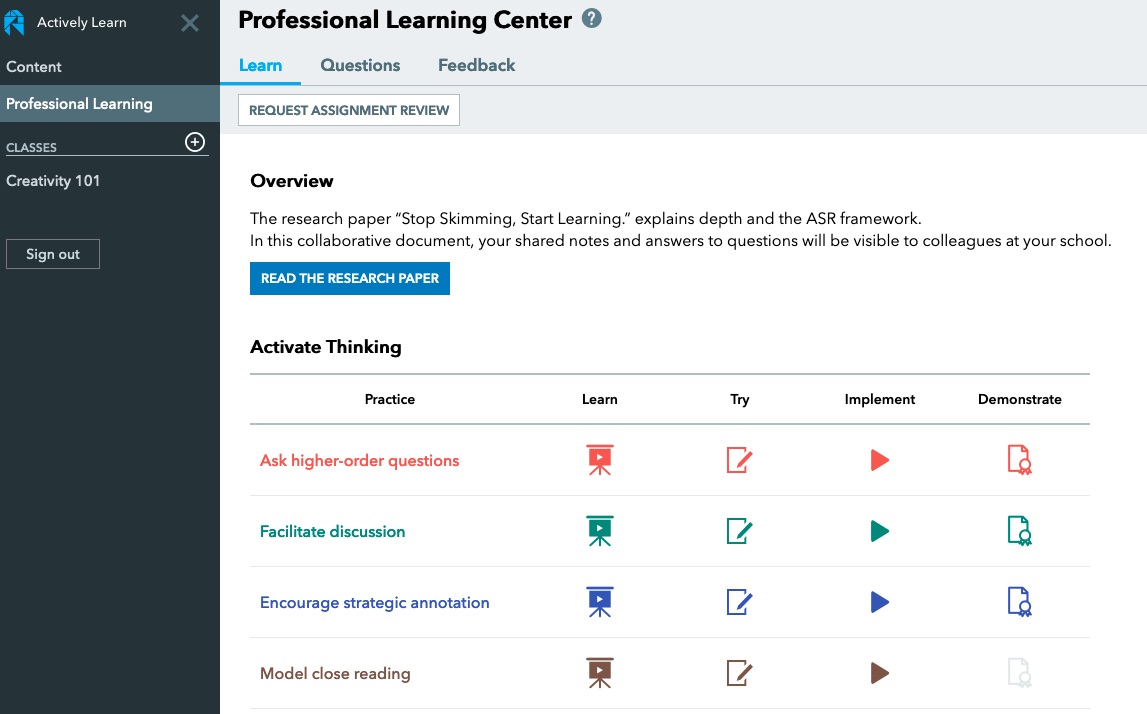
As I said at the beginning of this article, Actively Learn is also a tool for teacher development and has some really well-structured learning activities for teachers that will help them use the platform more successfully. To find these materials click on ‘Professional Learning’ in the menu.

The Professional Learning section starts with a research paper that teachers can read and comment on. The interactions around this paper will be shared with other teachers who are registered at the same school. The platform then has a collection of sequenced activities that teachers can work through to develop different aspects of their professional knowledge whilst helping them to use the platform more effectively with some ‘hands-on tasks’.


Actively Learn Plans

Actively Learn is a pretty impressive platform with a great and constantly growing bank of materials. As a teacher you can sign up for an individual account and use Actively Learn for free, but for the real power of the platform, along with API integrations into Google Classrooms, SIS or another LMS, you’ll need a premium plan. These plans are negotiated with schools according to what elements of the platform and integration they need and the number of students involved. At the school level, it’s clear to see how Actively Learn could have really clear and measurable benefits that could have genuine impact on students’ learning.

You can find links to many more resources like this and activities for the digital classroom in my ebooks at: https://payhip.com/peacheypublications
To sign up for my free newsletter and get a free copy of Digital Tools for Teachers go to: http://eepurl.com/dtgL79

Check Out My Books:

Monday, 2 December 2019

What is the role of automated writing assessment in ELT?

Whenever I share a link to some form of tool that helps students or teachers to evaluate writing skills, it is inevitable that within a few hours I'll get a comment from somebody saying "I typed in xxxx error and [enter whatever tool you wish here] didn't spot it or correct it." Usually, the sentence with the error in is complete gibberish and one that a teacher would instantly see as such but one which can sometimes fool computer-based assessment software for exactly that reason. Gibberish can be very difficult to correct.

Having said that though we all know from spelling and grammar checking that all digital tools for the assessment and correction of writing still lack the judgement and expertise of experienced writing teacher and most will always miss something or spot something that turns out not to be an error. I have, however, found the same to be true of human markers. Especially when faced with piles of essay assignments to mark after a long day in the classroom, people make mistakes too. Interestingly, The Educational Testing Service in New Jersey has been working on an e-Rater system to automate admission test scoring.  They have concluded that a human rating combined with an automatic rating is more reliable than two human raters since humans tend to diverge in their judgements.

So the question is: If these tools are fallible can they still be pedagogically useful?

For me, the answer would be yes. What this means though is that we need to teach our students to use these tools in combination with and to develop their own powers of judgement to become more independent learners. Let's be clear that doesn't just mean independent from the teacher but also free from the dependence on writing support tools.

Whenever I work with any kind of writing support tools I'm reminded of an episode of the sitcom Friends in which the character Joey needs to write a formal letter and discovers that using a digital thesaurus can make the words he uses sound more intelligent.


What this highlights is that teachers and students need to work with these tools with a clear understanding of their limitations and a need to develop and use their own judgement when deciding whether to take the advice of the program.
Personally, I think this makes for a great classroom activity. If you can get a text with a variety of mistakes and different feedback suggestions from the online tool that students want to use, then you can get the students to evaluate the feedback and try to decide how accurate and useful they think it is. This is a great way to get students thinking more critically about language and encouraging them to reflect on their own writing. Once they are familiar with the tool, students should write their own essays and use the tool again to get feedback on their draft.

As time progresses though I'm sure these various writing support tools will continue to develop and evolve into better versions of themselves. Through the use of AI and machine learning, computers are becoming much better at understanding context and its connection to the use of language. This is particularly true when the computer has a clear framework understanding of what the student needs to achieve.
This tool gives students clear guidelines and rubric for what they need to write and then measures their input against those criteria. This narrows down the risk of error and enables the program to give very detailed feedback on the various criteria the assignment is being marked against. The program then checks:
  • for a question at the beginning of the introduction
  • thesis and topic sentence strength to help students strengthen their claims
  • the count of citations in body paragraphs to encourage students to use evidence to support their arguments
  • thesis reformulation in the conclusion to promote paraphrasing as contextualized skill
  • literary and film analysis vocabulary scores to encourage students to increase the active range of their vocabulary
The other great strength of these tools have over teachers of course is time. A digital platform like Grammar.ly or https://virtualwritingtutor.com can handle tens of thousands of texts each minute and students can keep coming back to them with written work every hour if they need to, whereas teacher-marking-time is expensive and very definitely finite and I would  be surprised if on average a teacher marks more than one or two pieces of written work from each student in a week.

With demands on teacher time growing and the capabilities of automated writing support improving all the time, I feel these tools can deliver an increasingly important contribution to the development of our students writing skills.

You can find links to many more resources like this and activities for the digital classroom in my ebooks at: https://payhip.com/peacheypublications

To sign up for my free newsletter and get a free copy of Digital Tools for Teachers go to: http://eepurl.com/dtgL79

Check Out My Books:

Best
Nik Peachey


Tuesday, 21 May 2019

Building Quizzes with Artificial Intelligence

Back in December 2018, I reviewed an excellent web-based application called Quillionz. The site was developed using AI to instantly produce a wide range of questions based on any text of 300 - 3000 words.


Since then the tool has been a great success and I've had some very positive reports from many English and subject-based teachers who have used it to save time and create instant reading comprehension tests based around authentic content.

Quillionz has now released a Pro version, which I've just tried. I have to say it's really impressive.

These are a few of the new features the pro version offers:
  • Generate Wh questions
  • View the context of a question
  • Generate unlimited question sets per day
  • Save unlimited question sets
  • Input content as text and PDF
  • Export question sets as a text file or QuilliQuiz

The new feature that I like best is QuilliQuiz. This is a feature that turns the questions into virtual quizzes. Here's an example of a QuilliQuiz abut a newspaper article on Brexit:https://app.quillionz.com/Quiz/Index?id=UIi9wC


So once students have read and done their comprehension exercises, you can use this feature to have a group class-quiz or students can use it individually to review and revise the content.
They simply look at the questions, try to remember the answer and then click the flashcard to see if they have it right.

Quillionz Pro is priced at just under $10 a month, so if you are creating lots of materials based around text then it can be a really economical way to save lots of time.

If that is expensive for you, you can still continue to use the free version and quickly create some great quizzes and content for your students.


I hope you enjoy using Quillionz with your students.

You can find links to many more tools like this and activities for the digital classroom in my ebooks at: https://payhip.com/peacheypublications


Sign up for my twice-monthly free newsletter and get a free copy of Digital Tools for Teachers at: https://tinyletter.com/technogogy/


Check Out My Books:


Best
Nik Peachey


Thursday, 30 August 2018

WordBooster - For Creating Learning Around Authentic Text

When technology first came along we were all told that it would save us time and make our lives easier, and yet here we are many years later working harder than ever.

Well at least there is WordBooster that really does live up to the hype, save time and deliver excellent results.You can convert an article into a learning activity with glossary and vocabulary building tasks in less than five minutes.

WordBooster is the ideal tool if you want to use authentic materials to build your students’ reading skills and vocabulary. It enables you to quickly generate a glossary and some vocabulary building activities based around your choice of words from the text.

How to create a vocabulary building worksheet


  • To create your activity, register (for free) and then paste either the text or the URL into field and click on ‘GO'.

  • Wait a few moments and you will be able to format and edit the text.
  • When you’re happy that the text looks good and is  ready print, click ‘GO' again and you’ll see some suggested words and expressions to include in your activities.
  • Click on the word or phrase you want to include in your activity and you’ll get some options for the definitions of the word you include.
  • Click on the correct definition then click on ‘Accept' and the word and definition will be added to your worksheet.
  • Once you have all the words you want to include, click on ‘Done’. You can then download the text as PDF.
  • Click on 'VOCAB LIST' and you will see and be able to download the glossary.
  • Finally, click on ‘QUIZ' and you’ll be able to configure the types of questions you include in your vocabulary quiz. You can easily change the types of question. Then click on ‘Create Quiz as PDF' and you will be able to download the quiz and answer key.
All the the texts you use are stored in your profile so it’s easy to go back and reuse them or create new versions for different classes or revision for the original class.

All the worksheets also include a short link and QR code that takes students to the original article online, so if you want students to do their reading from the screen while they work on the activities, that’s also easy to do.

WordBooster really is a great tool for saving teachers time and effort and creating professional looking materials. It’s especially good for anyone working in the CLIL classroom who needs to use topic specific texts and great for authentic reading materials for higher levels.

What’s not to like?

You can find more tools like this and advice on how to train teacher to use them in my ebook - Digital Tools for Teacher - Trainers' Edition.
I hope you find it useful.

Best

Nik Peachey

Monday, 7 August 2017

Get Students Creating Video Summaries with Lumen5

This is a great tool for quickly creating video summaries. You can use it to write a short summary or just put in the URL of an online article or blog posting and then pick the parts of the text you want to include in the video.

Once you’ve structured the text, the site will automatically find images and clips to go with each section of the text.

You can then edit these manually or add your own images then choose which part of the text to highlight. Once you have the look and feel of the video right, you just select music and add your branding.


The video renders online and you can then download a copy to your hard drive and uploaded to any online sharing sites and embed it into a course or blog.

Here are some examples I created

Lumen5 is a great tool to use to encourage students to produce short summaries. It forces them to keep the amount of text to a minimum so they focus on key points. Selecting and matching images to the text can also help make the points more memorable.

You can find links to many more tools like this and activities for the digital classroom in my ebooks at: https://peacheypublications.com/. All my ebooks are available for iOS and as PDF.


Related reading


Best

Nik Peachey

Friday, 19 May 2017

An App for Making Grammar Addictive

The ‘Quiz Your English App’ is a great new free app available for on both iOS and Android that has been designed to make English learning and revision into an engaging, enjoyable and addictive game.

The app has been produced by Cambridge English Language Assessment and can be downloaded for free from: http://www.cambridgeenglish.org/learning-english/games-social/quiz-your-english/

Once your students have installed the game they need to register either by using a Google or Facebook account. Once registered students can challenge other users in competitive language quizzes. They do this by clicking on ‘Play’ and then choosing a topic.
Once they have their topic, the app will match them up to an opponent and they then have to answer a sequence of five timed questions.
The students then have ten seconds to answer the question. The student that answers correctly first scores more points.
The whole quiz is finished in less than 1 minute and then the students can ask for a rematch or challenge someone else.
As the students gain points they are added to a scoreboard and they can search through the scoreboard and challenge other players.
By clicking on ‘Results’ students can review their past games, see how they scored and look at which questions they got right or wrong.
This is a really simple but very well designed app that will keep students at a lower intermediate + level engaged with and reviewing language on a regular basis.


Using Quiz Your English with Students
  • It would be a great tool to use as a filler in the classroom for students who finish early or for some autonomous learning tool.
  • You could also start your class by getting students into pairs or small groups to share the questions they got wrong and work together to try to find  out why their answer was wrong and which one was correct.

Summary
  • There’s a lot to like about this app. I actually really enjoyed playing it myself as a native speaker, so for students who are drawn to competitive games this could be quite addictive.
  • I also like that you know who you are playing against and where they come from, even though the app doesn’t enable any form of contact, so it’s still safe for students.
  • The fact that the quizzes are so short also keeps the interest levels and students can quickly go to reviewing their answers or play another opponent.
  • There is of course a commercial element to the app and there are in-app purchases so that students can buy particular quiz packs, including one for IELTS, but this could be a really good way for students to do some enjoyable revision and improve their score.
  • I have some reservations about having to register using my Facebook or Google account. This is great in that it reduces the chances of students forgetting or losing passwords and automatically creates their profile and enables them to challenge other friends on Facebook, but it would be nice to have a log in option for students who aren’t Google or Facebook users or ones that prefer to opt out.
On the whole I think Quiz Your English is a great app and can add a really useful dimension to your students’ learning and your classroom teaching. I hope you and your students enjoy using it.

You can find links to many more tools like this and activities for the digital classroom in my ebooks at: https://peacheypublications.com/. All my ebooks are available for iOS and as PDF.

Sign up for my twice monthly free newsletter and get a free copy of Digital Tools for Teachers at: https://tinyletter.com/technogogy/ 

My Books:
 Best

Nik Peachey

Tuesday, 21 February 2017

Which ELT blogs do you read?

I'm carrying out some quick research to find out which ELT blogs teachers are reading these days. Many of the ones I used to consult seem to have died and I'm interested to see who is still blogging and if there is a new generation of ELT bloggers emerging.

Please share links and vote for your favourite ELT specific blogs.


Many thanks.

Related links:


Best

Nik Peachey


Monday, 3 October 2016

Exploiting Infographics for Digital Literacy and Critical Thinking

This is just a short post to anounce the publication of my new ebook 'Exploiting Infographics for Digital Literacy and Critical Thinking'.
Exploiting Infographics follows on from 10 Lessons in Digital Literacy, which is a collection of lesson plans based around infographics, and looks in more depth at the genre and how infographics can be used as both sources of information and as creative learning tasks for students.
The tasks that accompany the infographics are intended to encourage students to think more critically about the information they are exposed to and to question the sources of information they find whilst browsing the internet. Exploiting Infographics should help teachers to start creating their own tasks, activities and lesson plans for students and to integrate infographics in a way that will enhance students’ critical thinking, digital literacy, language and communication skills. Exploiting Infographics was conceived as part of The Digital Classrooms Series which started with the award winning Digital Video - A Manual for Language Teachers.
The series is intended to help teachers, teacher trainers, materials writers and course designers integrate digital technologies into their classroom practice in a pedagogically sound and impactful way. I hope you enjoy these books and find them useful. Related links:
Nik Peachey

Wednesday, 2 March 2016

10 Lesson Plans to Develop Digital Literacies

Over the last few months I have been working hard to develop a set of commercially available lesson materials. These lesson plans aren't specifically designed for English language learners, though they will be useful for students at higher levels who want stimulating skills based practice or for any teacher interested in developing a CLIL or content based approach to language learning.  They were designed to enable any teacher to develop students in a way that is more closely aligned to the kinds of skills they will need to function effectively and critically in the digital world.

...

I hope you enjoy these lessons and find them useful in developing your students into digitally literate citizens of the 21st century.

Related links:

Best

Nik Peachey