Showing posts with label elt. Show all posts

Monday, 20 September 2021

Teachwise - A platform to save time and reduce stress for teachers

 Over the last couple of years the teaching profession has gone through huge changes and most of these have seen more demands put on teachers and greater pressure to spend more time using and adapting to new digital technologies for the remote and hybrid classroom.  Many of the demands and tools teachers have been presented with have required more of their time and a wider range of skills, so it's great to be asked to look at Teachwise which is one of those few technological tools that does the opposite. 

Teachwise logo

Teachwise is a planning, time-management and productivity tool that can genuinely help teachers to cope with the demands of teaching and save time planning.

Once you have registered with Teachwise you can add your class schedule to the calendar. This is simple to do, and you can schedule classes for groups or individuals and add the students' names and the locations for the classes. This will also populate an attendance register so that Teachwise can help to track attendance for you.

Teachwise calander
The next thing to do is start planning your lessons, and this is where you really start to save time. Teachwise has a huge collection of complete lesson plans or activities that you can simply add to your schedule. All the plans and activities are editable, so you can make changes to suit your students or drop out any activities you don't want to use.

Teachwise lesson


You can also add in your own activities or your own complete plans if you wish. You can store these in Teachwise and if you choose you can also add them to the Teachwise community.

The Teachwise community is a great innovation and enables you to share materials, knowledge, tips and suggestions with all the other users and develop your expertise together.

Types of activities in Teachwise


One of the other great things about Teachwise is that once you sign up for your free trial you'll be added to their email training list, so you'll get regular emails  with tips and video tutorials which will gradually help you to get the most out of the platform and the resources.

Teachwise has 3 tiers of membership:

  • Free (for teachers who just want to access the community and the activities) 
  • Individual (For teachers who want to schedule plans and manage their classes through the app) 
  • Schools (For schools that want to use it as their main teaching admin platform).

See: Pricing

If you work in or run a school, particularly a remote one with teachers based in different locations,  this is definitely worth looking into as it could make your administrative processes much easier to handle and provide the much-needed support and development through community that many remote teachers lack.

I think Teachwise well worth signing up for a 1-month free trial that gives you access to all the features. I hope you find Teachwise useful, and it helps you to save lots of time and stress.

More Teacher Resources

You can find links to many more resources like this and activities for the digital classroom in my e-books at: https://payhip.com/peacheypublications

To sign up for my free newsletter and get a free copy of Digital Tools for Teachers go to: http://eepurl.com/dtgL79

Kind regards

Nik Peachey | Director of Pedagogy - PeacheyPublications Ltd
 

https://peacheypublications.com/

Friday, 28 May 2021

ELT Songs to get your students singing, dancing and speaking


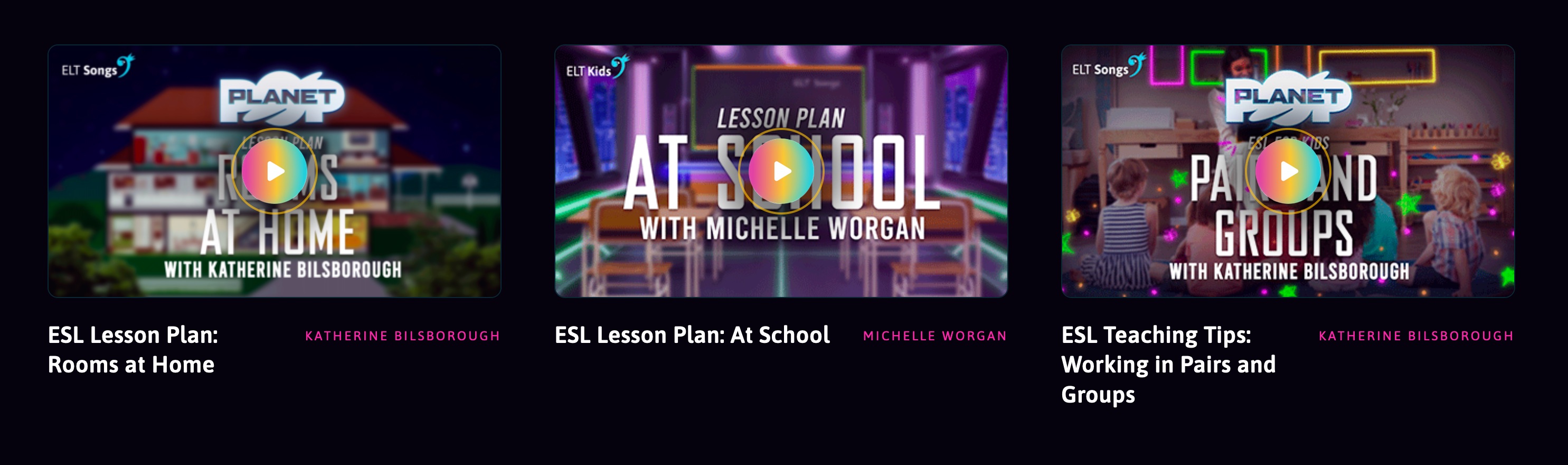
I often dread looking at 'made for ELT' songs and music (I actually have a degree in music and studied jazz performance), but I was recently nicely surprised to see what ELT Songs have been doing on their site. They really seem to have got the knack of  approaching and creating songs for younger learners well and with obviously very high production values.
 

If you check out the ELT Songs site you can find 58 units (with an additional 68 new units coming later this year). Each consisting of 6 videos per unit all of which are 100% aligned to the Cambridge Young Learners curriculum (starters, movers and flyers). The videos are great and really tap into the current K-Pop style with songs and synchronised dance moves and even UK sign language integrated in to help students understand the words while they sing and dance along and enjoy learning.
 

The lesson videos from each unit cover conversation practice, pronunciation, vocabulary rap and grammar tutorials as well as karaoke where students can just sing along. The videos are hosted on Vimeo, so they are all high quality, can have closed captions on or off, and you aren't going to be surprised by any unsuitable ads.
 
As well as the videos they provide teachers with downloadable lesson plans, worksheets, and flashcards. You can see a nice example here in the 'Downloads' section underneath the video panel: https://eltsongs.com/unit/planet-pop-unit-7/
 
As well as the core offer they have a great resources section that has videos with tips and advice from some of the best young learner materials writers in ELT publishing. These include:

The blog is also another great resource and it has lots of materials, and activities around a wide range of topics.
I love this posting about International Women's Day and ideas for helping make students aware of issues around gender equality and download able lesson plan. This can be a difficult but really important issue to address with younger learners and they handle this in a really positive way.
Not all the materials are free but there is a free trial that runs until the end of July, so that's lots of time to try things out and maybe even convince your school to make the purchase so that you get access to additional features like student tracking, fluency and pronunciation activities, Google Classroom integration and some free training.
If your school isn't interested then individual teacher pricing is under $4 a month and that can save you a LOT of planning and preparation time so that seems like really great value for anyone who is teaching young learners.

Overall ELT Songs is a really great resource with lots of really great speaking and listening activities for kids. I hope you and your students really enjoy it.
 
More Teacher Resources
You can find links to many more resources like this and activities for the digital classroom in my e-books at: https://payhip.com/peacheypublications
To sign up for my free newsletter and get a free copy of Digital Tools for Teachers go to: http://eepurl.com/dtgL79
 
Check Out My Books:
Best
Nik Peachey  

Friday, 28 February 2020

Actively Learn - A Huge Resource of Ready-Made Interactive Learning for English Language Learners

Actively Learn isn’t just a great source of learning content for grades 6 through to 12, though if you are teaching adult learners much of the grade 12 content would still be appropriate. It’s also an LMS that enables you to create and track the use of learning materials across your classes, and a teacher development tool that enables you to train teachers in aspects of materials development and instructional design.

Ready-Made Content for ELA

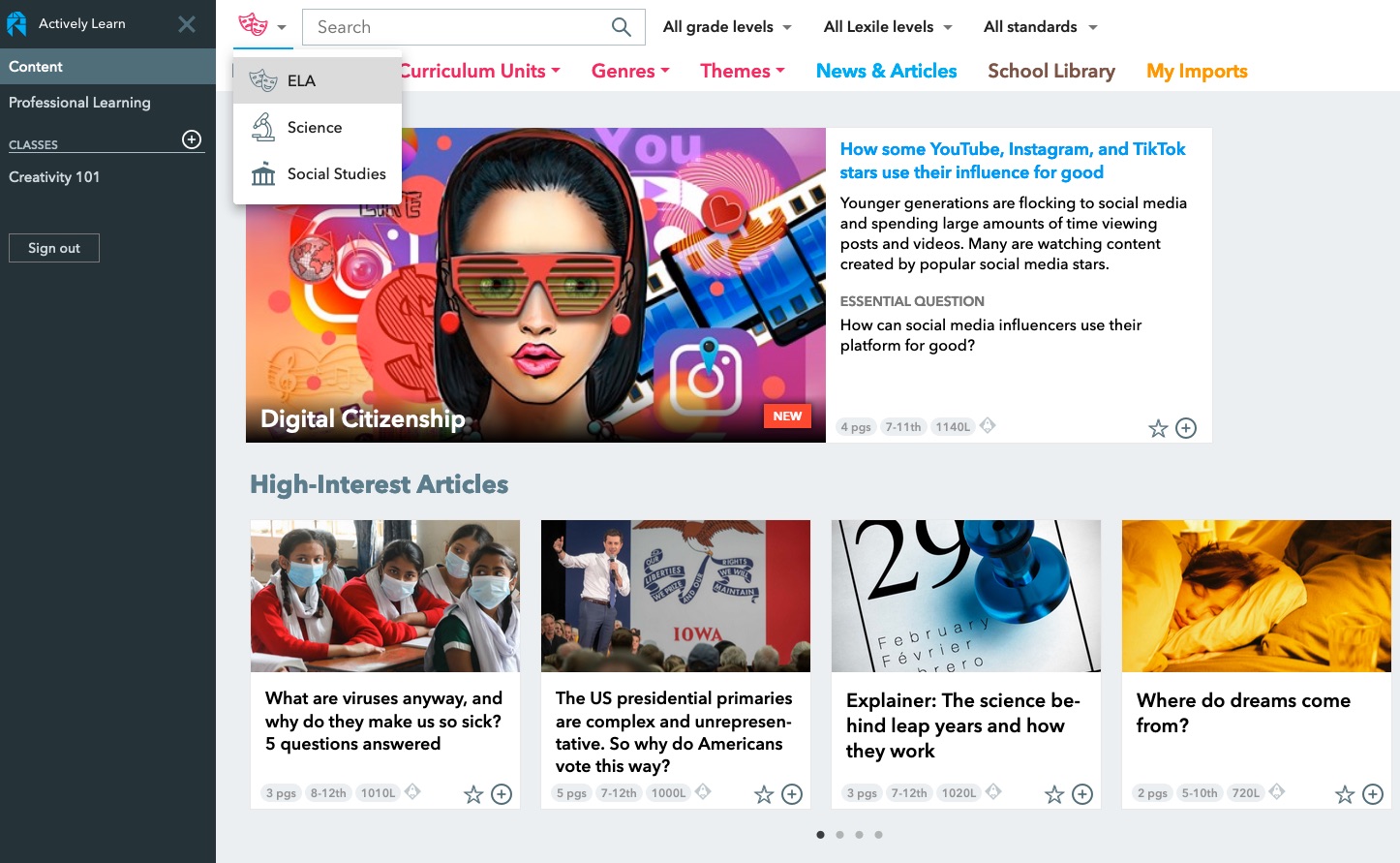
Actively Learn already has a really substantial amount of readymade interactive learning content when you log in. The content is easy to browse or search, initially by subject (ELA, Science or Social Studies) and then by a range of different parameters, from grade to topic to theme or genre.


Once you have found some interesting looking content for your students you can click through to see the activities that have been designed for it and the guidance notes for the teacher. There is also a brief introduction to the text. The questions that you can see as you scroll through the text are interactive and when the text is assigned to the student their responses will be tracked into the reporting part of the site.

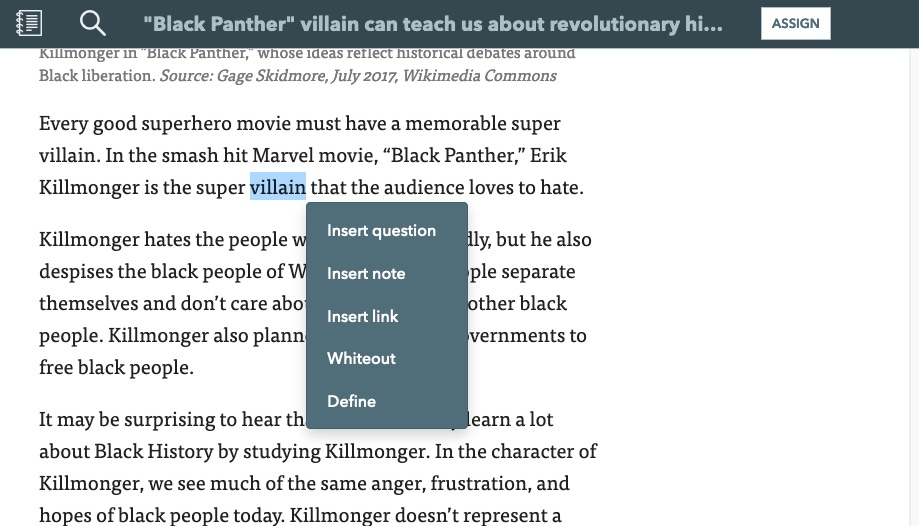
If you want to change some of the questions or add cultural notes or word definitions through the text you can also do this, just click on the ‘Customize’ button at the top of the screen.

To add notes, questions or definitions to words, just highlight them and you will see a menu appear.


Once you have your text and all of the tasks ready, just click on ‘Assign’ and the text will be sent to the class that you choose.

Creating Classes and Measuring Learning

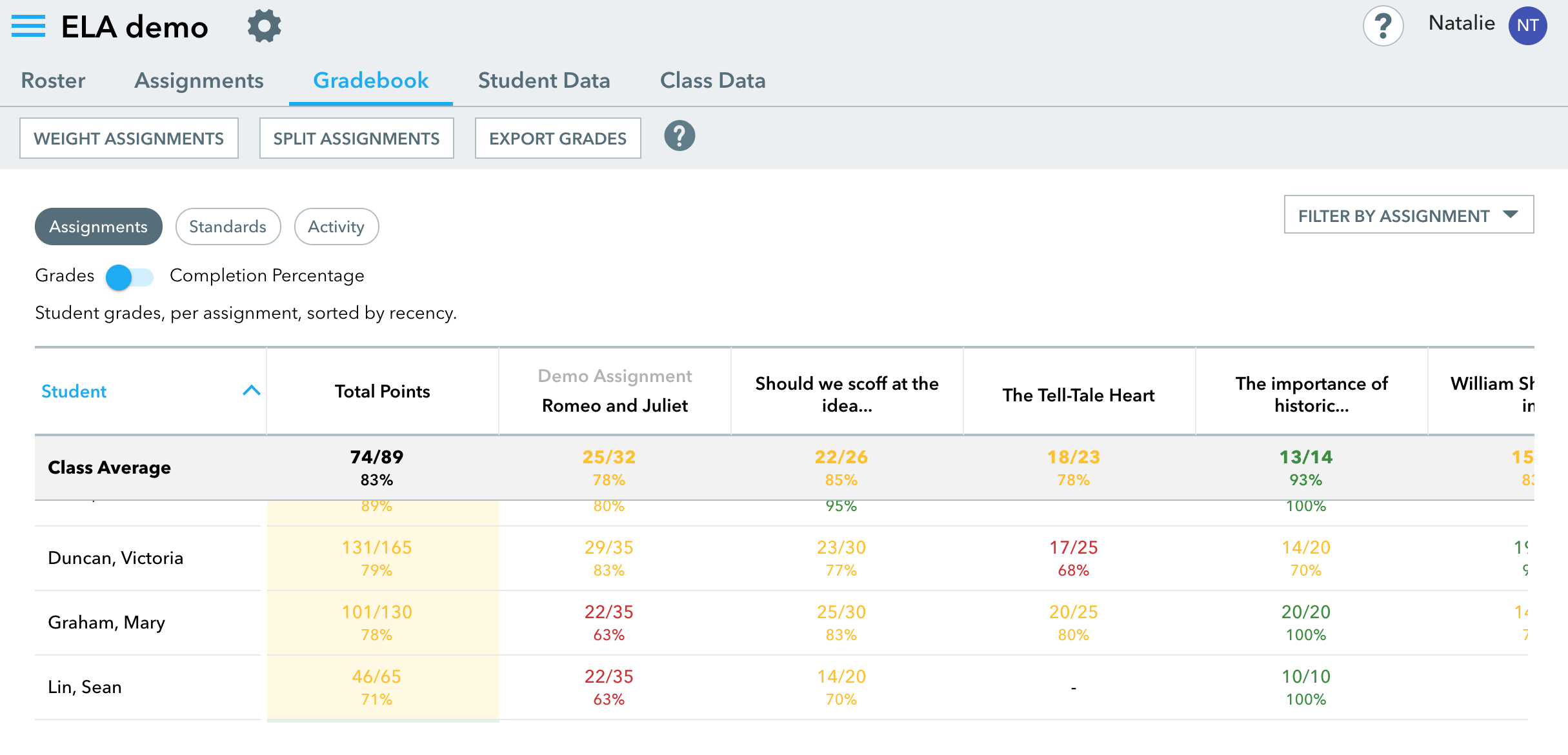
Setting up classes is simple. Just click on ‘Add new class’ on the main menu and you’ll be able to give the class a name and select the grade of the students. You get a simple code to give to students that enables them to enroll in your class. Once the students start to interact with the content you’ll be able to track their work through the Gradebook and Student data. You can also get an overall view of the class data.


Creating and Customizing Content

Actively Learn isn’t just for the development of reading skills though, you can also access or create your own content based around online video. Just select ‘Video’ on the ‘Genre’ tab and you’ll see the selection of ready-made video content. When you select a video you’ll see that it has question marks beneath the video play bar. When the students get to this point in the video it will pause and show them a question. By clicking on ‘Customize’ and then clicking on the play bar you can either edit or add new questions to the video.

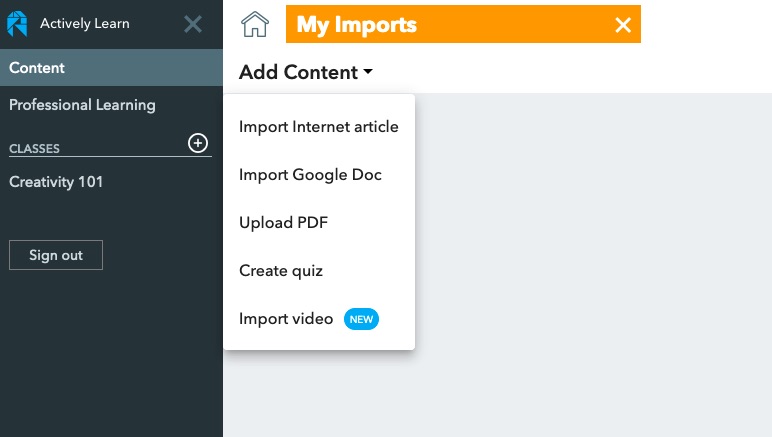
If you decide you want to add your own content, then click on ‘Import’ and select the type of content you want to add. You can then start to add interactions and questions to it before assigning it to a class.


Actively Learn for Teacher Development

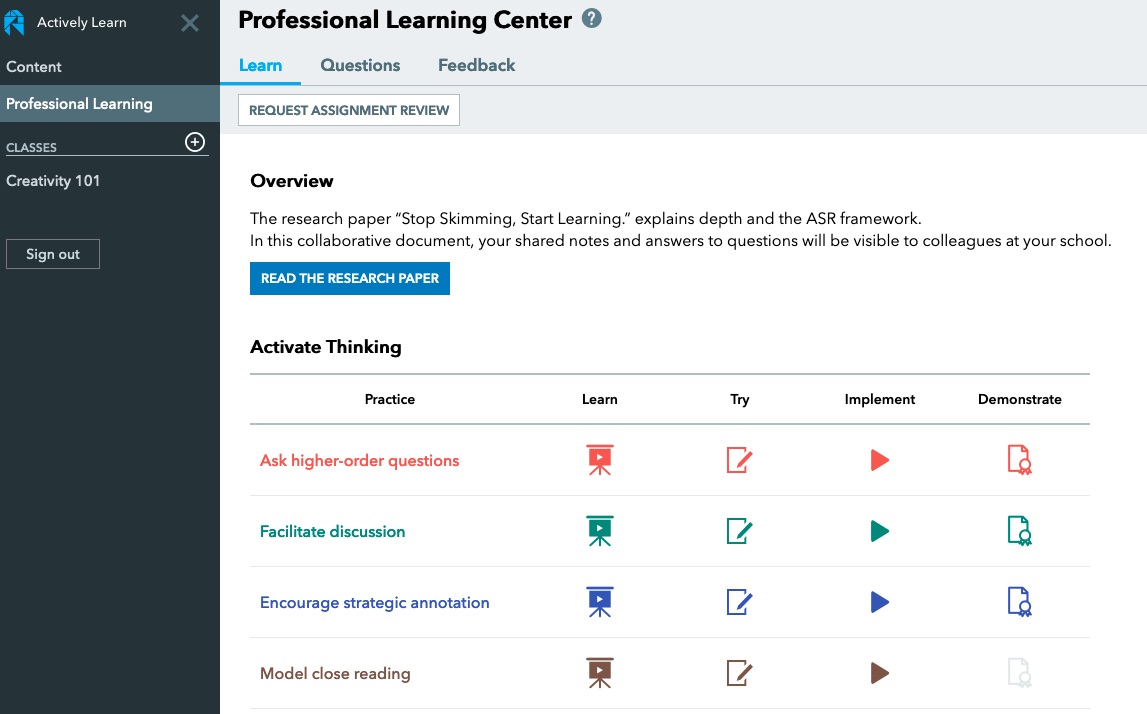
As I said at the beginning of this article, Actively Learn is also a tool for teacher development and has some really well-structured learning activities for teachers that will help them use the platform more successfully. To find these materials click on ‘Professional Learning’ in the menu.

The Professional Learning section starts with a research paper that teachers can read and comment on. The interactions around this paper will be shared with other teachers who are registered at the same school. The platform then has a collection of sequenced activities that teachers can work through to develop different aspects of their professional knowledge whilst helping them to use the platform more effectively with some ‘hands-on tasks’.


Actively Learn Plans

Actively Learn is a pretty impressive platform with a great and constantly growing bank of materials. As a teacher you can sign up for an individual account and use Actively Learn for free, but for the real power of the platform, along with API integrations into Google Classrooms, SIS or another LMS, you’ll need a premium plan. These plans are negotiated with schools according to what elements of the platform and integration they need and the number of students involved. At the school level, it’s clear to see how Actively Learn could have really clear and measurable benefits that could have genuine impact on students’ learning.

You can find links to many more resources like this and activities for the digital classroom in my ebooks at: https://payhip.com/peacheypublications
To sign up for my free newsletter and get a free copy of Digital Tools for Teachers go to: http://eepurl.com/dtgL79

Check Out My Books:

Monday, 2 December 2019

What is the role of automated writing assessment in ELT?

Whenever I share a link to some form of tool that helps students or teachers to evaluate writing skills, it is inevitable that within a few hours I'll get a comment from somebody saying "I typed in xxxx error and [enter whatever tool you wish here] didn't spot it or correct it." Usually, the sentence with the error in is complete gibberish and one that a teacher would instantly see as such but one which can sometimes fool computer-based assessment software for exactly that reason. Gibberish can be very difficult to correct.

Having said that though we all know from spelling and grammar checking that all digital tools for the assessment and correction of writing still lack the judgement and expertise of experienced writing teacher and most will always miss something or spot something that turns out not to be an error. I have, however, found the same to be true of human markers. Especially when faced with piles of essay assignments to mark after a long day in the classroom, people make mistakes too. Interestingly, The Educational Testing Service in New Jersey has been working on an e-Rater system to automate admission test scoring.  They have concluded that a human rating combined with an automatic rating is more reliable than two human raters since humans tend to diverge in their judgements.

So the question is: If these tools are fallible can they still be pedagogically useful?

For me, the answer would be yes. What this means though is that we need to teach our students to use these tools in combination with and to develop their own powers of judgement to become more independent learners. Let's be clear that doesn't just mean independent from the teacher but also free from the dependence on writing support tools.

Whenever I work with any kind of writing support tools I'm reminded of an episode of the sitcom Friends in which the character Joey needs to write a formal letter and discovers that using a digital thesaurus can make the words he uses sound more intelligent.


What this highlights is that teachers and students need to work with these tools with a clear understanding of their limitations and a need to develop and use their own judgement when deciding whether to take the advice of the program.
Personally, I think this makes for a great classroom activity. If you can get a text with a variety of mistakes and different feedback suggestions from the online tool that students want to use, then you can get the students to evaluate the feedback and try to decide how accurate and useful they think it is. This is a great way to get students thinking more critically about language and encouraging them to reflect on their own writing. Once they are familiar with the tool, students should write their own essays and use the tool again to get feedback on their draft.

As time progresses though I'm sure these various writing support tools will continue to develop and evolve into better versions of themselves. Through the use of AI and machine learning, computers are becoming much better at understanding context and its connection to the use of language. This is particularly true when the computer has a clear framework understanding of what the student needs to achieve.
This tool gives students clear guidelines and rubric for what they need to write and then measures their input against those criteria. This narrows down the risk of error and enables the program to give very detailed feedback on the various criteria the assignment is being marked against. The program then checks:
  • for a question at the beginning of the introduction
  • thesis and topic sentence strength to help students strengthen their claims
  • the count of citations in body paragraphs to encourage students to use evidence to support their arguments
  • thesis reformulation in the conclusion to promote paraphrasing as contextualized skill
  • literary and film analysis vocabulary scores to encourage students to increase the active range of their vocabulary
The other great strength of these tools have over teachers of course is time. A digital platform like Grammar.ly or https://virtualwritingtutor.com can handle tens of thousands of texts each minute and students can keep coming back to them with written work every hour if they need to, whereas teacher-marking-time is expensive and very definitely finite and I would  be surprised if on average a teacher marks more than one or two pieces of written work from each student in a week.

With demands on teacher time growing and the capabilities of automated writing support improving all the time, I feel these tools can deliver an increasingly important contribution to the development of our students writing skills.

You can find links to many more resources like this and activities for the digital classroom in my ebooks at: https://payhip.com/peacheypublications

To sign up for my free newsletter and get a free copy of Digital Tools for Teachers go to: http://eepurl.com/dtgL79

Check Out My Books:

Best
Nik Peachey


Monday, 25 November 2019

Setting students speaking tasks for homework with Extempore

More than any other skill, students and employers tend to value the ability to speak English most, and yet speaking seems to be one of the more difficult skills for teachers to develop and refine in the classroom.

There are many reasons for this including class size, the amount of noise created by speaking activities in the classroom and the need for a more personalised learning approach which deals with the individual needs of the student. Having the ability to listen to and deal with the needs of each student in a class of only ten or twenty can put huge demand on the teachers during classroom speaking activities, but with Extempore, there seems to be a solution to that problem.

Extempore enables teachers to create and set speaking activities for students as homework. Using the extempore LMS and app, teachers can create speaking activities for students that they can do at home using their mobile phone or computer. They can record their homework using either voice or video, which is then pushed to the teacher through the LMS. Teachers can then listen to each individual students and record personalised feedback for them using audio, video or text.

This process really enhances the teacher's ability to listen carefully to each student and respond to them in on a very engaging and personalised level.

Extempore makes it very easy to create tasks. Once you register on Extempore you just create a class and then start adding tasks and assignments. When you create these tasks you can set a due date for the task and decide whether it is a group task or an individual task. When using individual tasks, only the teacher can see and respond to the task, whereas group tasks will enable multiple students to interact with each other.

You can then decide whether you want to enable students to submit audio or video. Audio will be easier for students to submit, but using video can also enable you to work on some of the visual aspects of communication and help students to get used to communicating through video online (a very useful 21st-century skill).

You also have the option of showing students what the assessment criteria will be for their assignment and set a limit to how many times students can review their recording before submitting it.
Once all this has been done, you just need to add some questions or tasks to get students talking.


There are lots of different types of assignments you can set for your students.
  • You can use the assignments as part of a learner diary and get students eating and reflecting on their learning goals after each class. (You can find out more about Learning Diaries in an article I wrote for the Teaching English website.)
  • You can send students texts or short stories to read in a dramatic and expressive way.
  • You can get students to record themselves reading a favourite poem.
  • You can get the students to interact and share opinions on controversial issues.
  • You can get students to create a collaborative story by sending them an introductory sentence and asking each to add a few lines to it.
  • You can get students to record project reports or research assignments.
  • You can control time to review and respond, so you can use it for high stakes exams and to set assessment tests.
Once you have created your assignment you can share a link with students and they'll be able to register with extempore, see their assignments and download the free Extempore app for their mobile device.

Once they have completed their assignment you can find them in the 'Grading' section of the LMS. You can then listen and respond to their assignments. All scores are then added to the Gradebook. This also enables you to build up a digital portfolio of each students' work which you can reflect on to track and evaluate their progress over a longer time span. To find out more about how this works check out the demo videos.

Extempore looks like a really useful application for developing students' speaking and one that will make your life as a teacher a little easier and make your feedback on students' speaking abilities more impactful.

Extempore isn't a free service, although there is a free 30-day trial which is well worth trying.
https://store.extemporeapp.com/new/institution-paid

Payment for the service can either be charged to the individual students (which may be useful if you have private clients who want to develop their speaking skills) or schools can buy sets of licenses for their students. the cost is really very reasonable especially given that each license is for a year rather than a month.

You can find links to many more resources like this and activities for the digital classroom in my ebooks at: https://payhip.com/peacheypublications


To sign up for my free newsletter and get a free copy of Digital Tools for Teachers go to: http://eepurl.com/dtgL79

Check Out My Books:

Best
Nik Peachey


Tuesday, 17 September 2019

The Virtual Writing Tutor - A Suite of Tools for Developing Students’ Writing

For tech-savvy students there are many ways to get their grammar checked, from online grammar checkers to the inbuilt grammar checks that they can find in MS Word or Apple’s Pages, so in order for another grammar checker to be useful, it needs to do more than just check grammar, and that’s what the Virtual Writing Tutor offers.

The Virtual Writing Tutor is more than a simple grammar checker, it is a suite of tools and activities that you can use with your students to help them improve their writing.
  • On the home page, there is a standard field where students can enter their text and get the usual kinds of feedback and analysis, such as word counts, vocabulary checks and punctuation checks.

  • When the students click on grammar check, they get a list of their errors with explanations. They can also get the explanations translated if they are lower levels.
  • Another nice feature is that they can actually hear their text spoken using text to speech and even download the audio file, so this is useful for helping to support pronunciation skills too.

Across the navigation menu at the top of the site, there are also some interesting features.

The Games section has an error correction game that shows students a number of random sentences with errors that they have to correct. Once they have corrected the sentence they click on ‘Help’ and this will give them some feedback on whether they have corrected the sentence.
  • There is also a ‘My error game’ which uses errors from the student’s own texts in the game, so if students are registered users and regularly using the site it also becomes a great way to review and try to eradicate regular errors.

Another interesting feature is the IELTS section. In this section, students can practice answering IELTS writing test questions. These tests include a timer so that students are working under test type conditions and when they have finished, they can get some feedback on their answer and an estimated band score.
  • The feedback is informative and tells the students the kinds of words and structure the examiner would be looking for. There is also some grammar feedback on the text the students entered.

The Pen Pals section of the site also looks really interesting. Using this, teachers are able to set up and manage their class and using some example templates to manage a range of tasks. The VWT then handles giving the students feedback, correction, and a score, so this is a huge time saver for teachers who want to do this kind of writing exchange.

Last but not least, there is a section of the site for developing Hypertext Narrative. These are the kinds of texts where students read about a situation and then have choices. Their choices can guide their path through the narrative which can have a number of different final outcomes.

  • Using this part of the site teacher or students can easily construct their own hypertext narratives using simple editing tool. You can also access a number of texts that have already been written, so this might be a good place to go to introduce your students to the concept or to find some content for your lessons.

As with most grammar checkers, The Virtual Writing Tutor looks like it’s still a work in process and the analysis of writing isn’t always going to be perfect, but this looks like a great suite of tools to try out and to keep an eye as there are obviously lots of good ideas here.

You can find links to many more tools like this and activities for the digital classroom in my ebooks at: https://payhip.com/peacheypublications


To sign up for my free newsletter and get a free copy of Digital Tools for Teachers go to: http://eepurl.com/dtgL79
 
Check Out My Books:


Best
Nik Peachey


Tuesday, 21 May 2019

Building Quizzes with Artificial Intelligence

Back in December 2018, I reviewed an excellent web-based application called Quillionz. The site was developed using AI to instantly produce a wide range of questions based on any text of 300 - 3000 words.


Since then the tool has been a great success and I've had some very positive reports from many English and subject-based teachers who have used it to save time and create instant reading comprehension tests based around authentic content.

Quillionz has now released a Pro version, which I've just tried. I have to say it's really impressive.

These are a few of the new features the pro version offers:
  • Generate Wh questions
  • View the context of a question
  • Generate unlimited question sets per day
  • Save unlimited question sets
  • Input content as text and PDF
  • Export question sets as a text file or QuilliQuiz

The new feature that I like best is QuilliQuiz. This is a feature that turns the questions into virtual quizzes. Here's an example of a QuilliQuiz abut a newspaper article on Brexit:https://app.quillionz.com/Quiz/Index?id=UIi9wC


So once students have read and done their comprehension exercises, you can use this feature to have a group class-quiz or students can use it individually to review and revise the content.
They simply look at the questions, try to remember the answer and then click the flashcard to see if they have it right.

Quillionz Pro is priced at just under $10 a month, so if you are creating lots of materials based around text then it can be a really economical way to save lots of time.

If that is expensive for you, you can still continue to use the free version and quickly create some great quizzes and content for your students.


I hope you enjoy using Quillionz with your students.

You can find links to many more tools like this and activities for the digital classroom in my ebooks at: https://payhip.com/peacheypublications


Sign up for my twice-monthly free newsletter and get a free copy of Digital Tools for Teachers at: https://tinyletter.com/technogogy/


Check Out My Books:


Best
Nik Peachey


Sunday, 17 March 2019

Bite-Size Teacher Development from Language Fuel

Over the last few weeks, I have been looking through LanguageFuel's online courses for EL teachers.


They have a great selection of teacher development courses, around 35 at present, with some really interesting content and a great selection of different topics, that vary from basics like Using Flashcards to more complex issues like Intercultural Awareness.


The courses are ideal for short bursts of study on your laptop or mobile as they have been divided into bite-size learning tasks and input. To do a complete course takes between 15 mins and about an hour.

The main content is delivered through a mixture of text, interactive activities and animated videos which visually reinforce the concepts being introduced.
Many of the courses also include some useful practical tasks that you can try to do with students and some templates for classroom planning or activities.

What I particularly liked about the courses was that many of them integrated some digital skills development for teachers and links to useful web-based resources which can help save some time with the day to day business of planning and delivering lessons.

These courses are great for novice teachers or to fill in or refresh some knowledge gaps for more experienced teachers.

Language Fuel is still at quite an early stage at present so it will be interesting to see how they grow and what else they come up with.

You can join their community for free (https://www.languagefuel.com/community-membership) and this also gives you access to their facebook group at: https://www.facebook.com/LanguageFuel/

The courses aren't free, but they are very reasonably priced and one price covers all courses. You can get a free 14 day trial at https://www.languagefuel.com/memberships
If you sign up for premium membership you can also get private one to one training through video conference.

Language Fuel is a great way to boost your training, especially if you are working in isolated conditions as so many teachers do these days.

Sign up for my monthly free newsletter and get more tips and reviews like this one and a free copy of Digital Tools for Teachers at: https://tinyletter.com/technogogy/

My Books:
 Best

Nik Peachey

Friday, 8 March 2019

Creating Augmented Reality Experiences with Metaverse

Three types of technology seem to be creating a lot of interest in educational technology circles at present. These are AI (Artificial intelligence) VR (Virtual Reality) and AR (Augmented Reality).

Of the three I feel that AR is the most accessible for teachers and students. This is largely because of apps like Metaverse which enable teachers and students to quickly create enjoyable interactive games and activities that can mesh with their physical location.

For those of you who are new to the concept of Augmented Reality, at its most basic, it is the ability to overlay internet-based digital content onto physical locations. This process is usually enabled through a mobile device of some kind and triggered by either location or some form of digital code that your mobile device can scan, like a QR code for example.

Metaverse can use either of these techniques, so it enables teachers and students to create either location-specific games and activities or ones that are triggered by scanning a code.


The best way to understand what that looks like is to see it in action, so here are two VR experiences I created.

This first one is a tour of some of my work. You can either watch the video below or use this link to download the app and try it: https://mtvrs.io/LawngreenWigglyNutcracker


The second is an interaction with my fairy godmother! You can either watch the video below or use this link to download the app and try it: https://mtvrs.io/AngelicMagentaOcelot

Creating experiences like these for students is quite simple and there are lots of different types of interactions and characters you can choose from to build your AR experience.

Building involves selecting different types of interaction, adding images and buttons and connecting them together. There are some useful tutorials built into the platform to guide you along each step of the way.


Then when you have finished building your experience you can easily test it and publish it.

Then it's just a case of making sure your students have the app installed on their devices and pointing them at the QR code.
To make experiences location specific, be sure to click on the advanced settings when publishing and this allows you to put the experience into a group and add a GPS location for the group. This will mean that your experience is only available to students who are close to the location you specify. When using this feature with students you'll need to make sure the Metaverse app has access to their location through their phone.


This is a great tool for creating interactive engaging content with your students. It's especially great if you are taking students outside the classroom on field trips or if you just want them to explore their locale in their own time to do location-based homework assignments.

If you want to get your students creating their own AR experiences you can also use a new feature called 'Collections' this enables you to view, edit and manage your students' creations in one place.

Here's a video explaining how this happens.


I've really enjoyed using Metaverse and I'm sure I'll be using it a lot more. I also feel that I've only just begun to scape the surface of what it can do, so I'm looking forward to understanding more of the interactions and creating more innovative learning experiences.

You can find more tools like this in my article 'Getting into Virtual Reality Part 1: Creating Virtual Reality Worlds' and lots more tools and tips for training teachers in my ebook 'Digital Tools for Teachers - Trainers' Edition'.

Sign up for my twice-monthly free newsletter and get a free copy of Digital Tools for Teachers at: https://tinyletter.com/technogogy/

My Books:

 Best

Nik Peachey

Thursday, 30 August 2018

WordBooster - For Creating Learning Around Authentic Text

When technology first came along we were all told that it would save us time and make our lives easier, and yet here we are many years later working harder than ever.

Well at least there is WordBooster that really does live up to the hype, save time and deliver excellent results.You can convert an article into a learning activity with glossary and vocabulary building tasks in less than five minutes.

WordBooster is the ideal tool if you want to use authentic materials to build your students’ reading skills and vocabulary. It enables you to quickly generate a glossary and some vocabulary building activities based around your choice of words from the text.

How to create a vocabulary building worksheet


  • To create your activity, register (for free) and then paste either the text or the URL into field and click on ‘GO'.

  • Wait a few moments and you will be able to format and edit the text.
  • When you’re happy that the text looks good and is  ready print, click ‘GO' again and you’ll see some suggested words and expressions to include in your activities.
  • Click on the word or phrase you want to include in your activity and you’ll get some options for the definitions of the word you include.
  • Click on the correct definition then click on ‘Accept' and the word and definition will be added to your worksheet.
  • Once you have all the words you want to include, click on ‘Done’. You can then download the text as PDF.
  • Click on 'VOCAB LIST' and you will see and be able to download the glossary.
  • Finally, click on ‘QUIZ' and you’ll be able to configure the types of questions you include in your vocabulary quiz. You can easily change the types of question. Then click on ‘Create Quiz as PDF' and you will be able to download the quiz and answer key.
All the the texts you use are stored in your profile so it’s easy to go back and reuse them or create new versions for different classes or revision for the original class.

All the worksheets also include a short link and QR code that takes students to the original article online, so if you want students to do their reading from the screen while they work on the activities, that’s also easy to do.

WordBooster really is a great tool for saving teachers time and effort and creating professional looking materials. It’s especially good for anyone working in the CLIL classroom who needs to use topic specific texts and great for authentic reading materials for higher levels.

What’s not to like?

You can find more tools like this and advice on how to train teacher to use them in my ebook - Digital Tools for Teacher - Trainers' Edition.
I hope you find it useful.

Best

Nik Peachey

Thursday, 22 February 2018

Using Fake Text Messages to Create Learning Activities

iFake Text Message is a great tool for creating authentic looking materials to engage students and shift materials design into a genre that’s both relevant and familiar. The tool enables you to create a screen image of a text conversation.

Creating a fake text is easy just go to: https://ifaketextmessage.com/

Type your message into the field on the left and you will see it appear on the screen on the right.
Then just add more text and build your conversation.

You can customise most of the features of the screen to make it look more authentic.

When you have finished just click on the ‘Create Image’ button. You can then download it and add it to your materials.


Here are a few ways you can use this with students

Gapped dialogues - Create gapped dialogues and see if your students can work out what goes in the gaps.

Conversation starters - Create the beginning of a conversation and get your students to work in pairs to continue it (They can create the next screen using https://ifaketextmessage.com/).


Dialogue rebuild - Create a longer conversation that takes 4 to 5 screens, then give your students the screen images and ask them to put them in order.

Reported speech - Use a screen image to practise reported speech. Students have to report what they read in the conversation.

Famous conversations - Get your students to think of two famous people and then create a dialogue between them.

Finding errors - Recycle some of your students’ common errors by putting them into text conversations. Then get the students to try to find and correct the errors.

Exploring cyber-bullying - Create a collection of screens that students can look at and decide whether they constitute harassment and discuss how they should respond.

Writing prompt - Create the beginning of a dialogue from a horror / romance or even sci-fi story. Get the students to continue the story.


Vocabulary record - Give the students 3 - 4 new words they have been learning and ask them to create a dialogue that includes the words.

Shakespeare as SMS - Use https://transl8it.com/ to translate a few lines from a Shakespeare play into texting language and see if your students can decode them.


I hope you enjoy these ideas and think of others to use with your students. 


Get lesson plans, teaching tips and teacher resource books with our Teachers' Classroom App.


Nik Peachey - Pedagogical Director - PeacheyPublications Ltd