Showing posts with label digital tools. Show all posts

Wednesday, 25 April 2018

Exploiting StoryboardThat for Language Practice

StoryboardThat is a great tool for getting students to think visually and create picture stories and narrative.

Students begin by clicking on 'Create Storyboard'. They can then select background scenes for each of the frames of their storyboard.

Next they select characters. There's a really wide range and variety of characters to choose from and once these are on the storyboard they can be changed using the editor.
Students can then add text elements such as speech bubbles and thought bubbles and write in their text.

Once the storyboard is complete there are some interesting options for sharing and exporting. You can export as images for PowerPoint, Download to print, embed the storyboard into a site or blog or launch it as a slideshow directly from the site.

StoryboardThat is a great freemium tool. On the free account you can create and save two storyboards each week. If you want to become a serious user though you'll need to pay for an account, but accounts for educators are very reasonably priced.

Be sure to check out the Teacher Resources section of the site. You can find lots of great examples and lesson ideas there. Many of these are based around literary classics and you can simply adapt and customise the ready-made storyboards. Here's an example from 'A Christmas Carole' by Charles Dickens.

Quick Classroom Suggestions
  • Create flashcards of a storyline and get students to make a dialogue and write the story.
  • Get students to create storyboards of stories they write.
  • Create a storyboard with dialogue to get students to practice reported speech. You could create two versions of the storyboard one with only character A's dialogue and the other with only character B's dialogue, then get students to work in pairs and tell each other what the characters said.
  • You can create a the first three frames of the story and get students to work in pairs and create the next three. They can then exchange their three frames with a new pair and do the next three frames of each other's stories.
  • You could give students a storyboard with a dialogue and then ask them to imagine or add thought bubbles to show what the people are thinking about each other while they are talking.
  • You can create a storyboard with two characters and only include the dialogue from one. Then get your students to write in the missing dialogue from the other person.
I hope you enjoy these ideas and think of others to use with your students. If you'd like to find more activities like these check out my ebook -  20 Tech Enhanced Activities for the Language Classroom.

My Books:
 Best

Nik Peachey


Monday, 12 February 2018

Create Engaging Video Tasks with Kapwing

Kapwing is a great free online video editor that makes a number of video editing activities simple.

Using the tool you can:
  • Add subtitles to videos
  • Trim the length to focus on specific sections.
  • Resize and loop
  • Add meme text to video
  • Add sound effects
  • Create stop motion video

All you need is either your own video file or the link to a clip online.
  • Go to the site, choose what you want to do and then use Kapwing’s easy interface to carry out your edit.
  • Once you have finished just click on create. 

The tool is free to use and just adds a small logo. If you want to get rid of the logo, then you can pay a minimal amount to download a version with your own brand or logo on. There are no subscriptions necessary so you just pay for the videos that you want when you want them.

Here are some great activities you can do with these tools.

Adding subtitles
  • You can students use the tool to transcribe or translate a video.
  • You can get them to add narrative to a silent video or cartoon.
  • You can ask them to add what the people are thinking or feeling instead of the script.

Trimming video
  • You can focus students on just a short part of a clip.
  • You can edit one clip into 3 - 4 sections and then get students to watch and put the sections in the correct chronological order.
  • You can create a video gap-fil and take a section out of a video clip and see if students can guess what happened in the missing part.

Add meme text
  • You can use short action clips and get students to think of memes to go on them. These could be quotes, advice, idioms or just something funny.

Having a free browser based tool Kapwing can help you to create interesting and engaging materials for students, but it can also allow students to get some hands on experience of editing video and so help to build their digital literacies.

I hope you and your students enjoy using Kapwing. You can find lots more ideas, lesson plans tools, video tutorials and teaching suggestions in my award winning ebook - Digital Video - A Manual For Language Teachers.

http://peacheypublications.com/books/digital-video-a-manual-for-language-teachers


My Books:


 Best

Nik Peachey

Wednesday, 15 November 2017

Making your Classroom Paperless and Media Rich with Unio

Unio is a great tool if you want to ditch your course book and make your lessons paperless and media rich.

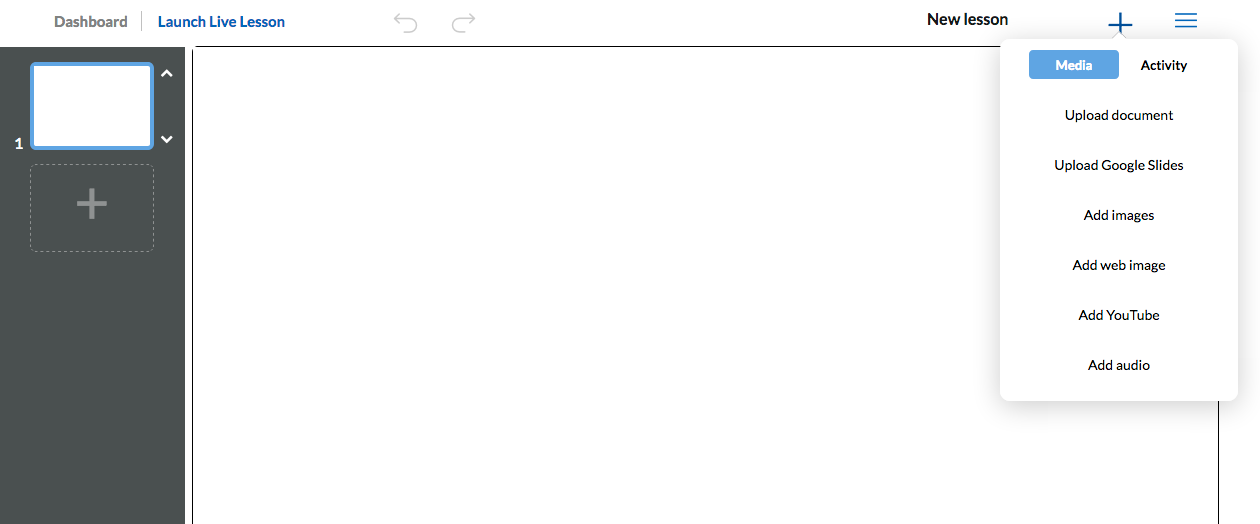
It’s a very easy tool to use. You can set up courses just by clicking on the cross in the top right of screen.
Once you have created your course topic, adding and editing lessons is simple.
Once the editor is open you can upload ready made presentations in multiple formats and add interactivity to them or create the lesson by adding individual elements and interactive learning objects.

Once the lesson is created Unio is really simple to use. You just launch the live session and any student can then log in to the lesson with just their name and the class code.

Unio works in the web browser so will run on any device regardless of the operating system, so it’s ideal for the BYOD classroom.

Once students have the lesson open on their device they can use the tools to annotate it, answer polls, watch videos or if they have questions they can send them in to the teacher.

As the teacher you can control which slide they are seeing or you can ‘unsync’ the presentation and allow them to browse. When the presentation is ‘unsynced’ students can watch any video or media clips independently on their own devices rather than collectively on your main presentation screen. This is great if you want students to watch or listen at their own pace.
When you finish a live lesson you can leave it open for students to browse and work through independently, so there is potential to use this for a flipped learning approach too, or you can use it for 100% online classes instead of screen sharing (and save a lot of bandwidth).

Unio is a freemium product, but the free version is very usable and the if you want to upgrade and use this at a school level then it’s still very reasonably priced.

Unio is still in its early days and the company is very keen to work with schools and educators to develop the product. You can find out more about that here: https://uniobyharness.com/about

Unio has huge potential for the digital classroom and is a great way to keep devices, fingers and minds occupied and working in a constructive way.

I hope you enjoy using Unio and your students find it rewarding. You can find 100 + more tools and resources like this in my ebook Digital Tools for Teachers - Second Edition or if you want to train other teachers to use these kinds of tools check out the Trainers’ Edition.


My Books:
 Best

Nik Peachey

Tuesday, 7 November 2017

Becoming a Technology Teacher Trainer

I’m really proud to announce the release of the second edition of my Digital Tools for Teachers ebook and also the Trainers’ Edition which should enable any teacher with a basic knowledge of technology to run teacher training and development courses and sessions for pre-service and in-service teachers.


The two ebooks are available for both iOS/ Apple devices as well as in a PDF version that can be used on any reader, smart phone or computer.


The Second Edition of Tools for Teachers contains a new chapter on games and gamification with X links to games and game type resources that you can use with your students to develop their language skills. In addition to this the other chapters have had some 30 additional tools added.

The teacher trainers’ edition includes all the extra materials mentioned above as well as 3 additional chapters to enable any teacher to use the book for teacher training and development purposes.

These chapters include tips and advice for trainers, more than 20 teacher training activities that exploit the resources in the book and a chapter on digital tools for trainers that can enable them to deliver paperless digital training sessions.

The Second Edition of Digital Tools for Teachers is available from
The Trainers’ Edition of Digital Tools for Teachers is available from
I hope you find these books useful and they help you to develop your own teaching and the teaching of others as well as the learning potential of your students.

My Books:

 Best

Nik Peachey