Showing posts with label vocabulary. Show all posts

Wednesday, 15 January 2020

Vocab Victor for developing vocabulary knowledge

Vocab Victor is a great app and resource for developing vocabulary. I say app and resource because as well as the free app you can download from the site, there are also some great resources on the website.

Let's start with the app though. The Vocab Victor app is a really useful example of gamified vocabulary development. The app has 14 levels and the user has to work through the levels playing different kinds of games to learn different types of word knowledge for hundreds of words.

There are 5 different types of game for developing vocabulary.

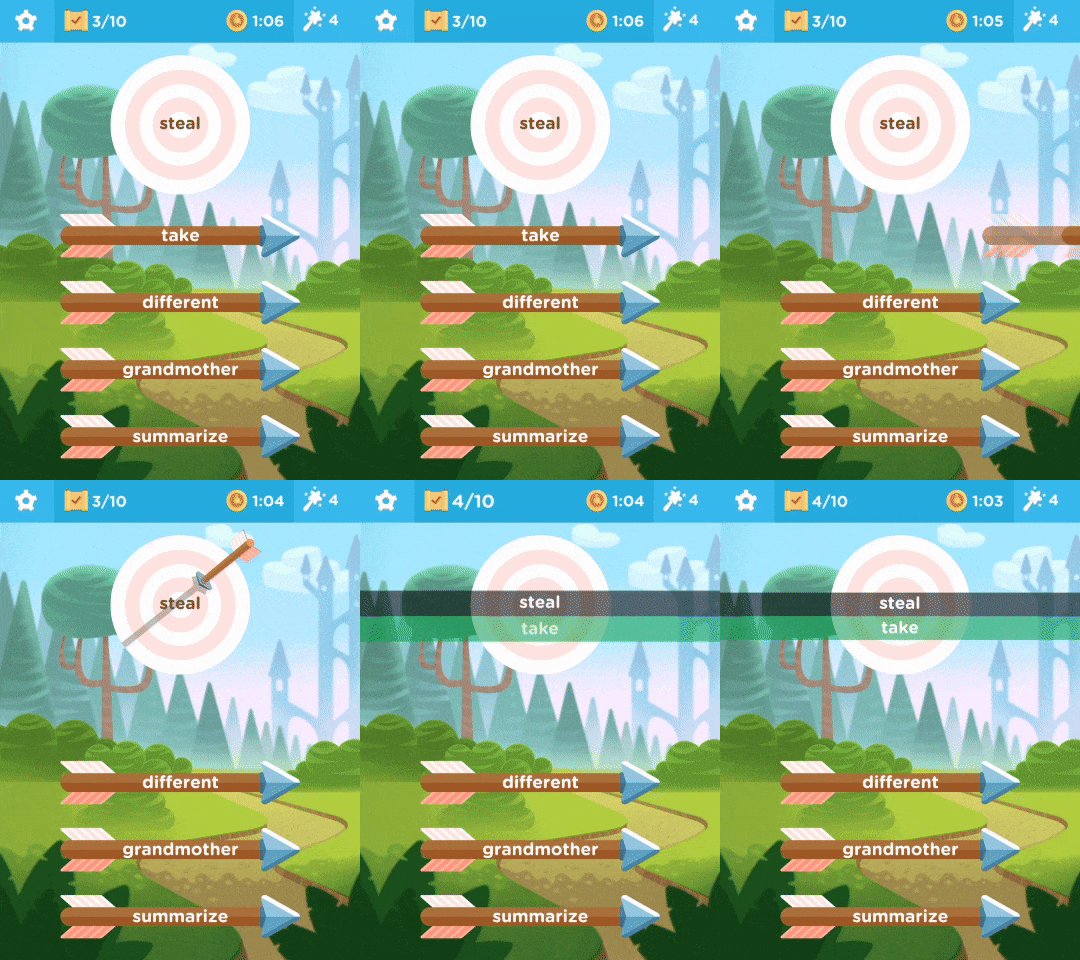
Word strike which is like a word association multiple choice game.
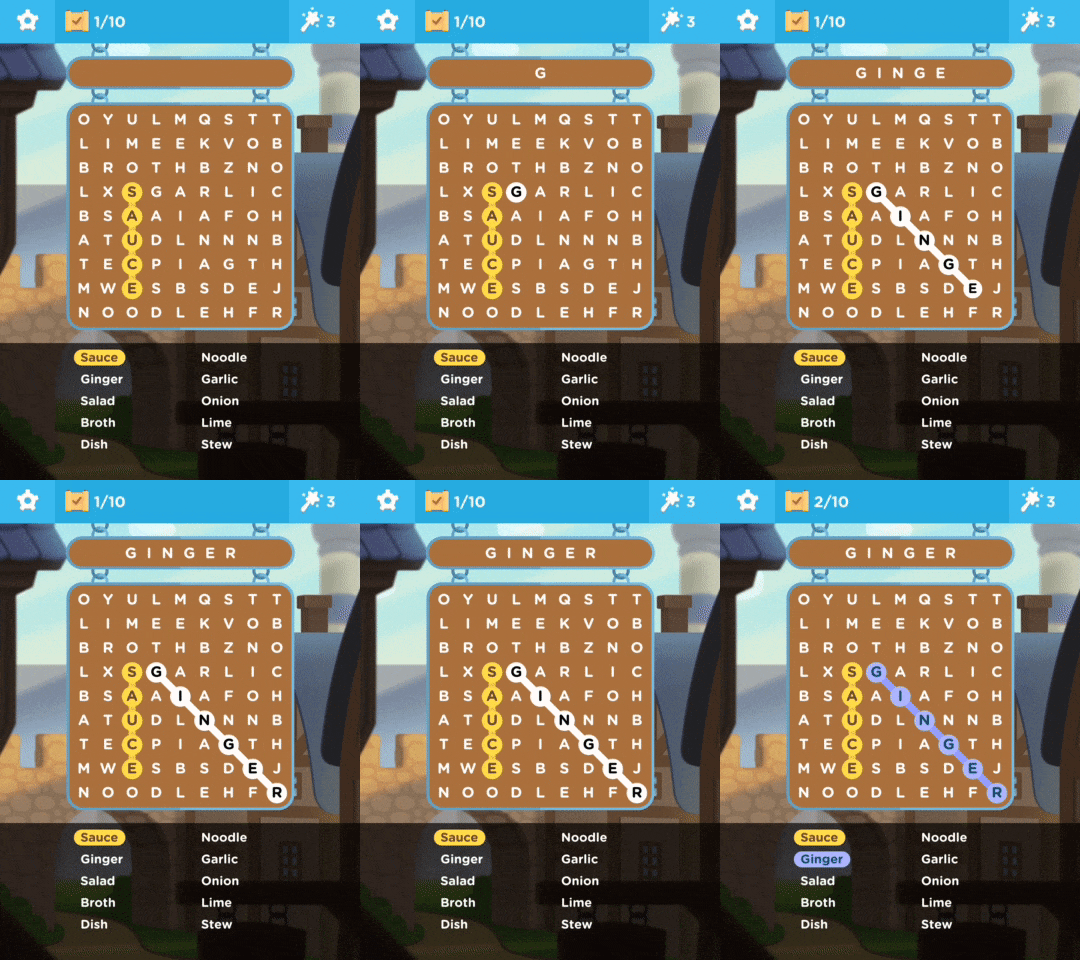
Word find which is like the classic word search activity.
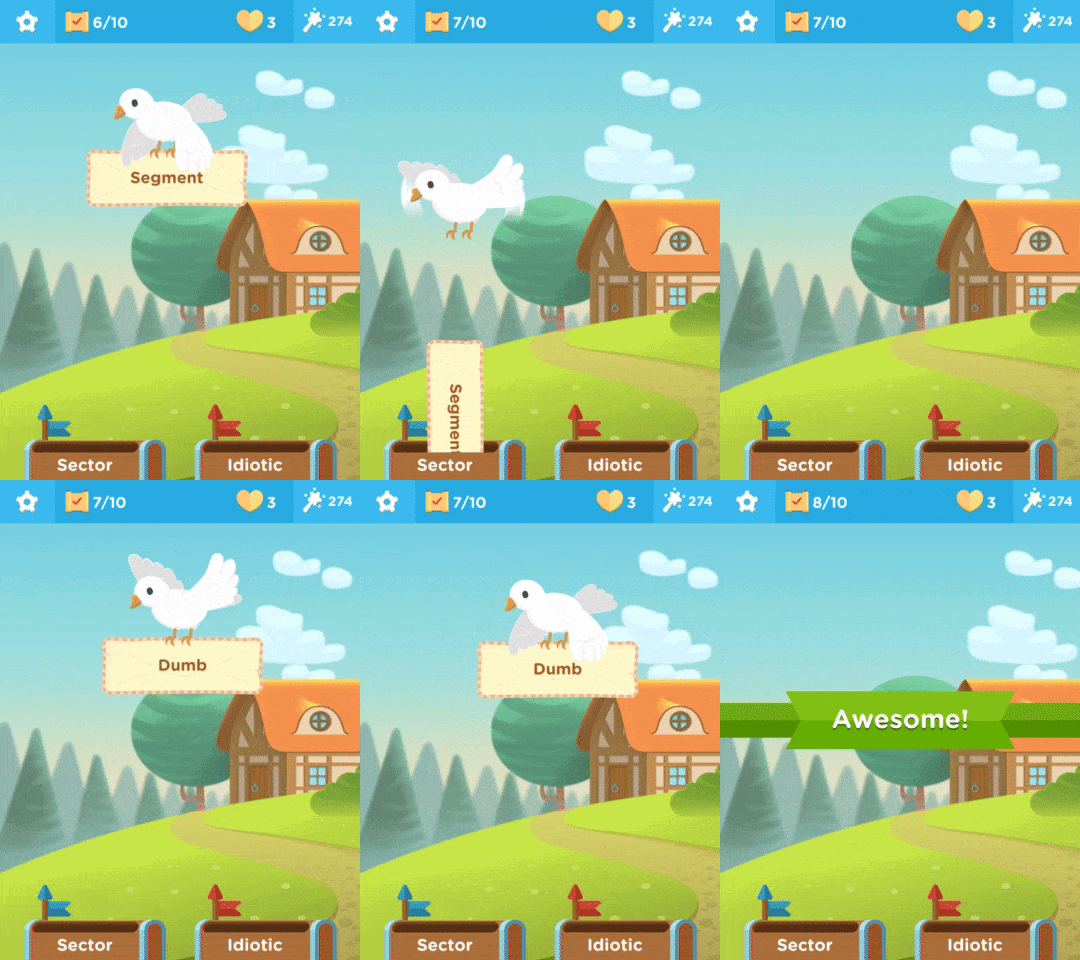
Word drop which requires students to choose which of two words has the strongest association to the keyword.
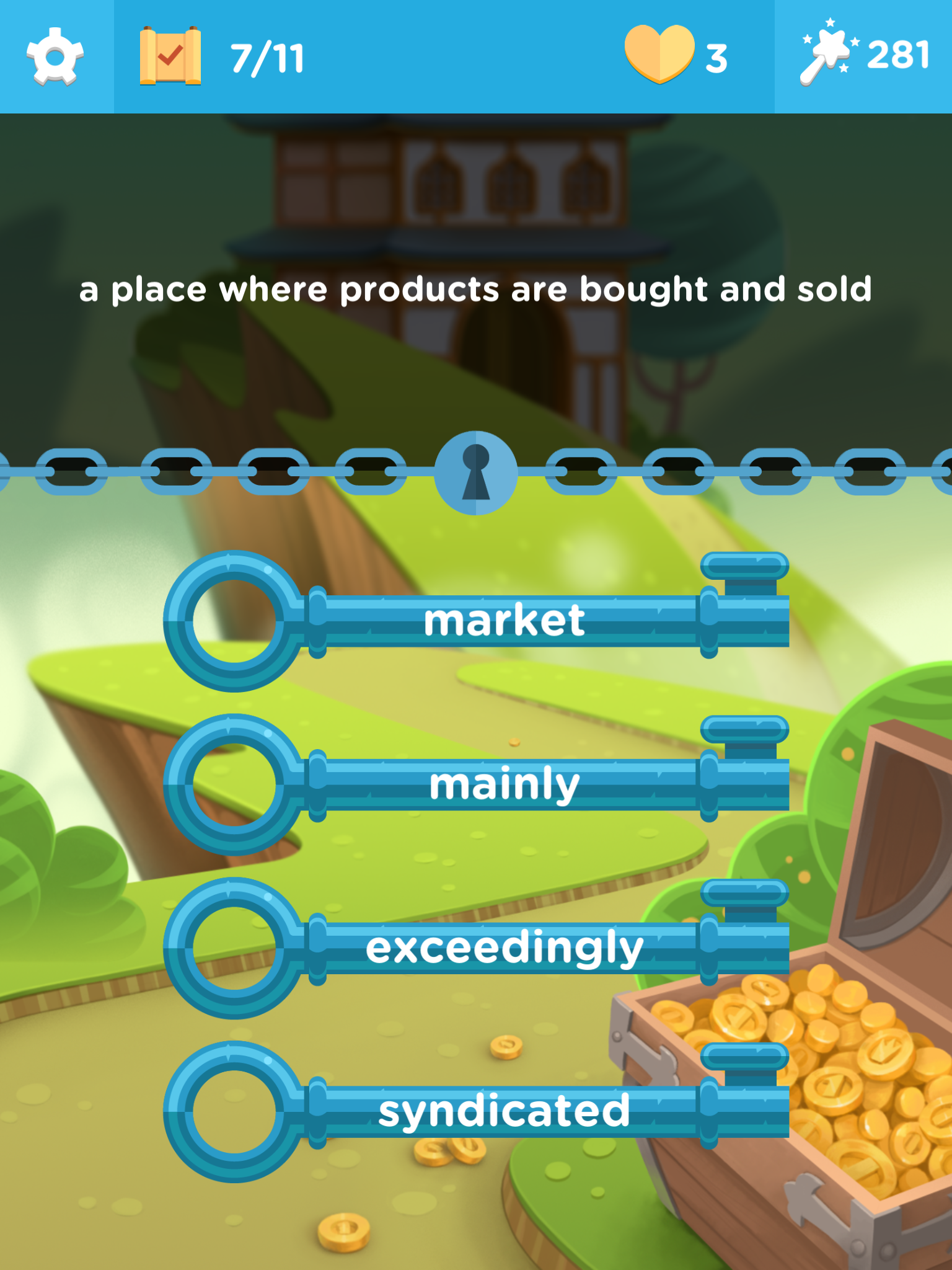
Word lock which requires students to match words to definitions.
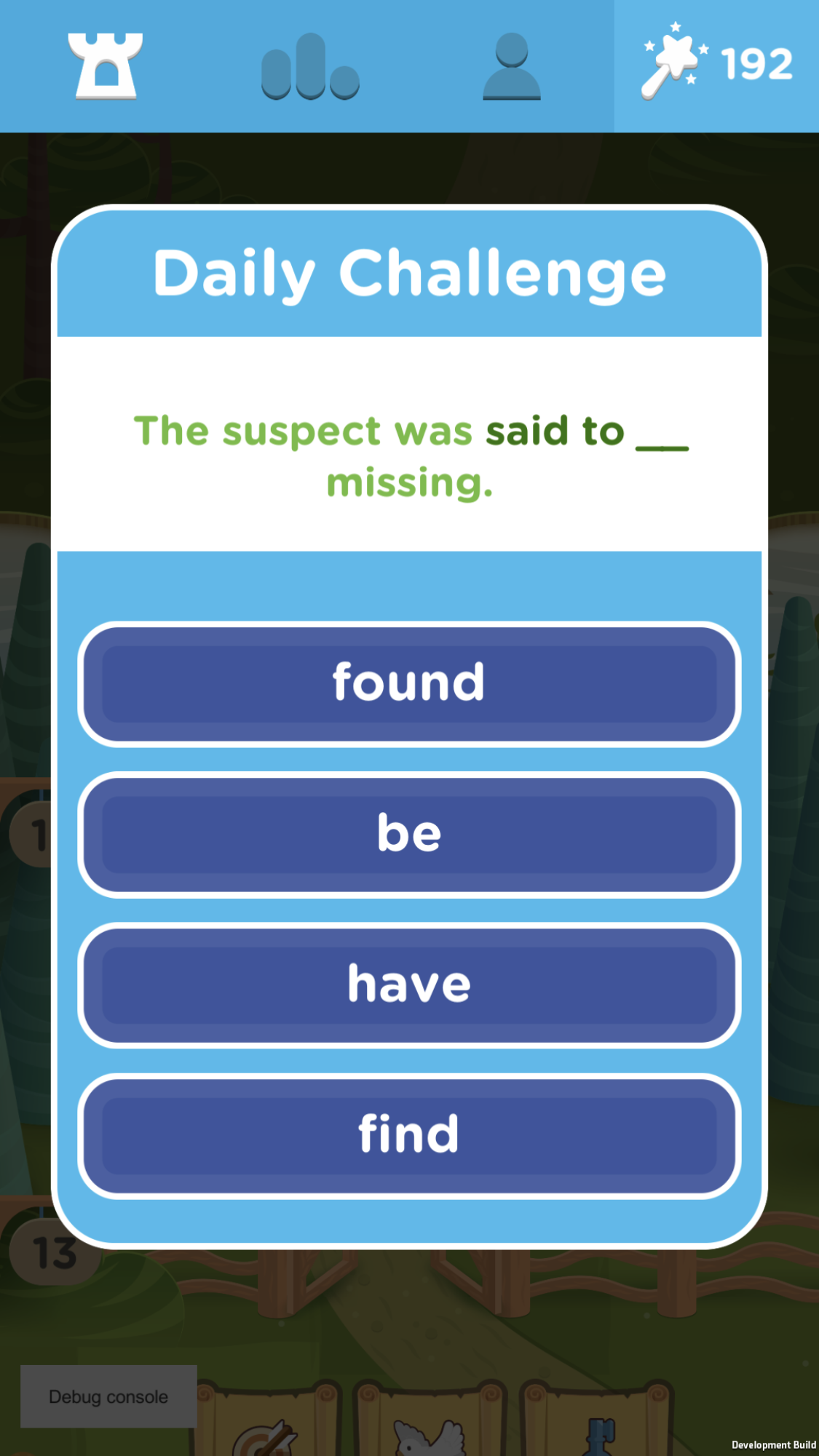
And a daily challenge game which focuses on collocations and word grammar.
The games are attractive and very intuitive. Students can also review the words they have studied and as they work through the games they earn charms. They can use these charms to get help or to move on when they get stuck with a word.
There's also a leader board that they can use to see how they are doing in comparison to others playing the game.
The web site includes a word study resource, which lets students find more information for selected words, and even a video which gives an example of the pronunciation in use in a YouTube video.

There is also a vocabulary challenge course that has videos and information to help students learn 20 new words a week over 25 weeks.

Vocab Victor is a great free resource for students. It's probably best suited to students who are around an intermediate (B1 +) level as some of the words are quite difficult, but it can adapt to the students level, so if students are getting a lot of words wrong then it will find lower-level words.

Vocab Victor is a  great tool to use in class as a filler activity or better still get your students to download the app and practise in their free time. The app works on both iOS and Android.

Check Out My Books:


Best
Nik Peachey

Thursday, 30 August 2018

WordBooster - For Creating Learning Around Authentic Text

When technology first came along we were all told that it would save us time and make our lives easier, and yet here we are many years later working harder than ever.

Well at least there is WordBooster that really does live up to the hype, save time and deliver excellent results.You can convert an article into a learning activity with glossary and vocabulary building tasks in less than five minutes.

WordBooster is the ideal tool if you want to use authentic materials to build your students’ reading skills and vocabulary. It enables you to quickly generate a glossary and some vocabulary building activities based around your choice of words from the text.

How to create a vocabulary building worksheet


  • To create your activity, register (for free) and then paste either the text or the URL into field and click on ‘GO'.

  • Wait a few moments and you will be able to format and edit the text.
  • When you’re happy that the text looks good and is  ready print, click ‘GO' again and you’ll see some suggested words and expressions to include in your activities.
  • Click on the word or phrase you want to include in your activity and you’ll get some options for the definitions of the word you include.
  • Click on the correct definition then click on ‘Accept' and the word and definition will be added to your worksheet.
  • Once you have all the words you want to include, click on ‘Done’. You can then download the text as PDF.
  • Click on 'VOCAB LIST' and you will see and be able to download the glossary.
  • Finally, click on ‘QUIZ' and you’ll be able to configure the types of questions you include in your vocabulary quiz. You can easily change the types of question. Then click on ‘Create Quiz as PDF' and you will be able to download the quiz and answer key.
All the the texts you use are stored in your profile so it’s easy to go back and reuse them or create new versions for different classes or revision for the original class.

All the worksheets also include a short link and QR code that takes students to the original article online, so if you want students to do their reading from the screen while they work on the activities, that’s also easy to do.

WordBooster really is a great tool for saving teachers time and effort and creating professional looking materials. It’s especially good for anyone working in the CLIL classroom who needs to use topic specific texts and great for authentic reading materials for higher levels.

What’s not to like?

You can find more tools like this and advice on how to train teacher to use them in my ebook - Digital Tools for Teacher - Trainers' Edition.
I hope you find it useful.

Best

Nik Peachey

Tuesday, 10 October 2017

Wordiser the Blended Learning Platform

Wordiser is a great free tool for creating blended learning that works in the browser across a range of devices.

The tool enables you to create virtual classes and then track individual students as they work through a range of personalised learning activities.

Apart from the wide range of ready made interactive or printable worksheets that you can assign to students, you can also create your own activities based around lists of vocabulary that come up during your classes.
Wordiser also allows you to automate the revision process so that students get reminders and follow up worksheets and activities to do that ensure they remember more of what they have learnt.

There's a really good range of activity types and media to integrate into lessons and you can even create your own digital worksheets based around your own texts or ones that you find online.

Wordiser is quite a complex tool that enables you to do a wide range of complex tasks, so you need to be prepared to invest a little time into understanding it, but there are plenty of tutorials and support to help you along the way.

Here's a short video that should help to give you some idea of the power of this free tool.


You can find links to many more tools like this and activities for the digital classroom in my ebooks at: http://peacheypublications.com/. All my ebooks are available for iOS and as PDF.

Sign up for my twice monthly free newsletter and get a free copy of Digital Tools for Teachers at: https://tinyletter.com/technogogy/ 

My eBooks:

Best
Nik Peachey

Saturday, 2 September 2017

Remember More Words with this Free Dictionary & Vocabulary Reminder

VocabReminder is an iOS dictionary app that has been designed to help you revise and remember your new vocabulary.

When you find a word you want to learn, add it to your list of words by tapping on the bell icon next to each word.
The app will then setup a schedule of reminders to help you remember to check the meanings of the words you've chosen and give you a small test of your understanding of the word.
 According to the site:

"Research has shown that retention is improved through repetition, writing, recall and unplanned reinforcement.

VocabReminder improves your vocabulary by employing all of these techniques — using a proprietary algorithm for determining the optimal time to send you vocab reminders."

The app could be particularly useful because it will work without an internet connection, but it's only available for Apple devices at present.

You can check out the quality and suitability of the definitions  by going to the site and using the Word search feature.

VocabReminder is a useful tool to recommend to any of your students who have Apple devices.

You can find more tools and activities like these in my ebook 10 Lessons in Digital Literacy - a collection of lesson plans built around engaging infographics.
The book is available on iOS or as PDF for other devices.

You can also sign up for my twice monthly free newsletter and get a free copy of Digital Tools for Teachers at: https://tinyletter.com/technogogy/ 

My Books:
 Best

Nik Peachey

Friday, 11 August 2017

Create Vocabulary Activities from Authentic Text in Minutes


WordBooster is a real time saver for anyone creating courses using authentic materials. The site generates word lists and vocabulary quizzes from authentic texts and includes definitions of the words and a range of activities to help students understand and remember the words.


All you have to do is choose the text and download the worksheets ready for printing.
You just copy and paste the URL of the page you want to use with your students and after about 1 minute the process will be complete.


You can then see the text of the page with the key words underlined and download three separate documents, Reformatted Text, Word List with definitions, Vocabulary Quiz activities, as PDF.


The word list also contains example sentences of the words used in context as well as a QR code that links back to the original article or webpage online.

I hope you find WordBooster useful. You can find links to many more tools like this and activities for the digital classroom in my ebooks at: http://peacheypublications.com/. All my ebooks are available for iOS and as PDF.


Sign up for my twice monthly free newsletter and get a free copy of Digital Tools for Teachers at: https://tinyletter.com/technogogy/ 

Related links:

Best
Nik Peachey


Tuesday, 31 March 2015

Take the pain out of marking homework with CorrectiveFeedback

One of the most time consuming and at times depressing tasks any teacher has to do must surely be marking large piles of student homework. That may sound like an awful statement, but the truth is that however little or however much effort our students do or don’t put into their work, many of us know that when we have marked the work and and hand it back to the student, they will look briefly at the mark and then probably never look at the work or our comments again.

So we all know that homework has to be marked and the students’ efforts have to be acknowledged, but we also know that often this process has very little positive outcome beyond that validation of the work our students have done.

CorrectiveFeedback may well have an answer though to both the problem of the time taken to mark assignments and the effectiveness of the feedback given.

CorrectiveFeedback enables you to automate a large part of the marking process and to also make the feedback you give more effective. It does this through using a number of marking ‘grids’ which you can customise to the needs of your students and the nature of your assignment.
Once you apply a marking grid to an assignment it will automatically analyse the content of the assignment for things like spelling, grammatical areas, use of specific verbs students have studied or vocabulary range related to topic field. It will then even suggest links in the feedback that students can use to revise or expand their knowledge of the problem areas and produce a completed feedback analysis which you can then send back to the students.


This is how it works
Once you log in to the online platform you will arrive at the dashboard. The first thing to do is to click on ‘CREATE GRID’. This is where you select the type of marking grid and rubric you want to use for the assignment. There is a really wide selection of marking grid you can use and these vary from the expected ‘error correction’ of text to ones that you can use to record spoken feedback and respond to audio recorded homework assignments.

 You can also mix grids and combine them so that you have one part of the grid for analysing grammar and another part which includes spoken feedback so that your students can listen to your comments, instructions and encouragement.
Once you have selected and created your grid it will be saved into the ‘MY GRIDS’ part of the site. Here you can store as many different marking grids as suits you and reuse them whenever you need them.


The next stage is to start marking your students assignments. To do this you need to either upload the assignments or get students to email you there assignments. This process is made easier for you in two ways.
  • CorrectiveFeedback creates a dedicated email address for you when you register, so that you don’t have to use your personal one, and any emails sent to this address automatically appear in your assignment section. 
  • The second option is that you can copy paste all of your students’ assignments into a spreadsheet and upload them all together.

Once the assignments have been uploaded, go to ‘CHECK ASSIGNMENT’ on the dashboard and here you can select the grid that you want to apply to each homework assignment. Depending on the features of the grid you select, it will analyse the students work find errors or weaknesses in the vocabulary etc and produce a list of areas in the text for you to comment on or mark in some way.


You don’t have to follow the suggestions of the grid, you just read through them and then select, deselect or edit the point you want to comment on and the comments you want to make. You can also award points based on a rubric or record spoken feedback. Once you have finished marking, your feedback is saved into the database and your students receive an email with a PDF of the feedback or links to your spoken audio feedback.
The feedback your students are sent can also include auto generated links to grammar or vocabulary reference materials so students can follow up your comments in a constructive way.

If you need to go back and check students’ assignments at a later date they are all stored in ‘CHECKED ASSIGNMENTS’ and you can even reedit and change the feedback and resend it.


CorrectiveFeedback really is an impressive pedagogical tool and one that can potentially save teachers a lot of time and also enhance the learning process.


What’s great about it?
  • There is a real variety of different marking grids which you can quickly edit to your needs
  • I love that you can record spoken feedback so that students can hear tone and intonation or even examples of pronunciation
  • It’s great that it can scan for errors or weaknesses in vocabulary and suggest helpful links
  • Being able to collect together all your students work into a database where you can go back and retrieve it can be really useful when it’s time to write reports, etc.

When you first sign up for CorrectiveFeedback you are automatically awarded 100 credits which enable you to mark 100 assignments. At present getting more credit is still free, though in the future there is clearly an intention to make this a commercial product.

Paying for an online product may well be difficult for many teachers, especially when there are so many free tools around, but I feel that if you find a product that can really save you time for a reasonable price then it is worth supporting these products and putting a little money in. Ideally schools should be able to pay to enable teachers to use such things, though realistically we all know that seldom happens. I guess the decision we have to make is around the value of our time and how much of it a tool like this can save.

I hope you give CorrectiveFeedback a try and that it saves you some time and helps to make your marking time more rewarding for you and your students

Related links:

Nik Peachey

Tuesday, 14 May 2013

Developing geography related vocabulary

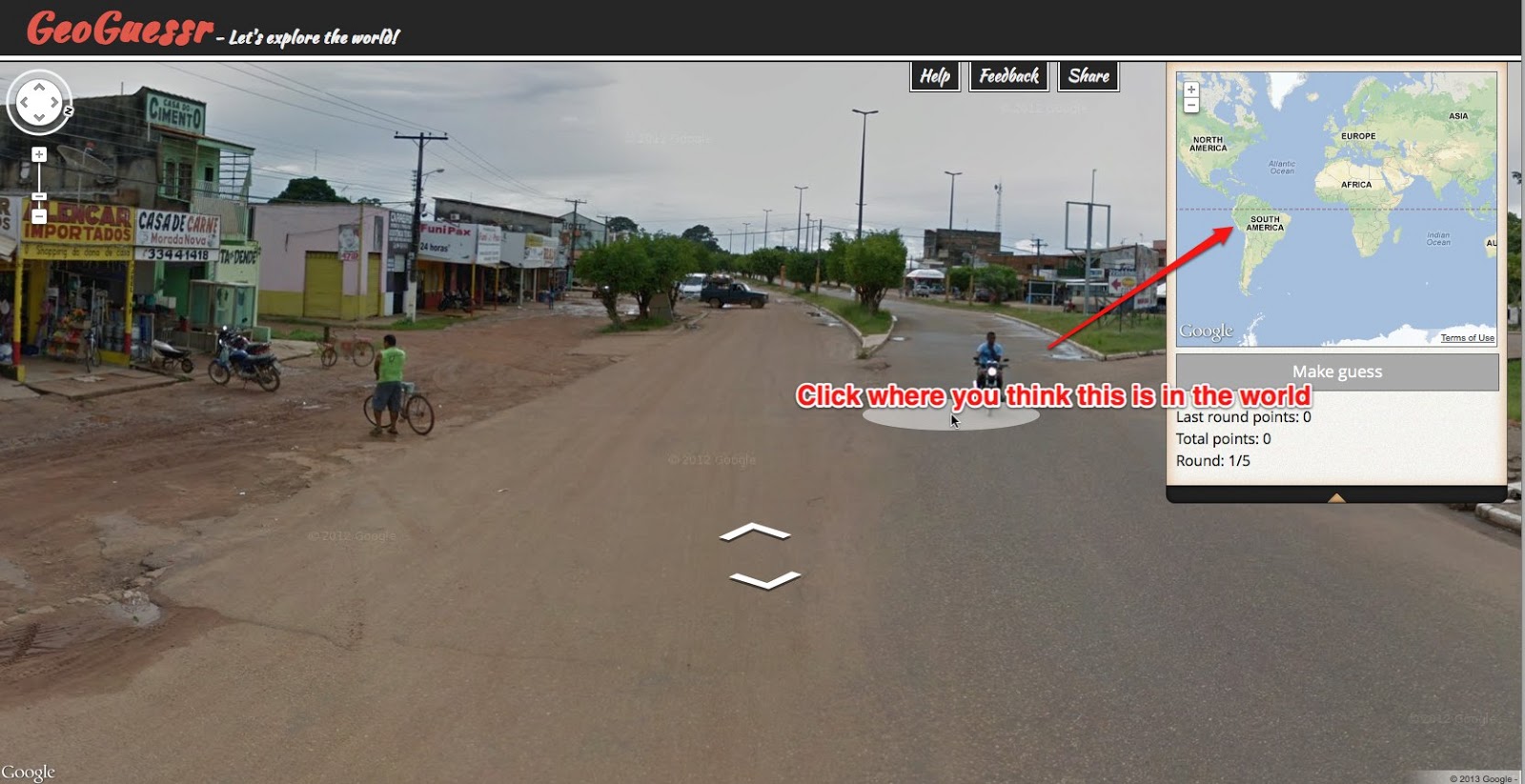
I saw this website today and thought how great it would be to use it in the classroom for developing words related to places and describing different places. The site  GeoGuessr is actually based on Google maps and it's a simple game.

The game works like this:
  • You see an image of an unknown place somewhere in the world and you have to guess where it is and click that place on the map. 
  • Because this is based on Google maps street view you can actually explore around the image and look for clues.
  • Once you click on the map you will see the real location and how close or far away you were.
  • You are awarded points depending on how close you are to the real location.
  • You have five turns to score as many points as possible.


How to use the site for EFL /ESL
The game itself doesn't really involve any language input or output, but you can easily add that.
  • If you are using it in a single computer classroom you can show students the image and ask them to guess where it is. Ask them to justify their answers by describing what they can see. This way you can also practice modal verbs such as 'it may be', 'it might be' 'it could be', 'it must be' etc.
  • If students are working on computers you can put them in pairs and get one student to describe what they can see and the other student to listen and try to guess where the place is.
  • You could get students to make some notes and brainstorm words related to each of the places and then write a short description of each of the five places as though they visited them during a round the world journey.
  • For lower levels you could just play the game and get the students to call out the names of the places. 

 
What I like about the site
  • This a is a great way to bring the world into the classroom.
  • Students can really explore inside the images and pan around to look for clues.
  • It's fun and a little bit addictive.
  • It's an engaging and unpredictable way to get students interacting with content.
I hope you and your students enjoy playing with GeoGuessr

Related links:

Best

Nik Peachey


Saturday, 30 June 2012

Mind Mapping in ELT with MindMaple


I have been fascinated with mind mapping since I first read Tony Buzan's  book on this topic many years ago. I used  it quite a lot when I was studying music, to break down the structure of compositions as well as to brainstorm the structure of essays and assignments, so I was delighted when my new sponsors - MindMaple asked me to look at their product.


For those of you who don't know much about mind maps, they are like diagrams which include words, images and icons to explore ideas and make the connections between ideas. here's an example from Wikipedia
When I was at college, these were drawn by hand on large sheets of paper but nowadays they can be produced using computer programs, and MindMaple is one such program. Using a program like MindMaple to do this has a number of advantages (especially if you don'r draw well).  The program comes with a library of images and graphics and you can import in your own photographs and illustrations too. You can also hyperlink words to website and webpages as well as upload files as attachments. Features like these make it much easier to produce a really useful finished mind map that you can share with other people.


MindMaple does this pretty well with a good clean interface which is pretty intuitive for anyone familiar with 'Office' type software.


MindMaple is software so you do have to download and install it and there are many pros and cons around that. If you work in a school or institution that has good IT support, or better still none, then you can get software installed pretty easily and especially if you done have a great internet connection MindMaple will be fast and easy to use. If you work in a school that has a very security conscious IT department it could take you months to get this installed whereas a web based tool you could probably use immediately - if you have a good connection.
So how do you use mind mapping with students?
There are a number of really useful ways of applying mind maps in your teaching.
  • You can get students to create a mind map of the lesson as a form of note taking to help them revise later. Or you can create a mind map of each lesson and give them to students to see how much they can remember from the lesson.
  • You can get students to make a mind map of a book, story or text they are reading. This could involve mapping the relationships of the characters, adding in characteristics, adding in actions that each one does etc.
  • In an EAP context you could get students to create mind maps of more academic texts they are reading, so that they represent the information from the text visually
  • You can get students to create vocabulary mind maps based around themes such as sport or politics and they can gradually add words to these and organise them in categories around the central theme.
  • You could get students to research a topic and create a mind map to display their findings, such as research into a historical place or event. They could hyperlink their mind map to the relevant research sources they find.
  • You could create or get students to create grammatical mind maps research a specific verb tense with break down of form, and pronunciation points as well as few examples and notes about concepts etc.
  • You could get students to create infographics using MindMaple. Infographics usually compare contrasting ideas or display statistical information. Here are some examples: Infograpgics
There are many tools and software available for creating mind maps, but these are some of the things I particularly like about MindMaple
  • It has some really useful formatting tools that help you make the mind map look nice. You can easily change the look of your mind map and in a single click apply a hole different colour palette.
  • You can add callouts and notes to the mind map. These appear and pop up when you haver the mouse over parts of the mind map image.
  • It's great that you can add your own images as icons within the topic blocks.
  • You can drag the topic blocks around the screen to arrange them with your mouse, but MindMaple also has a really handy balance tool that with a single click will arrange the whole of your mind map so that it looks tidy and symmetrical
  • MindMaple - in the premium version - exports to quite a few formats which makes it pretty flexible as a tool, you can export your mind maps to pdf and use them as wall charts or save them as Word documents. The Word document export also shows a breakdown of the different levels of your map so you can use this a the framework for structuring an assignment.

Things that I'm not sure about
  • The concept of 'software that you download and install seems very 'old school' these days with so many browser based tools around, but as discussed earlier, there are some advantages to this.
  • It would be great to have a mobile version of MindMaple or at least a function html 5 web based version (I'm told that they are working on a mobile version).
  • It's great that MindMaple exports to html, but there isn't any hosting support, so if you ant to get your mind maps online you have to have access to some sort of server space. This can be a real stumbling bock for many teachers.
  • The  built in clip art and selection of backgrounds is still a little limited and it would be good to have more variety to choose from.

MindMaple has free and a premium version. You can compare he differences here: http://mindmaple.com/Products/ but the main ones seem to be the export features are more limited in the free version and there are fewer themes and images .

At $9.99 a year MindMaple is a pretty good buy for those who take their mind mapping seriously or you can buy a lifetime license for $50. There doesn't seem to be an institutional license option and you would probably need this if you wanted to get it installed in a school for students to use.

So if you work in a school where installing software is no problem or if you want to try it on your own computer then I think it's well worth downloading the 'lite' version and seeing how well it works for you. If you take your mind mapping really seriously and want a good reliable product that isn't going to disappear ( as many web based products do) then it's well worth thinking about MindMaple Pro.


I hope you find MindMaple useful and enjoy making some beautiful mind maps.

Related links:
Best

Nik Peachey

Tuesday, 22 November 2011

Visualize sentences with video clips

A while back (well actually about 3 years ago) I wrote an article about Phrasr, a service that helps to visualize sentences by linking them to Flickr images, well now Vizlingo has taken this a step further.

Vizlingo enables you to type sentences and see them recreated as a linked sequence of video clips. Here's an example: This is a very smart way to visualize words and sentences. You like it?


These are easy to create, you just type your sentence into the field below the video and click on 'Create'. You may have to wait a few moments while the video is assembled and then it will play with the words that are represented underneath each clip.

If you don't like one of the clips in your sentence you can select it in the 'Lingo Breakdown' and you will see a number of alternative clips you can insert to replace it.

If you want to save or share your clips you will need to register and log in. Once you have done this you get a number of sharing options, including Twitter, Facebook and YouTube as well as getting a direct link to the video clip.

This is a great tool for students who are visual learners as it helps to connect the concepts in the sentence to visual reminders.

Some suggestions for activities
  • When learning vocabulary get students to create example sentences using the word (or better still two words) they want to remember in the sentence.
  • Try to assemble short dialogues using a number of clips.
  • Explore the relationship between the images and the words (The link can be a bit abstract sometimes).
  • Show students the clips and see if they can guess the sentence (cover the words)
  • Give students a list of ten sentences and see if the can link them to the videos you have created (again cover the words)
  • Get students to create a clip from a line or the title of a song in English and try to guess each others' song.  
  • Get students to create clips of idioms, for example

To some extent I think the value of getting students to create sentence visualizations like this and think about and select appropriate clips to represent different words has more value than the actual finished videos. It can really help the to explore the concepts of words.

Vizlingo is still in development at the moment and is likely to get better as more clips are added and more features (it looks like there will be a mobile version) so this is a simple tool that is well worth keeping an eye on.


 I hope you enjoy it.

Related links:
Best

Nik Peachey


Thursday, 27 October 2011

Explore Lexical Relationships

Graph Words is one of those websites like Wordle that seems, because of its simplicity, like a gift from the heavens for English language teachers.


Graph Words is a visual thesaurus that it is really simple to use. You just type in the word you want to explore and click on 'Draw'.


You will then see a colour coordinated web of word relationships. You can then click on any word within the web to explore the relationships to that word and so on. If you hover your mouse over the 'nodes' that connect the words you can also get a definition for the word relationship.


One of the great things about the site is that you can save each web as an image with a single click, so you can use the images in your teaching materials. The site also works well on mobile devices such as iPads /iPhones etc. and you can also drag and arrange the related words to regroup them.

What I like about it
  • Clear, colourful, free and simple
  • Great to be able to save the images so easily
  • Dragging and rearranging words should work well on an IWB
  • Nice way to explore word relationships
  • Great that it is built on html5 not Flash, so it works on Apple mobile devices.

Some ideas for using Graph Words for English teaching
  • Give students a text and get them to see how many words they can change and substitute in new words
  • Give students two words and get the students to try to find the words that connected the first word to the second (like 6 degrees of seperation)
  • Get students to include a word graph with vocab records of new words they are learning or words the are revising.
  • Create word graphs and hide the central word. See if students can guess the hidden word.
  • Get students to try to predict related words then create a word graph to see how many they got right.
I hope you and your students enjoy using Word Graph and if you think of other ways to use it, please leave your suggestions in the comments below.

Related links:

Best

Nik Peachey


Monday, 28 February 2011

Create a Web Based Song Activity in Minutes

Back in December 2010 I wrote an article about how you could use Batlyrics, a site which combined Song videos and lyrics, as a corpus to find examples of grammar or vocabulary you wanted your students to focus on: 'Lyrics and Video and Grammar - Song as Corpus'

Since writing this article I've spotted another useful feature of the site, and that is the addition of an embed code button.

This is really helpful, because now it means that you can select the song you want to use, copy the embed code and then embed it into your own web page or blog and write your activity around it.
This is particularly easy if you use the Posterous blogging platform, as all you need to do is copy and paste the embed code into and email, add a title and instructions and post it off to post@posterous.com.


A few seconds later you should get a message back with a link to your published activity. Then you just share the link with your students.
So now you can create quick online song based activities within just a few minutes. I hope you find Batlyrics useful.

Related links:
Best

Nik Peachey